
Autocomplete an Address
- In the New Project or Edit Project modal, click into the Address field.
- Type at least 6 characters of the address — suggestions appear as you type, powered by Google Places.
- Click the suggestion that matches the job site.
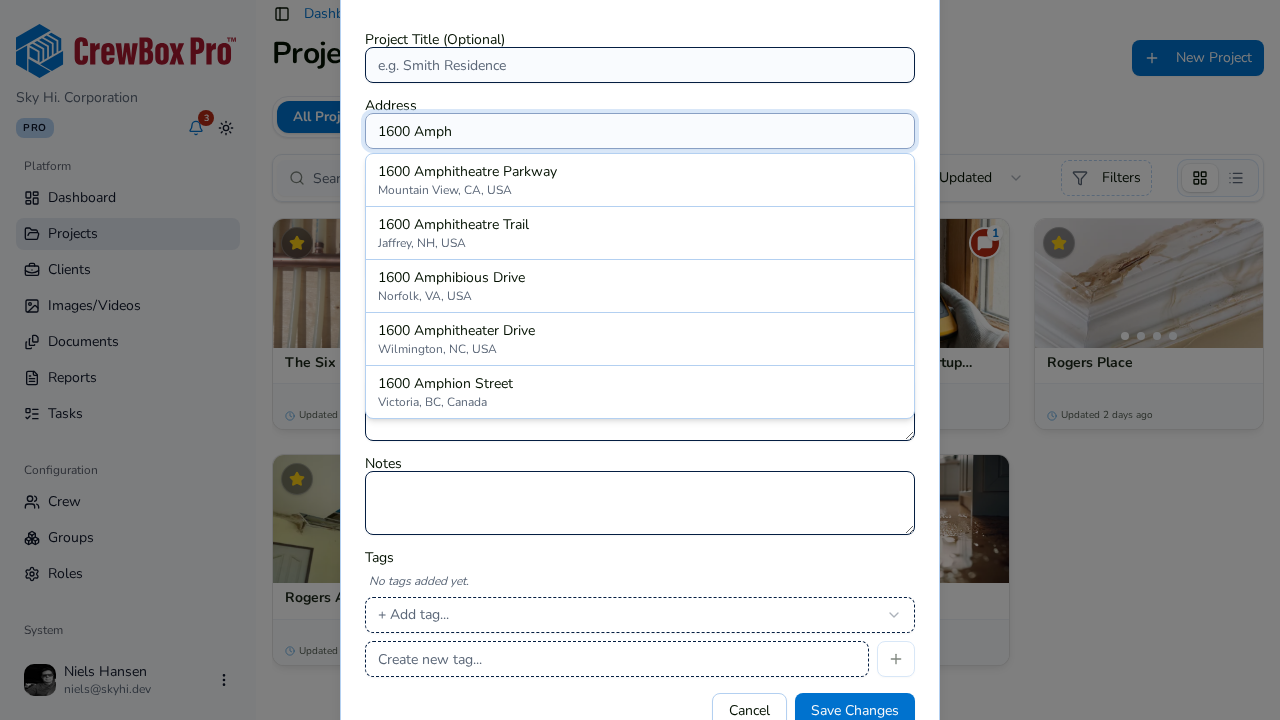
CrewBox fills in the street address, City, State/Province, Zip/Postal code, and Country in one shot — and pins the project's GPS coordinates to the verified location.
Good to Know
- Coverage is US and Canada. Suggestions cover United States and Canadian addresses, and the form labels adapt to match — State / ZIP code for US projects, Province / Postal code for Canadian ones.
- You can still edit everything. Autocomplete is a head start, not a lock — every field remains manually editable after you pick a suggestion, and you can type an address entirely by hand if you prefer.
- GPS pays off later. The pinned coordinates power the address's Google Maps link in the project header and location features across the console.