
Switch Between Overview and Comments
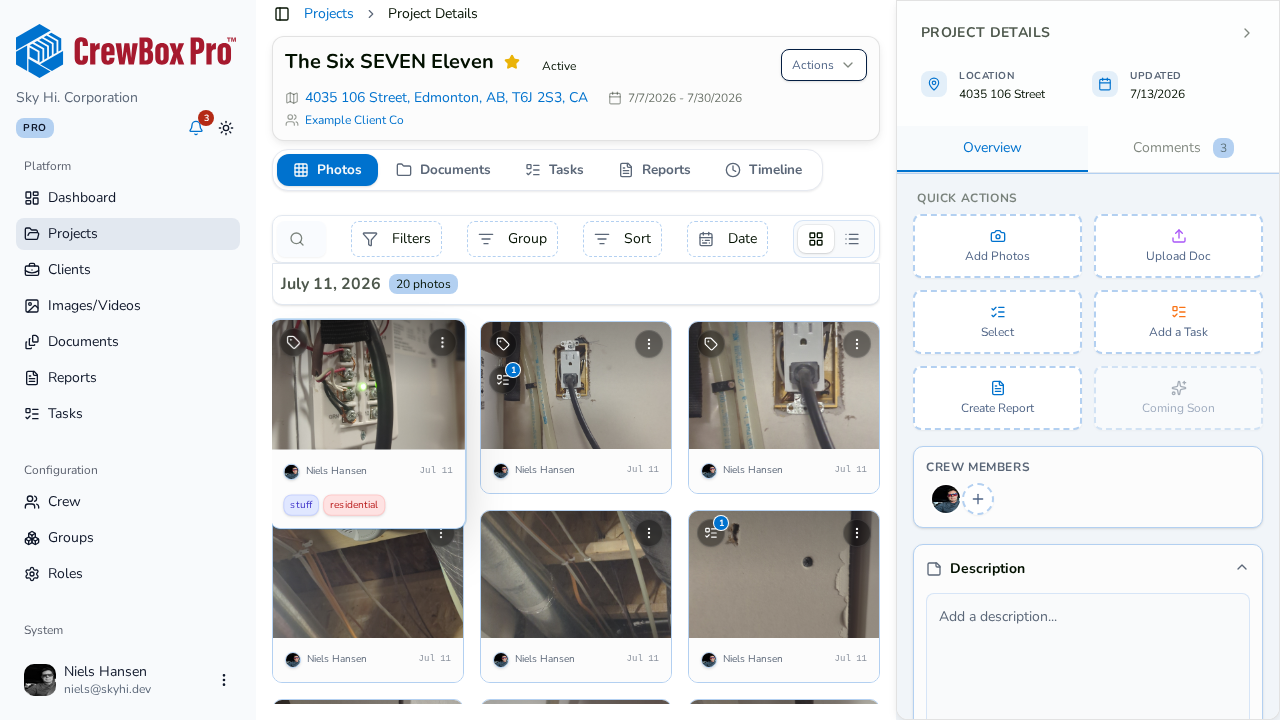
The sidebar has two tabs: Overview (actions and project info) and Comments (the project conversation, with a message count on the tab). On very wide screens, both panels show side-by-side.
Quick Actions
The Overview tab starts with a grid of one-click actions:
- Add Photos — opens a picker for images and video.
- Upload Doc — add a document to the project.
- Select — toggles multi-select mode on the current tab (photos, documents, or tasks) for bulk actions; click Done to exit.
- Comment — jump into the project conversation.
- Add a Task — create a task on this project.
- Create Report — start a PDF report from the project's media.
Crew Members Card
The assigned crew appears as an avatar stack. Open the manage dialog to search operators, add or remove assignments, or invite a new crew member inline when a search finds no one.
Accordion Cards
- Description — edit the text in place; it saves when you click away (on blur).
- Project Tags — a search-or-create tag manager for labeling the job.
- Upcoming & Overdue — the project's five most urgent tasks, overdue first; click one to open it in the task drawer.