
Start with the Tabs
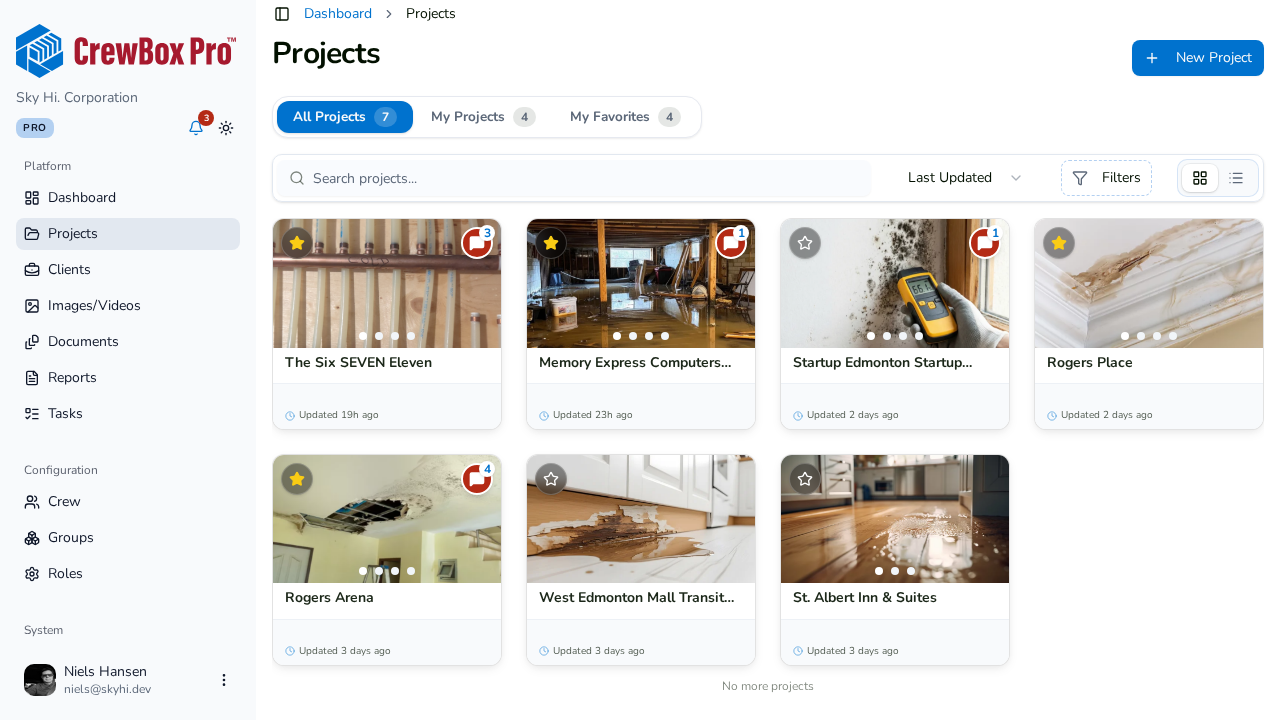
Three tabs with live counts sit at the top of the Projects page:
- All Projects — the whole portfolio.
- My Projects — only jobs you're assigned to.
- My Favorites — your bookmarked shortlist.
Search and Filter
- Search — type a term and press Enter (or click the Search button) to commit the search.
- Tag filter — open the tag filter, type in Search tags…, and select one or more tags to narrow the list.
- If a filtered view comes up empty, click Clear all filters to reset.
Sort and Switch Views
- Sort by Last Updated (default), Newest First, Oldest First, Name A–Z, or Name Z–A.
- Toggle between grid and list views. The list view shows each project's thumbnail, name, full location, photo/plan stats, last-updated time, and tags.
Browse the Results
- Infinite scroll — more projects load automatically as you approach the bottom, until you hit the "No more projects" marker.
- Hover to preview — hold your pointer on a card and it expands into a rich preview: schedule dates, full address, client and category, description, crew avatars, stats (photos, documents, tasks, comments, plans, markers), and tags. The card's photo carousel shows the cover first, with arrows and dots to browse recent photos.