
Manage the Project's Crew
- Open the project.
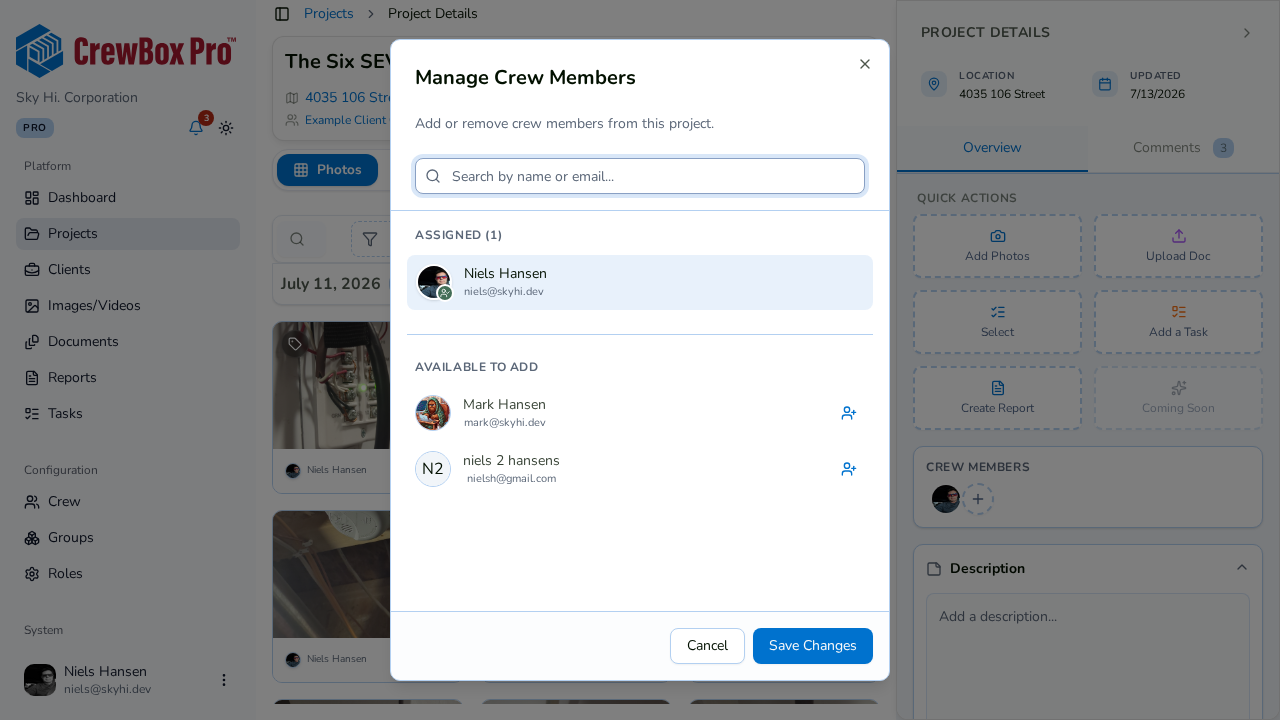
- In the right-hand sidebar, find the Crew Members card — it shows the assigned crew as an avatar stack.
- Click to manage the crew. The manage dialog opens with two groups: crew already assigned to the project and everyone else available.
- Use the search box to find an operator by name.
- Add or remove members — assignments update the avatar stack right away.
Invite Someone Who Isn't in CrewBox Yet
If your search comes up empty, you can invite a brand-new crew member inline from the same dialog — no detour to the Users page. They'll receive an invitation email, and once they accept, they can be assigned like anyone else.
What Assignment Does
- The project appears in that member's My Projects tab on the Projects page.
- Assigned crew show up in the project's avatar stacks — on the sidebar card, hover-expanded project cards, and the dashboard's Project Pipeline.
- Assignees become available in the project's task assignee pickers, and their photo, document, and task activity rolls up into per-user views.