
Steps
1. Open a project's Timeline tab
Open any project and click its Timeline tab. The timeline lists the project's domain events — project created, project updated, photo comments, task created, document added, and more — newest activity in event-card form.
2. Read an event card
Each card shows an icon for the event type, a timestamp with time-ago, the crew member who triggered it, and a trace ID. Events link to the entities they concern, so you can click through to the photo, task, or document in question. Clicking the person on a card filters the timeline to just their activity.
3. Inspect what changed
Project-update events show field-level diffs — a Before → After card for every changed field. GPS updates get a dedicated GPS change card showing the old and new coordinates side by side.
4. Filter the timeline
Narrow the feed with the filter controls:
- Date range — limit events to a window.
- Event type — autocomplete search across event types.
- Entity type — Project, Comment, Mediafile, or Task.
- Trace ID — find every event from one operation.
- Done by — multi-select one or more crew members.
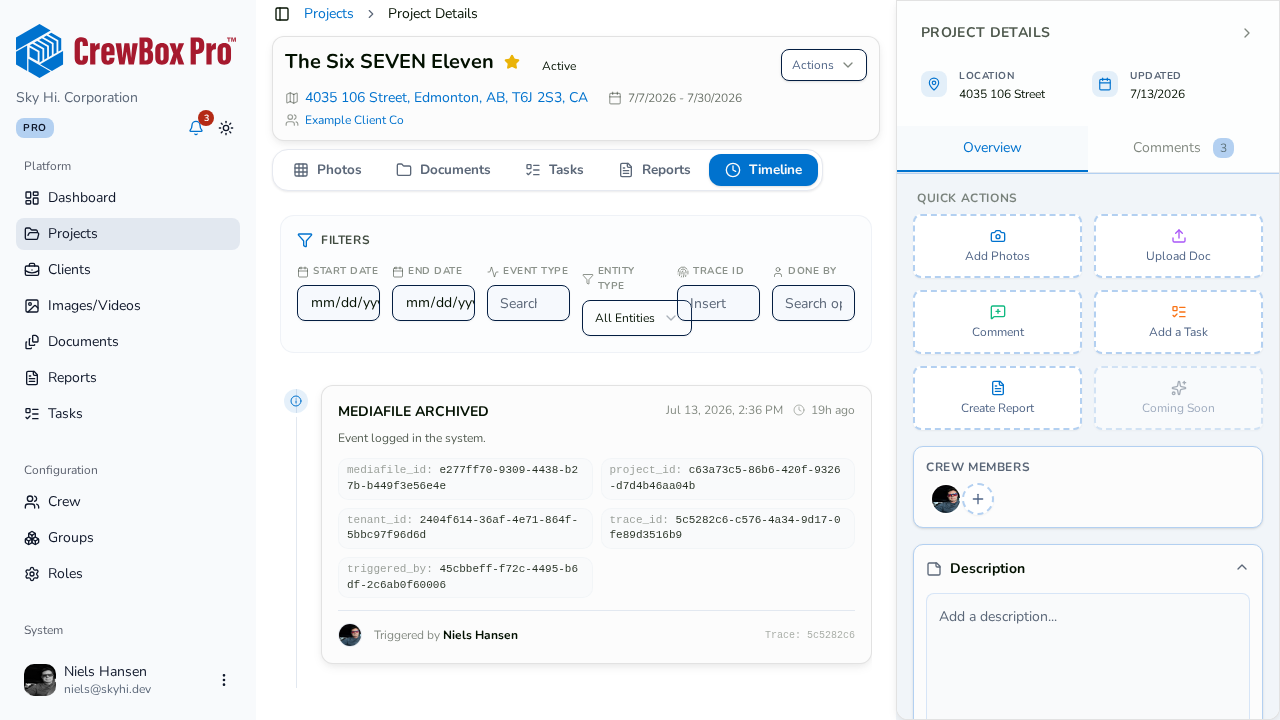
Filters combine, so you can ask questions like "what did this person change to tasks last week?"
5. Reset when you're done
If your filters match nothing you'll see a "No matching events" empty state. Click the clear filters reset to return to the full timeline.