
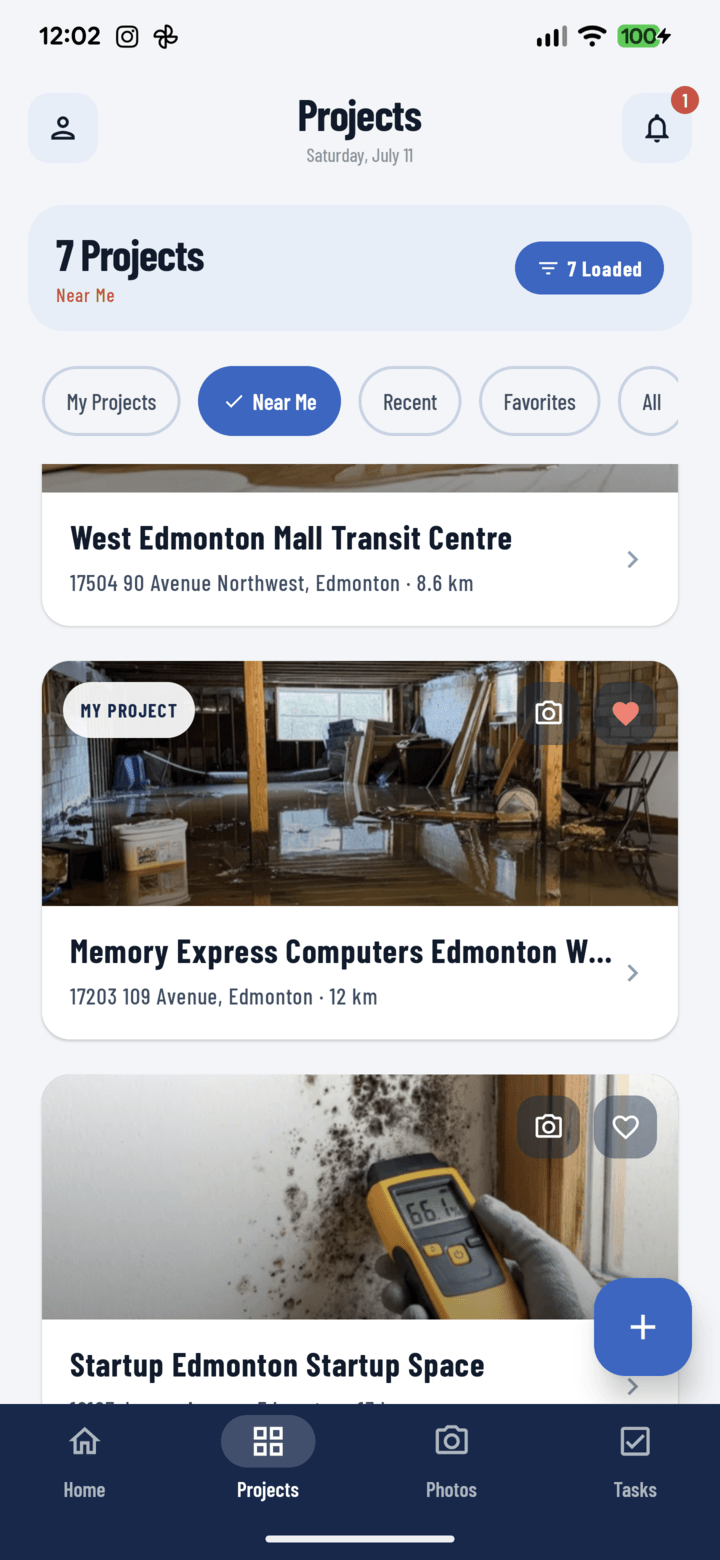
Project cards showing their cover photos
Steps
- Open the project's Photos tab.
- Tap the photo you want as the cover — it opens full-screen.
- Open the More actions sheet.
- Tap Set as project cover.
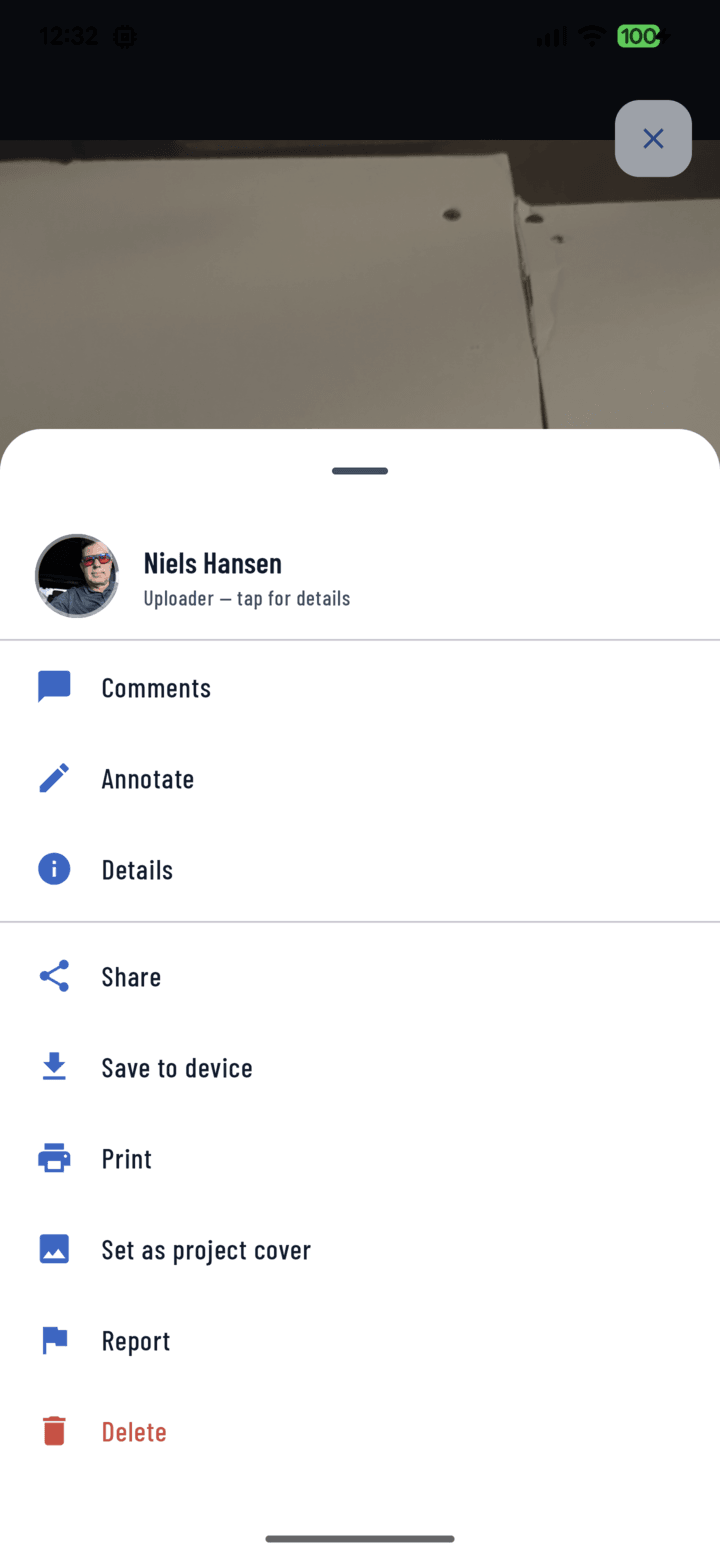
Set as project cover in the photo's More (…) menu.
Done — the project's card and hero header now show that photo.
Tips
- Crews recognize job sites by sight faster than by name — a distinctive exterior shot beats a generic interior for the cover.
- Update the cover as the job progresses; a framed-out shell and a finished build deserve different faces.
- Setting the cover is role-aware like other management actions — available to the project's team from the photo viewer.