Steps
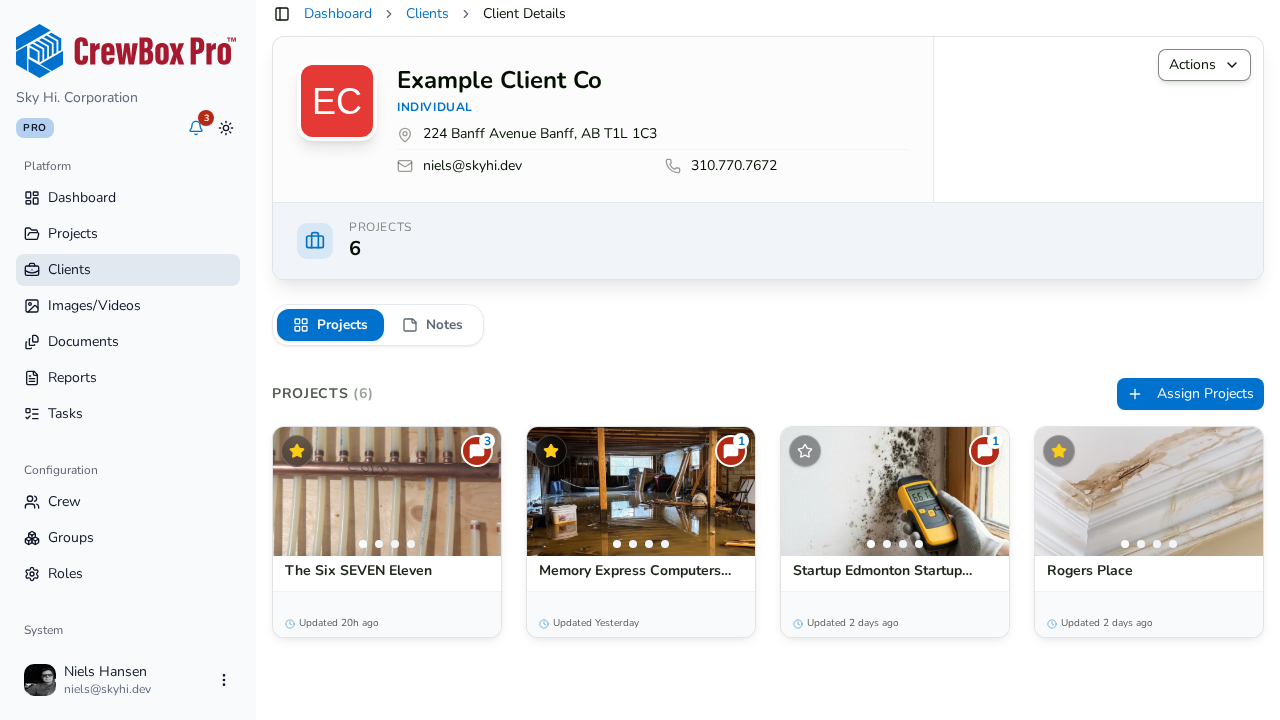
1. Open the client's detail page
On the Clients page, click View Details on the client's card (or click the card itself) to open the client's detail page.
2. Go to the Notes tab
Click the Notes tab. Existing notes appear as a running list.
3. Add a note
Click Add Note and type your note in the text area — up to 1,000 characters. Notes are saved as the "General" type. Save to add it to the list.
4. Read a note later
Click any note in the list to open it in a read view, which shows the full text along with its created and updated timestamps.
5. Make notes useful
Because notes live on the client rather than a single project, they're the right place for account-level context — billing arrangements, site-access instructions, preferred contacts, or history that spans multiple jobs.
Related