
Steps
- Tap your avatar in the top header → Profile.
- Tap the avatar's change-photo control and choose a source:
• Take photo — the front camera opens for a selfie, right in the app.
• Choose from gallery — pick an existing photo from your device. - Confirm — an upload spinner runs, and a snackbar confirms success.
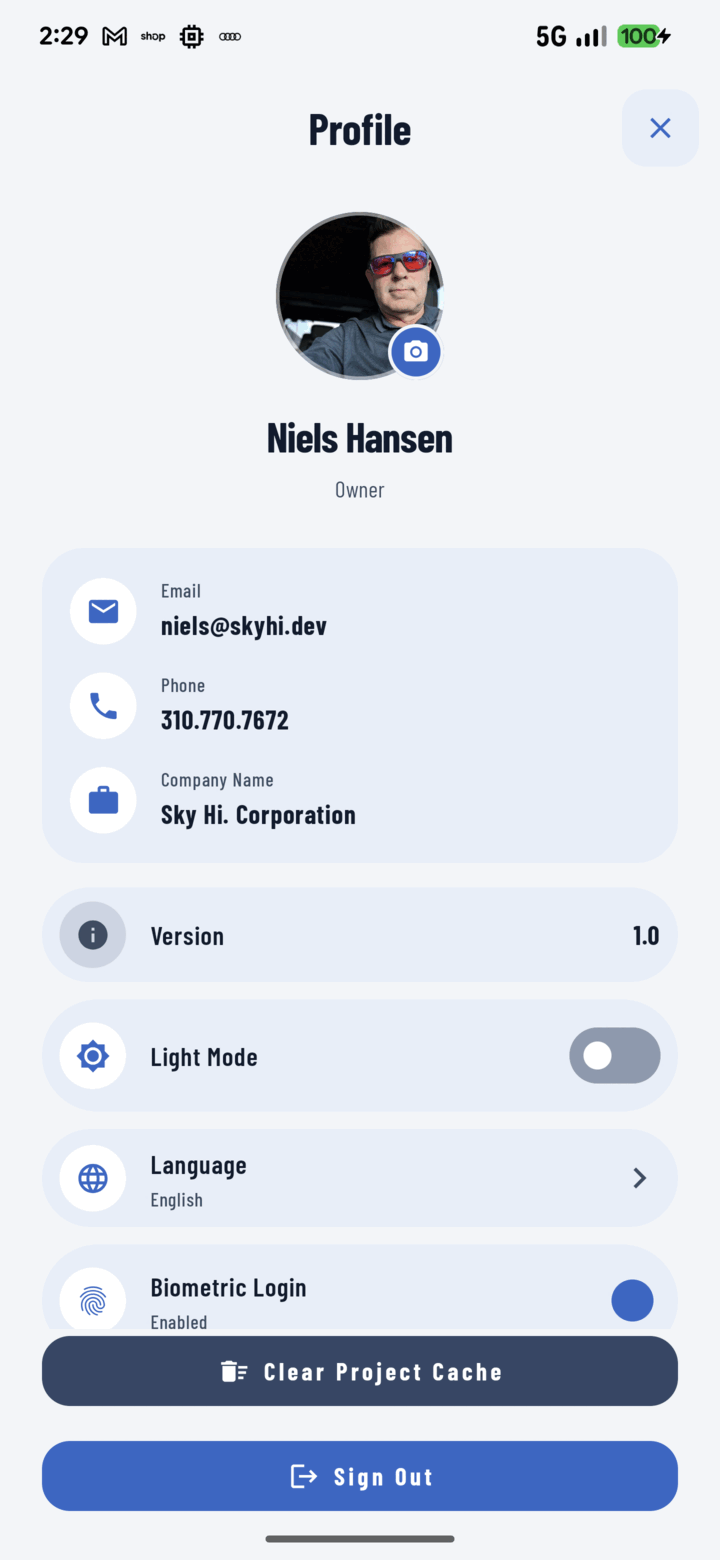
Tap the camera badge on your avatar in Profile to replace your profile photo.
Where It Shows
Everywhere identity matters: comment threads, task assignee chips, project crew stacks, photo/document uploader details, person cards, and the header button itself.
Tips
- A recognizable face beats a logo or a truck — the point is "who do I long-press to call".
- Hard-hat selfies are the genre standard. Lean in.