
How Saving Works
- There's no save button. Your changes save automatically about 3 seconds after you stop typing — and never more than 15 seconds after your first unsaved change, even if you keep typing.
- The label next to Published under the title shows Saving… while changes upload, then Saved.
- Tapping the ✓, the back arrow, or your phone's Back gesture saves right away. So does switching to another app or locking the phone.
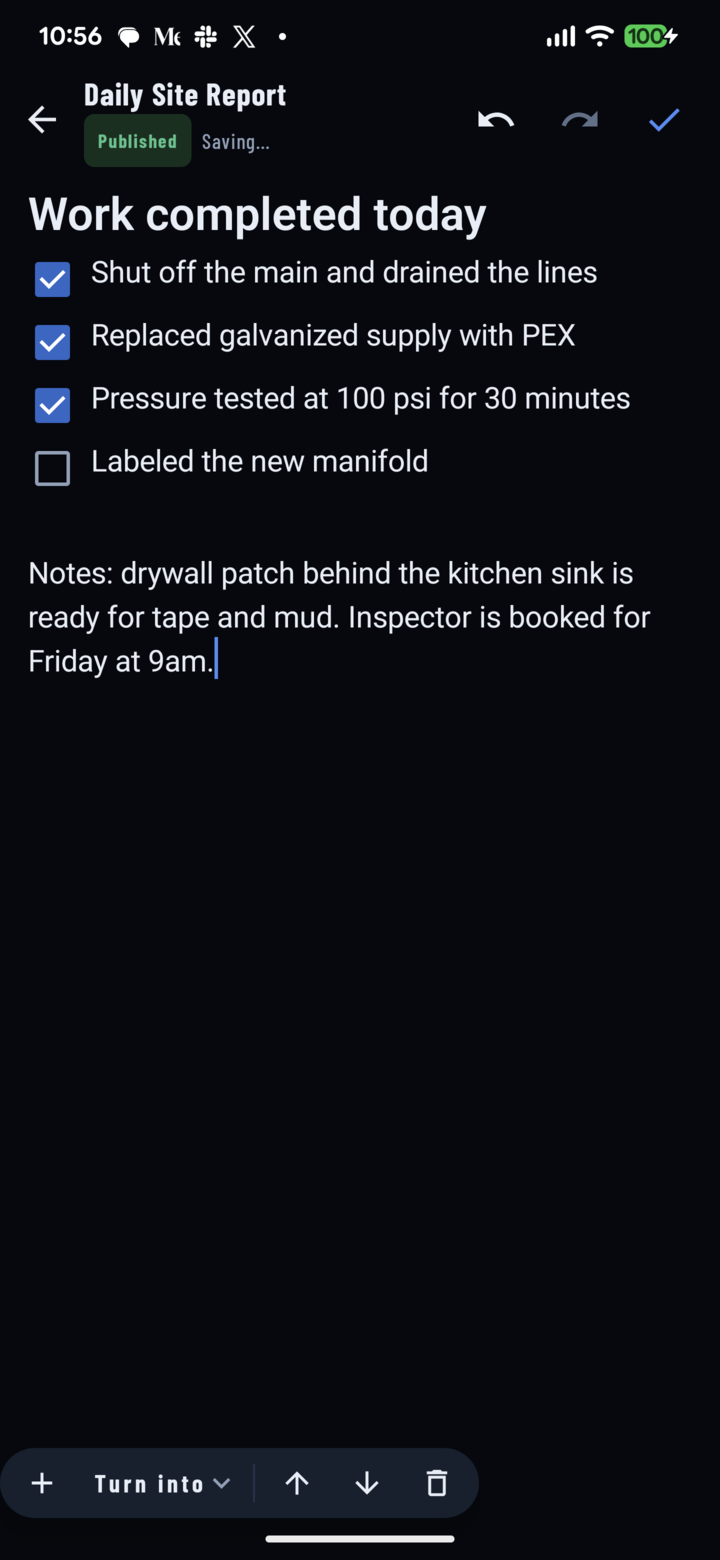
Saving… next to Published while the latest edits upload; it changes to Saved when they're in.
If a Save Fails
- If the upload doesn't go through — usually because the signal dropped — the label turns into Save failed with a Retry link.
- Your edits stay on screen. Keep the CrewDoc open, move to where you have signal, and tap Retry. Wait for Saved before you close the CrewDoc.
CrewDocs and Offline Mode
- CrewDocs aren't part of offline mode yet: opening a CrewDoc and editing it both need a connection. Photos, tasks, comments, and tags do work offline — see Work offline.
- If your phone is offline when you open a CrewDoc, the pencil isn't shown, so you can't start editing. If the CrewDoc can't be loaded at all, an error shows — reconnect and open it again.
- If you lose signal in the middle of editing, you can keep typing; saves will fail until you're back online, then tap Retry.
- The CrewDocs section on a project's Docs tab shows the list as it was last loaded while you were online.
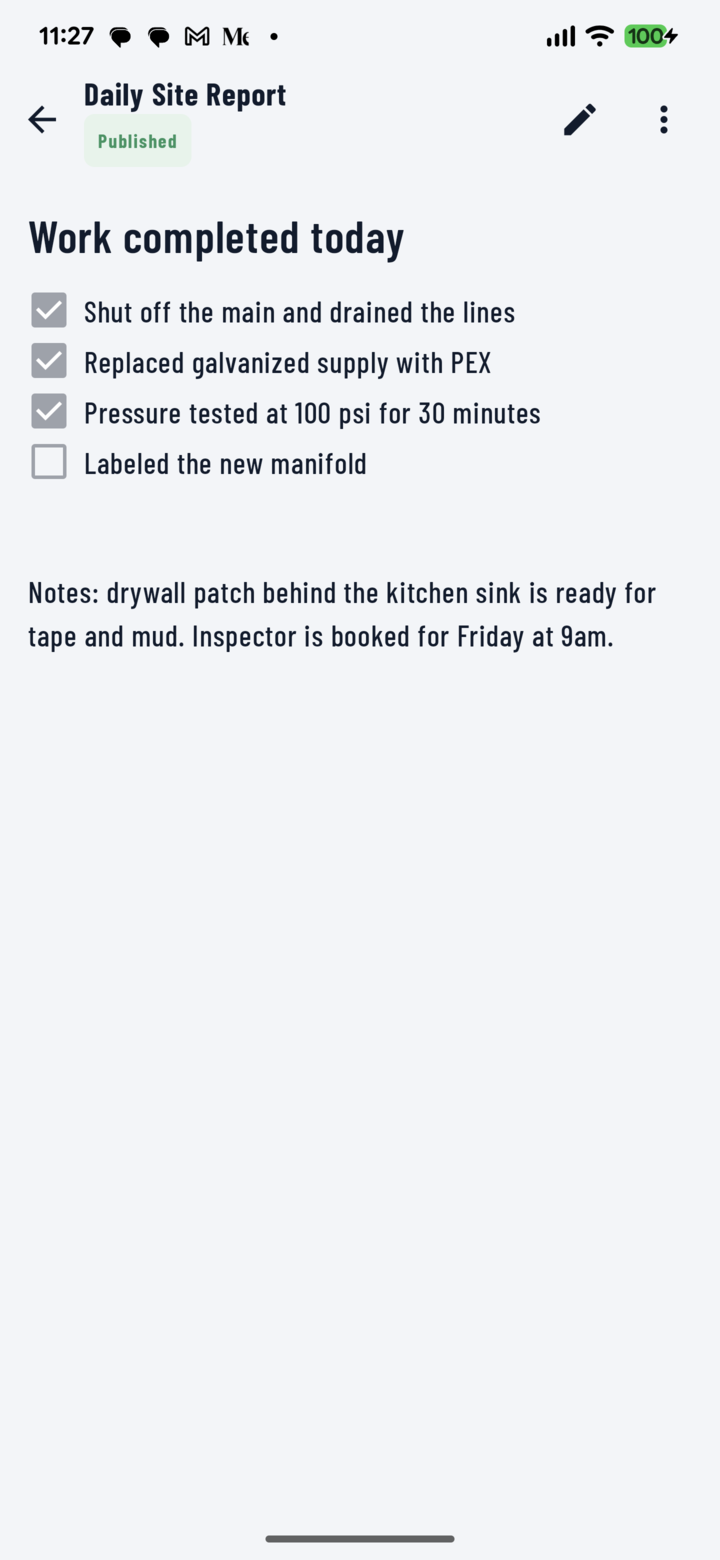
In view mode the pencil starts editing — it's hidden when the phone is offline.
Changes From the Office
- The app shows Published CrewDocs. A CrewDoc saved as a draft in the web console appears on the phone once it's published.
- A CrewDoc is loaded fresh each time you open it, so reopen it to see edits made on desktop or by another crew member.
- Two people editing the same CrewDoc at the same time don't merge — the last save wins. Agree who updates which CrewDoc, or have each person fill in their own rows one after the other.