
Steps
- Open the project → Docs tab → tap the CrewDoc in the CrewDocs section, then tap the pencil to edit.
- Tap the line where the table should go — an empty line works best.
- Type / followed by the table's name, for example /invoice, /labor, or /materials. Ready-made tables are marked Table on the right of the menu.
- Tap the table. CrewBox adds a heading with the table's name, the table with three empty rows, and — for tables that total — a Total row, right below the line you were on. The cursor moves to the line under the table.
- Tap Add row under the table to enter the first line, and tap the ✓ when you're done. The CrewDoc saves automatically.
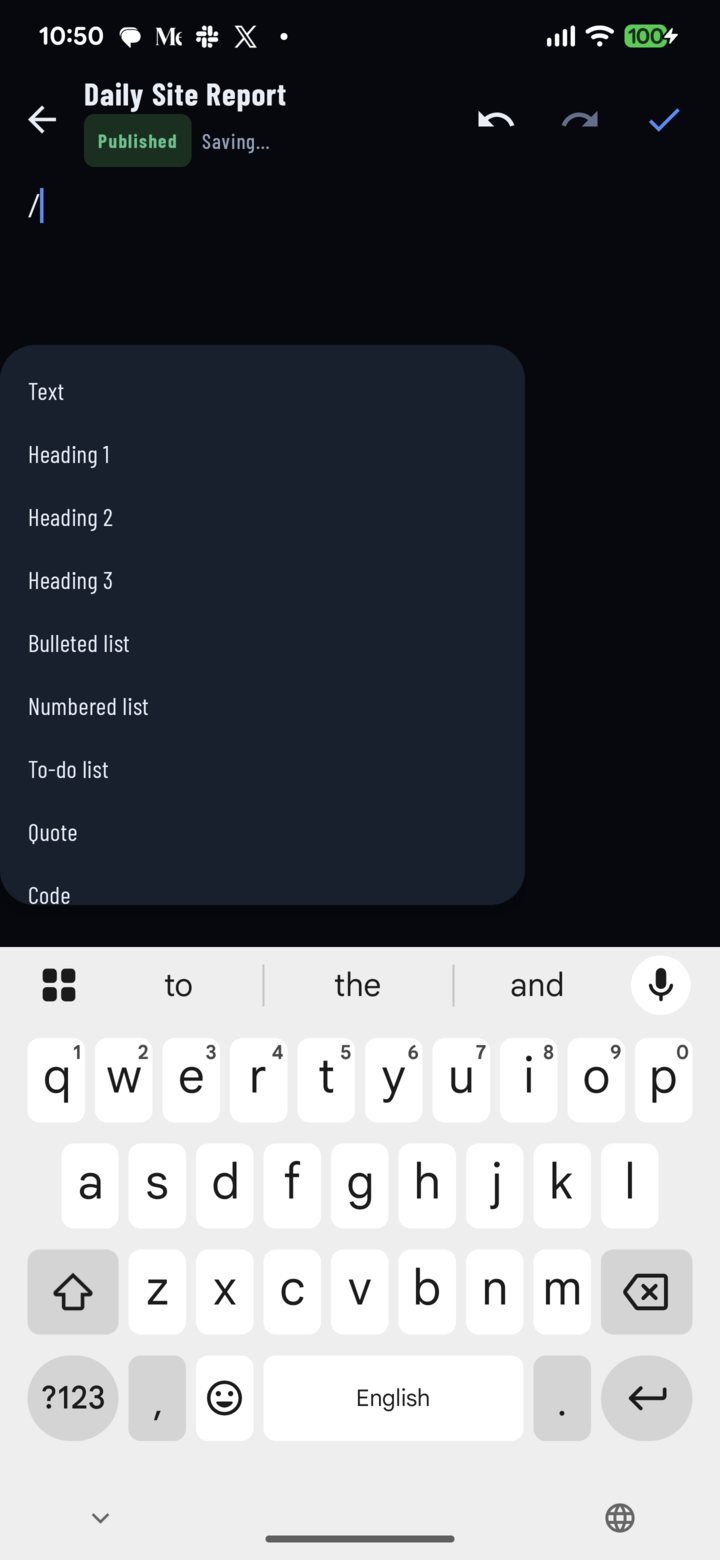
Type / in edit mode to open the block menu — keep typing (for example /labor) to jump straight to a ready-made table.
The Five Ready-Made Tables
- Invoice — Description, Qty, Unit price, Amount. Amount is Qty × Unit price and totals at the bottom.
- Estimate — the same columns as the invoice, for quoting a job before the work starts.
- Work order — Task, Assigned to, Due date, Status. Assigned to offers a drop-down of the project's crew and Due date opens a date picker. No totals.
- Materials — Material, Qty, Unit, Unit cost, Total cost. Total cost is Qty × Unit cost; Qty and Total cost both total.
- Labor — Crew member, Date, Hours, Rate, Amount. Amount is Hours × Rate; Hours and Amount both total — the crew's hours and labor cost at a glance.
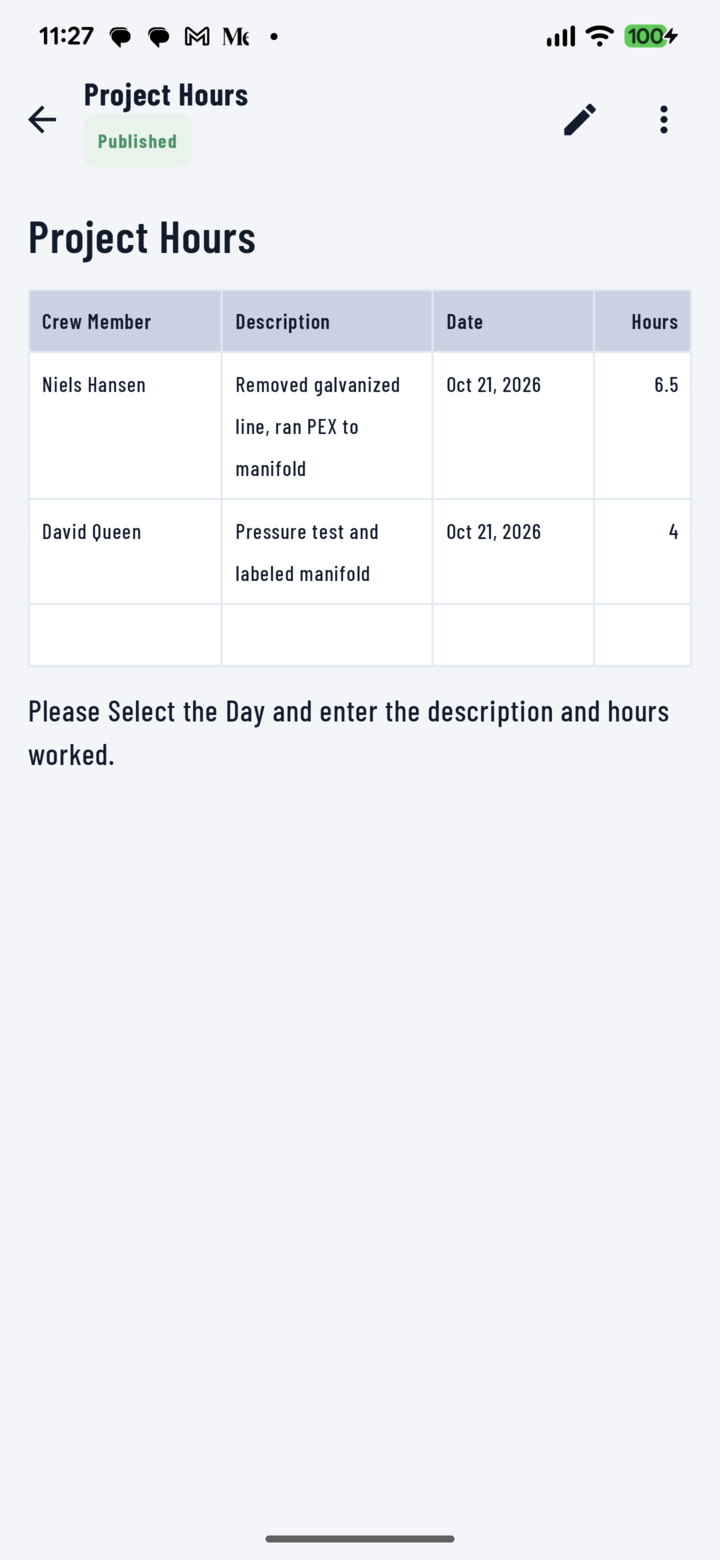
A crew-hours table on the phone: one row per person per day, filled in through the row form.
Fill In the Rows
- Tap Add row: a form opens with one field per column. Date columns open a date picker, crew-member columns list the project's crew, and number and money columns take numbers. Tap Save.
- Calculated columns (like Amount) fill themselves in — they're locked and don't appear in the form. The Total row updates as rows are added.
- Tap any cell to open Edit row; the trash icon there removes the row (Delete this row?).
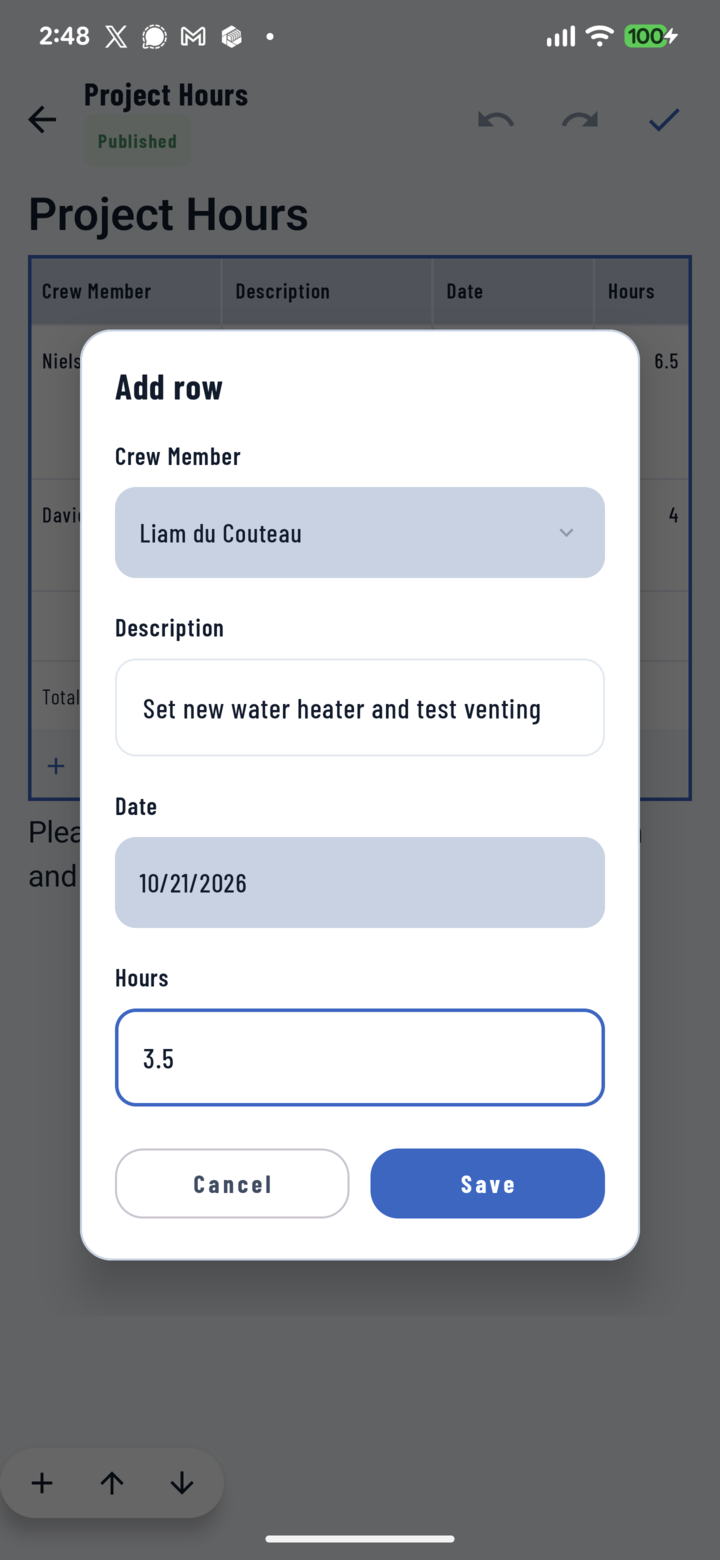
The Add row form: one field per column, with a crew drop-down and a date picker.
Good to Know
- The heading above the table is ordinary text — tap it to rename the table (for example "Labor — Week of Oct 20").
- Column names, column formats, and which columns total are set when the table is inserted. To change them, open the CrewDoc in the CrewBox web console; on the phone you add, edit, and delete rows.
- Saved CrewDoc templates and widgets are managed in the web console and aren't offered in the app. To use one, start the CrewDoc from the template on desktop and publish it — it then shows on everyone's phone.
- The same five tables are in the web console's Insert panel under Table Templates (see Use tables in a CrewDoc).