Add a table and fill it in
- Open the CrewDoc and click Edit content.
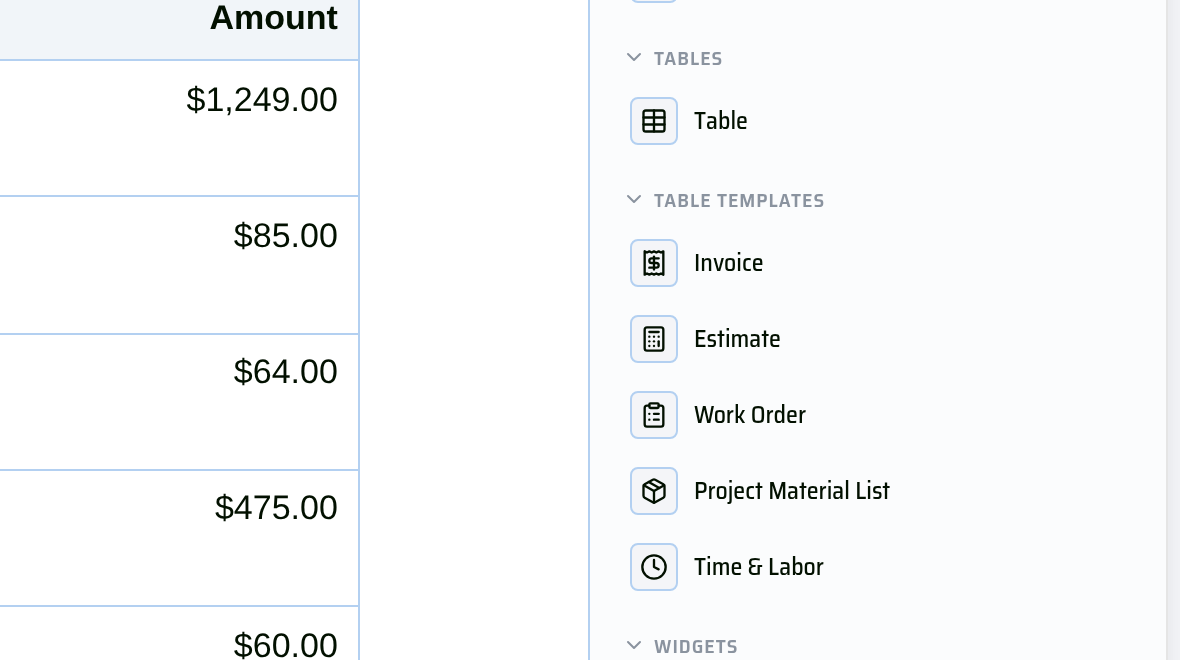
- On an empty line, type /table and press Enter (or click Table in the Insert panel). You get a 3 × 3 table with a header row.
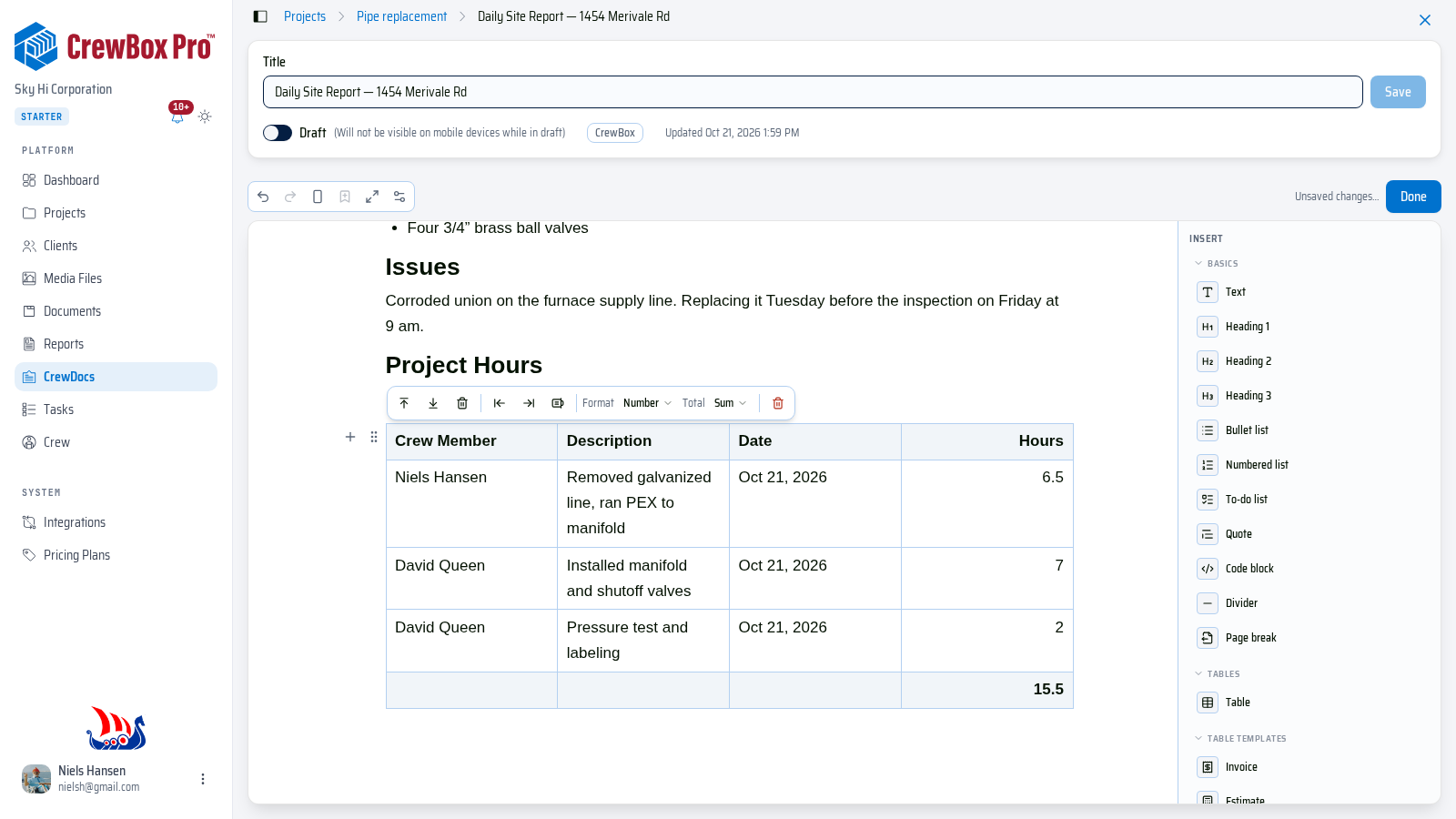
- Type your column headings — for example Crew Member, Description, Date, Hours.
- Press Tab to move to the next cell (Shift+Tab goes back). Pressing Tab at the end of the last row adds a new row, above any totals.
- Click into any cell to show the table toolbar above it:
- Add row above, Add row below, Delete row
- Add column left, Add column right, Delete column
- Delete table
- Drag a column's edge to make it wider or narrower.
Rows, columns, or tables that still have content ask you to confirm before they're deleted.
Format a column and total it
With the cursor in a column:
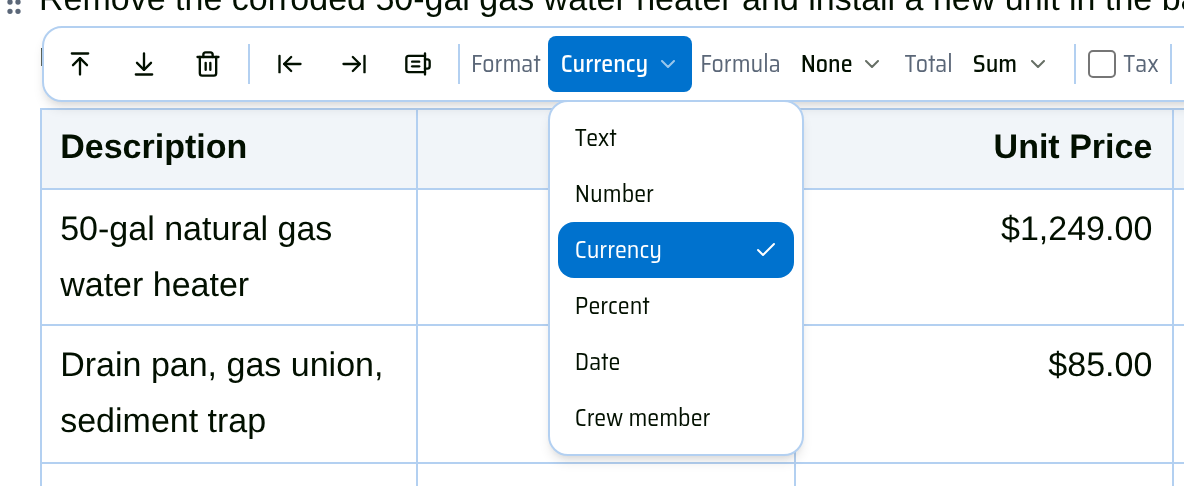
- Open Format and pick Text, Number, Currency, Percent, Date, or Crew member.
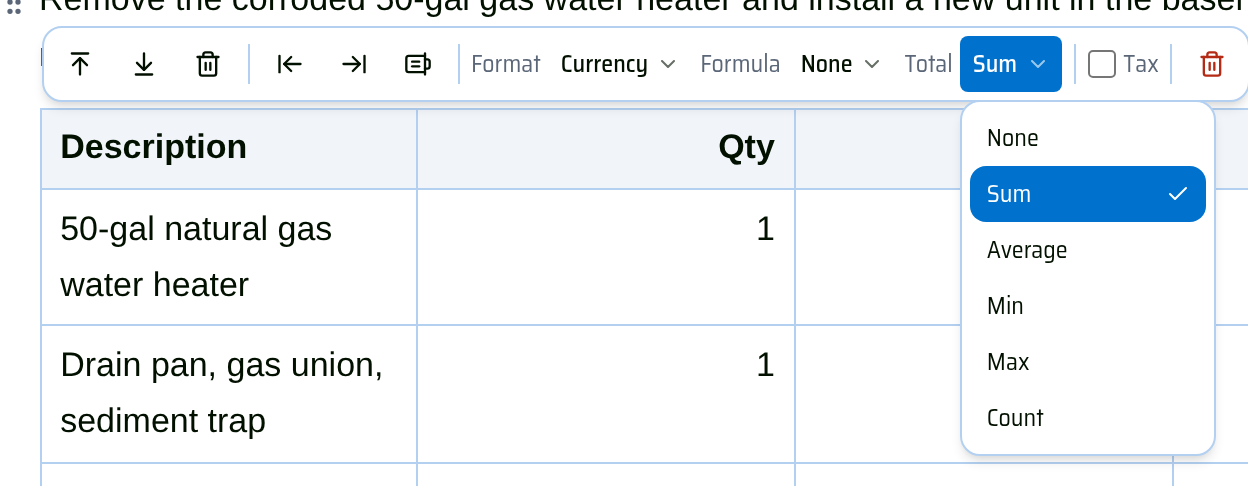
- Open Total and pick None, Sum, Average, Min, Max, or Count. The result appears in the footer row and updates as you type.
For example, set the Hours column of a timesheet to Number with a Sum total and the footer shows the crew's total hours.
Helpers appear under the active cell: Date columns get a date picker and a Today shortcut, and Crew member columns list the project's crew so you can fill a name with one click. You can always type instead.
Multiply columns
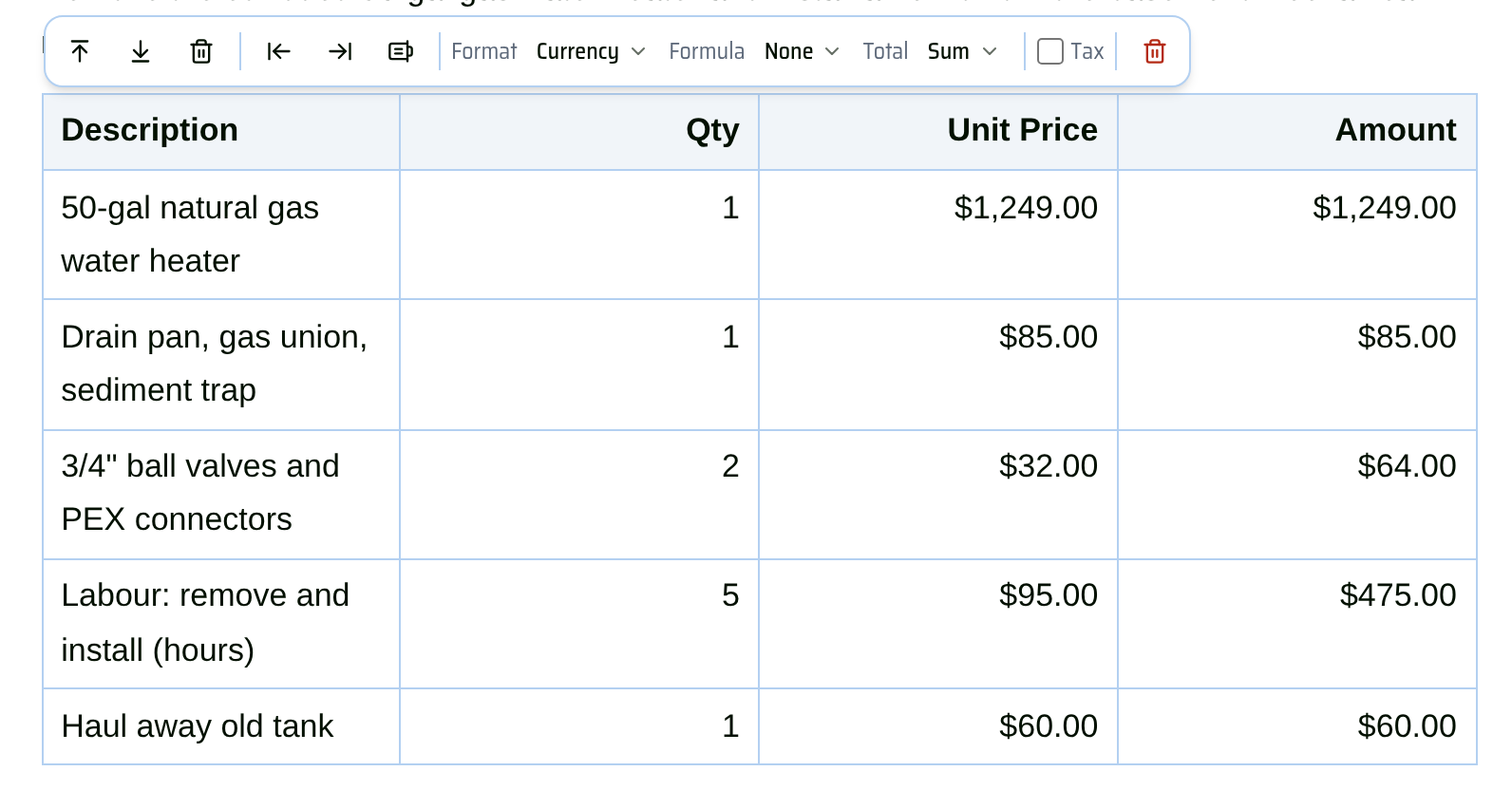
In a Number or Currency column, Formula › Multiply columns fills each row with one column times another — for example Qty × Unit Price = Amount. Pick the two columns to multiply next to the formula.
Add tax
In a Currency column with a Sum total you can turn on Tax. Set the Tax label (it starts as GST/HST or Sales Tax depending on the project's country) and the Tax rate (%); the footer then shows a Subtotal, the tax, and the Total. The first time, CrewBox asks you to confirm that you're responsible for the tax rate and amounts — click I understand.
Start from a table template
The Table Templates group in the Insert panel adds a ready-made table with formats and totals already set:
- Invoice and Estimate — line items with Qty, Unit Price, and an Amount that multiplies and totals itself.
- Work Order — tasks with Assigned To, Due Date, and Status.
- Project Material List — materials with quantities and costs.
- Time & Labor — crew hours, rates, and amounts.
Table templates are in the Insert panel only (not the / menu); the panel appears beside the page on wide screens.