Save a CrewDoc as a template
- Open a CrewDoc you want to reuse (or find it on the CrewDocs page).
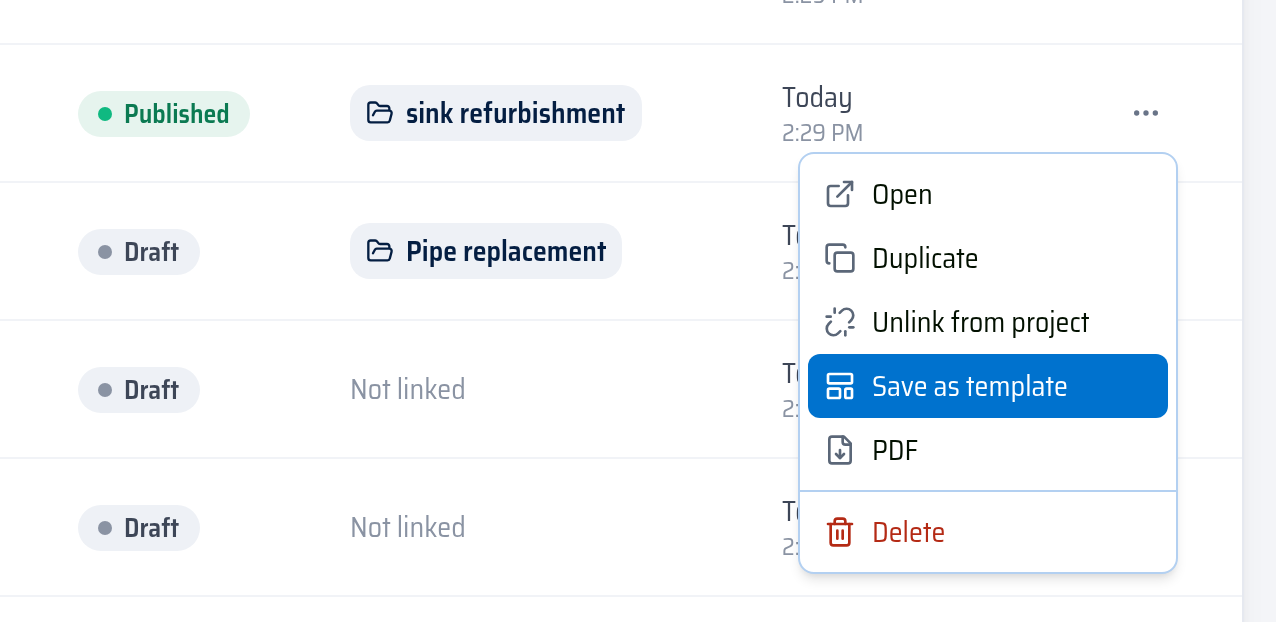
- Open the ⋯ (Actions) menu and click Save as template.
- Enter a Template name and click Save. Click Open in the confirmation to fine-tune the template.
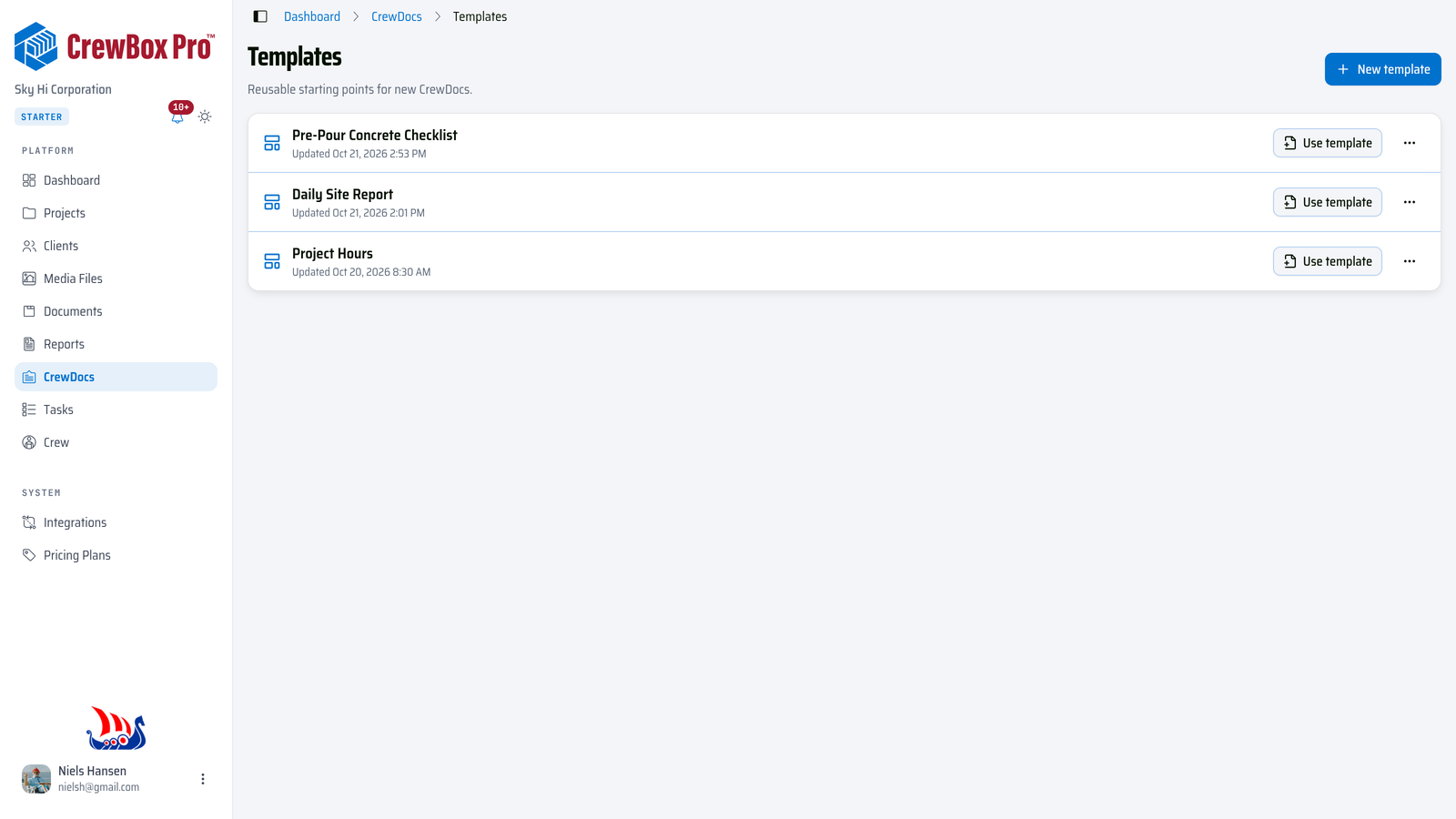
Your templates live on the Templates page: click CrewDocs in the left navigation, then Templates.
Create or edit a template from scratch
- On the Templates page, click New template, enter a name, and click Create.
- Build the template in the same editor you use for CrewDocs — headings, to-do lists, tables with totals, and so on.
- Click Save. Templates don't autosave: Unsaved changes shows until you save.
To change a template later, open it from the list (or ⋯ › Edit). To remove one, use ⋯ › Delete — CrewDocs already created from it are not affected.
Start a CrewDoc from a template
- On the Templates page, click Use template next to a template, then name the CrewDoc and click Start writing.
- Or click New CrewDoc / Create CrewDoc as usual and pick the template under Start from.
The template's content is copied into the new CrewDoc. Editing the CrewDoc never changes the template, and editing the template never changes existing CrewDocs.
Add templates to a new project
- Click New Project (on the Projects page or from a client).
- Click the CrewDocs chip — it appears once your company has at least one template.
- Select one or more templates. The chip shows how many you picked.
- Fill in the rest and click Create Project.
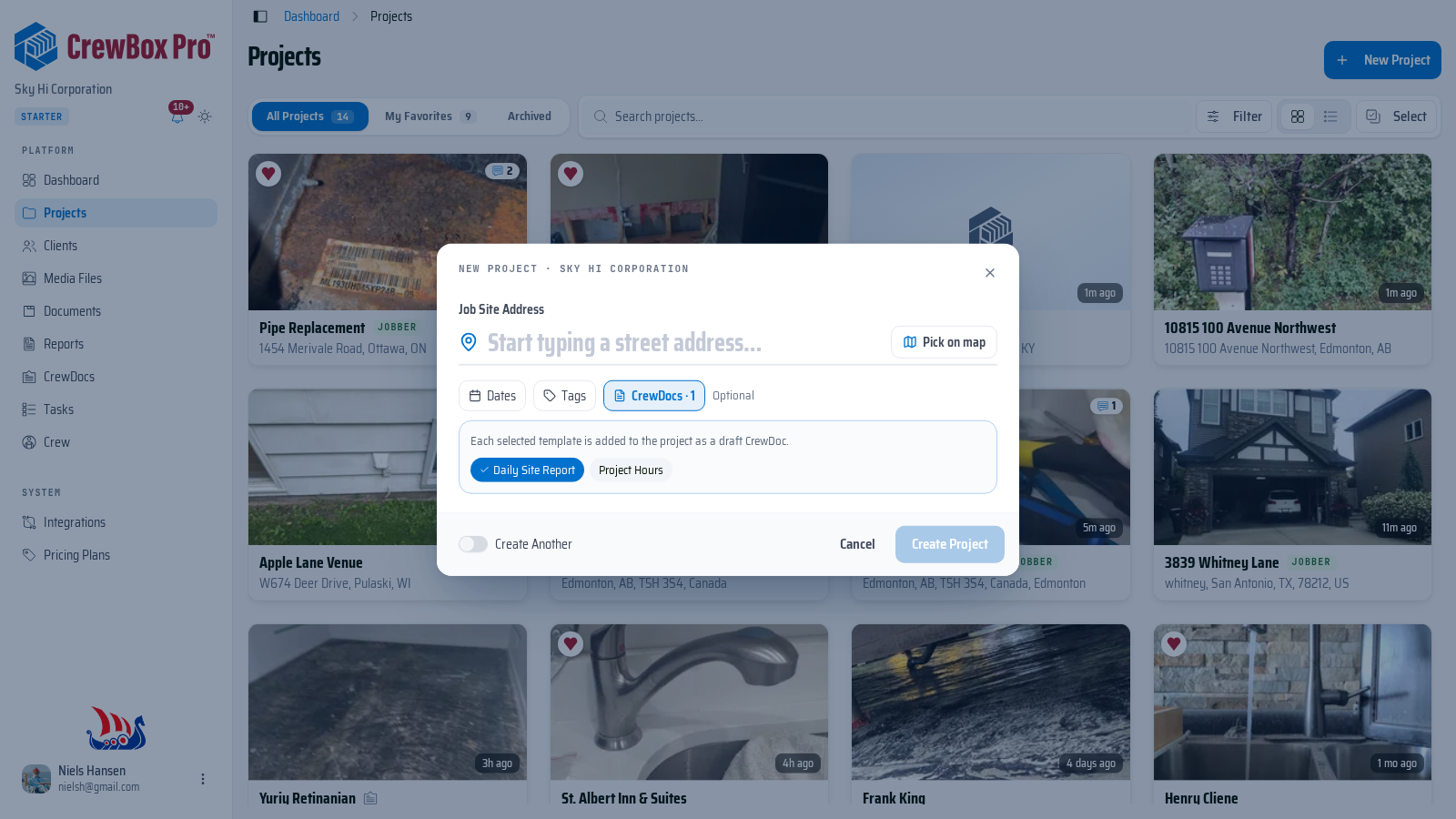
Each selected template is added to the project as a draft CrewDoc, ready in the project's Documents tab. If one can't be added, CrewBox tells you how many failed; the project itself is still created.
Widgets: reusable blocks
Widgets are smaller pieces you insert into any CrewDoc or template — a standard sign-off block, your payment terms, or a safety checklist.
- Save a widget from the editor: select the content, click Save selection as widget in the editor toolbar, name it, and click Save.
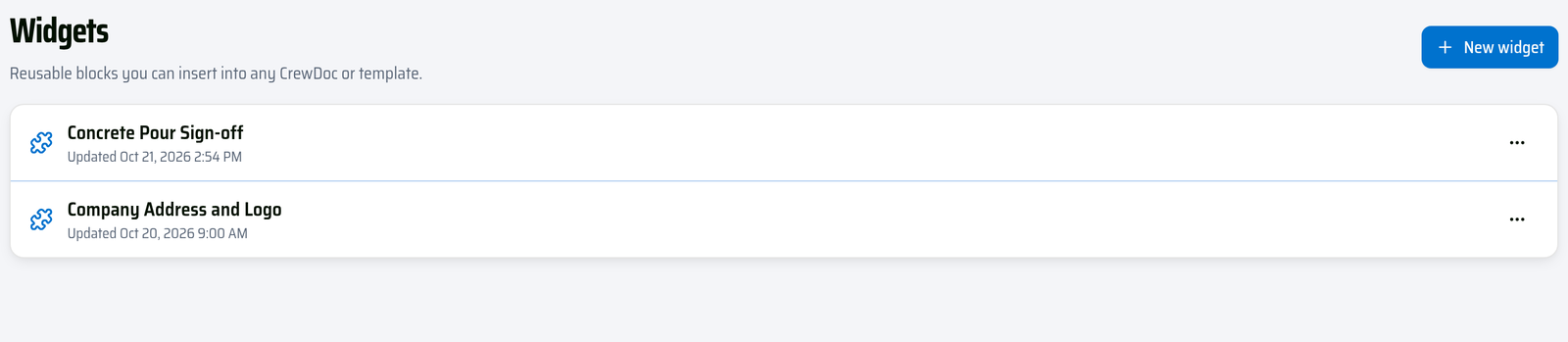
- Manage widgets: on the CrewDocs page click Widgets, then New widget to build one, or open an existing one to edit it.
- Insert a widget: type / and pick it from the Widgets group, or click it in the Insert panel.
Changing or deleting a widget doesn't affect content already inserted into documents.