
Open the Templates page
- Click CrewDocs in the left navigation.
- Click Templates at the top right of the CrewDocs page (next to Widgets and New CrewDoc).

The Templates page lists every template your company has saved, newest change first, with the date it was last updated. Each row has a Use template button and a ⋯ menu.
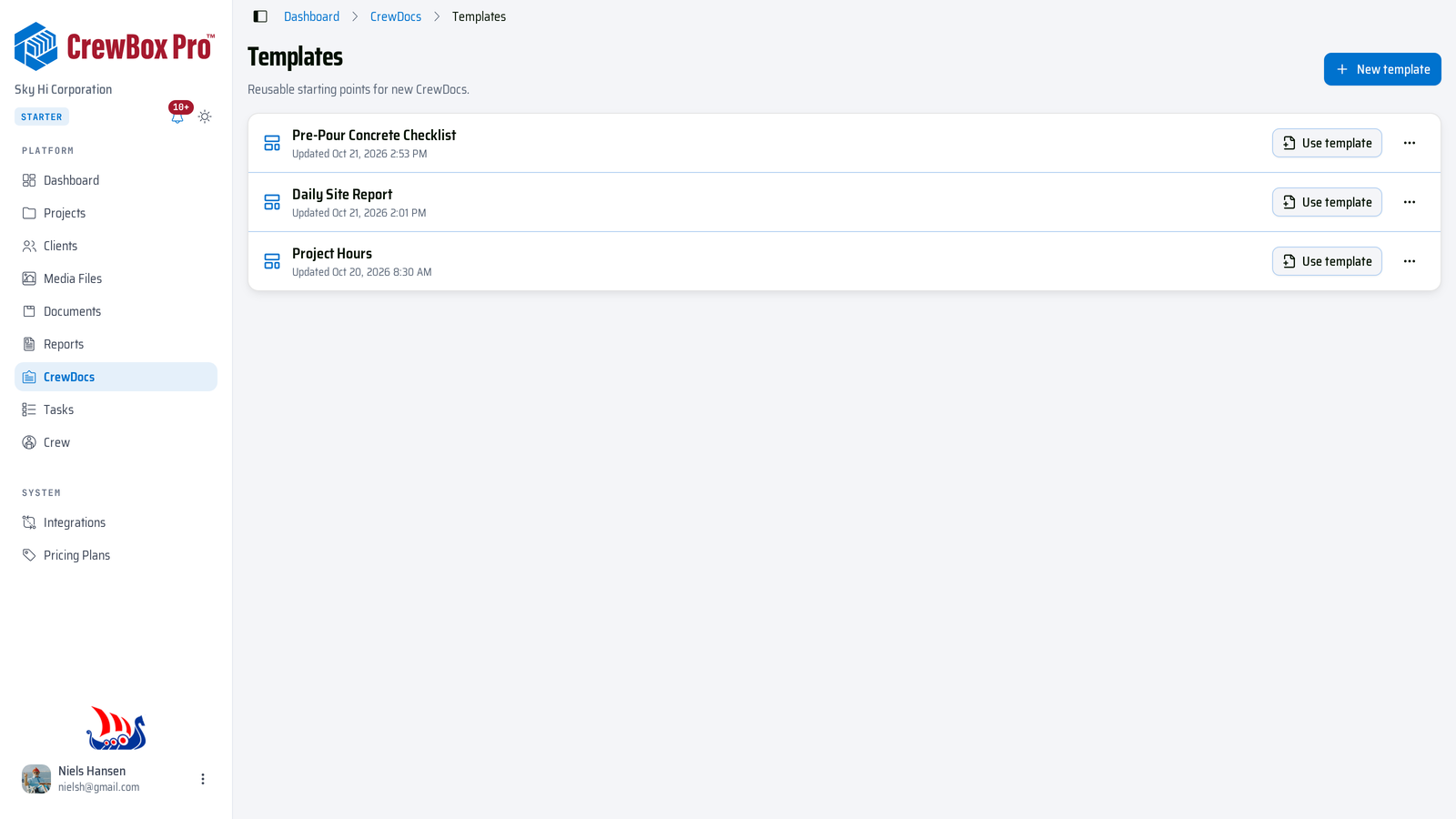
Create a new template
- On the Templates page, click New template.
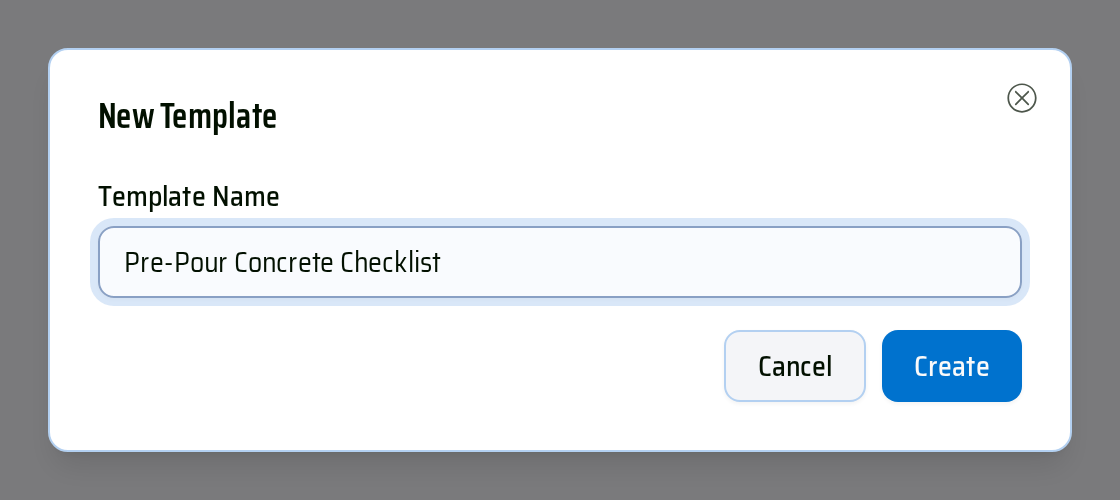
- Enter a Template name — for example "Pre-Pour Concrete Checklist" — and click Create.
- The template opens in the template editor, ready to fill in.
You can also turn any existing CrewDoc into a template: open it, then ⋯ (Actions) › Save as template. See Use CrewDoc templates.
Build the template
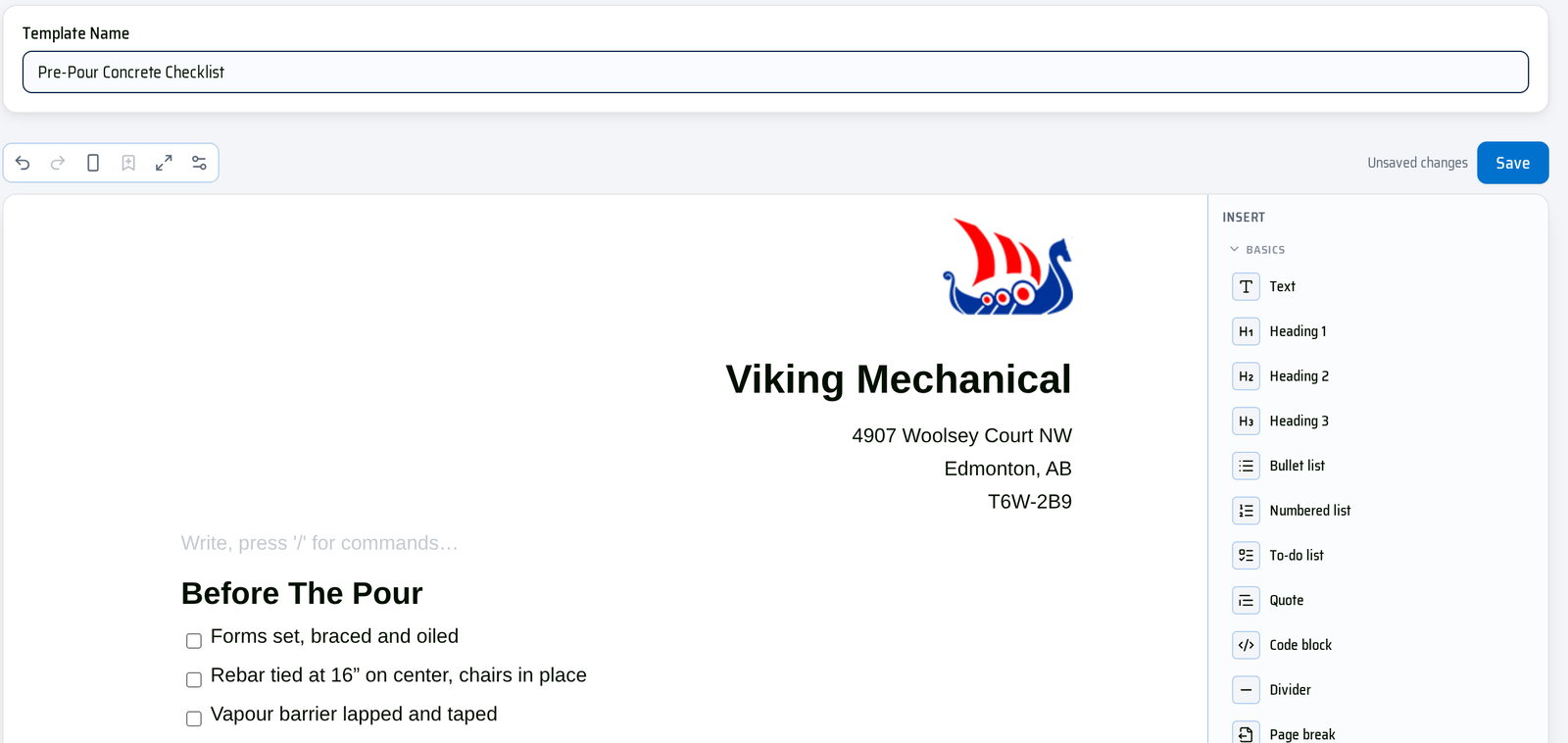
The template editor is the same editor you use for CrewDocs, with the Template name field above it.
- Type / on an empty line, or click a block in the Insert panel on the right: headings, To-do list, Bullet list, Table, Divider, Page break, and more.
- Add a ready-made table from Table Templates in the Insert panel — Invoice, Estimate, Work Order, Project Material List, or Time & Labor — with formats and totals already set.
- Drop in a saved widget (for example your company address and logo) from the Widgets group. See Use CrewDoc widgets.
- Company logo, Company address, Date & time, and Project link work in templates too. Fields that read from a project (Project header, Project name, Project address, Project photos, Client name) are only offered in a CrewDoc that belongs to a project, so add those after you start the CrewDoc.
- Use the toolbar above the page for Undo, Redo, page orientation, Full screen, and Print & PDF settings — they're saved with the template.
Save the template
Templates don't save automatically. While you have changes, Unsaved changes shows next to the Save button.
- Click Save. A Saved confirmation appears.
- If you try to leave the page with unsaved changes, your browser asks you to confirm first.
The name can be up to 255 characters and can't be empty; Save stays disabled until there's something to save.

Edit, use, or delete a template
Open the ⋯ menu on a template's row:
- Edit — opens the template editor (clicking the row does the same). Change the content or rename it, then click Save.
- Use template — starts a new CrewDoc from it.
- Delete — asks you to confirm (Delete template?). CrewDocs already created from it are not affected.

Start a CrewDoc from the template
- Click Use template on the template's row.
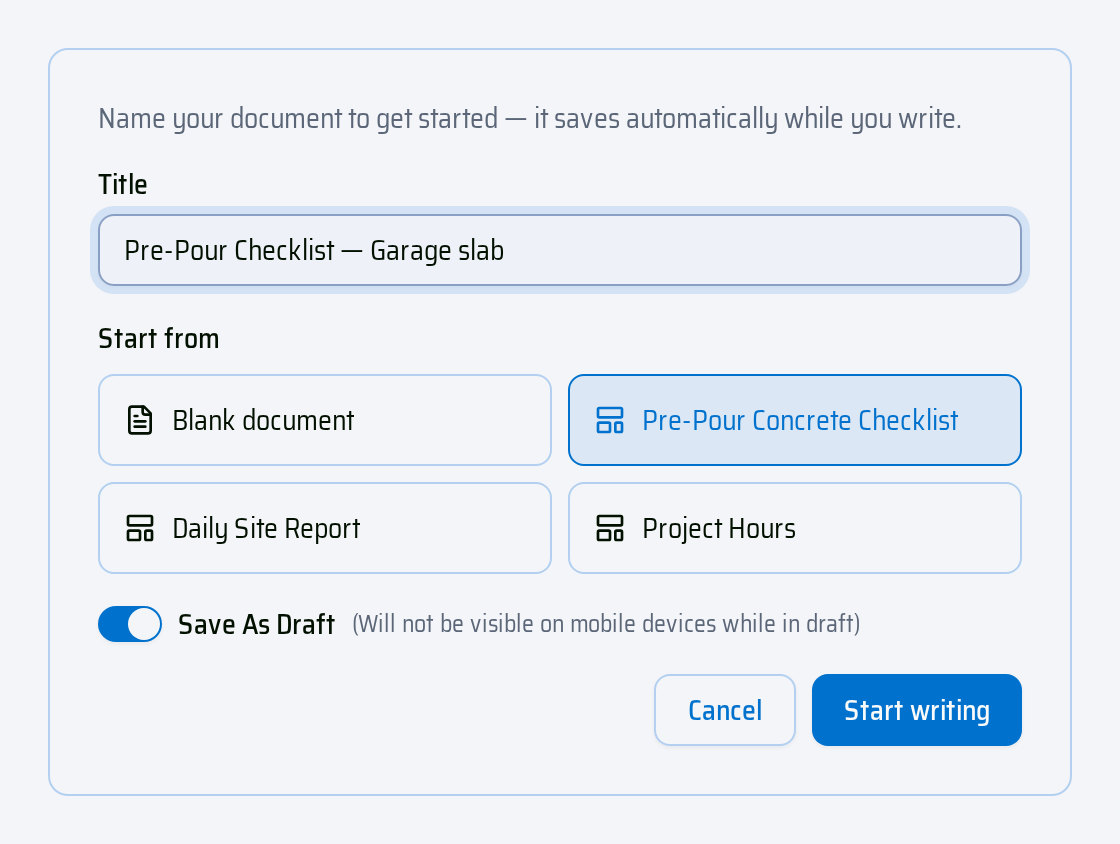
- The New CrewDoc page opens with the template already selected under Start from. Type a Title.
- Leave Save as draft on while you're still working, or turn it off to publish right away.
- Click Start writing.
The template's content is copied into the new CrewDoc. Editing the CrewDoc never changes the template, and editing the template later never changes CrewDocs you already made from it.
Good to know
- Templates are shared across your company: everyone who can create CrewDocs sees the same list.
- Templates also appear in the CrewDocs chip when you create a project — see Add CrewDocs to a new project.