
Before you start
The CrewDocs chip only appears in the New Project dialog when CrewDocs is turned on for your company and at least one CrewDoc template exists. If you don't see it, create a template first — see Create and manage CrewDoc templates.
Pick templates while creating the project
- Click New Project on the Projects page (or from a client's page, to attach the project to that client).
- Enter the Job Site Address and the other project details as usual.
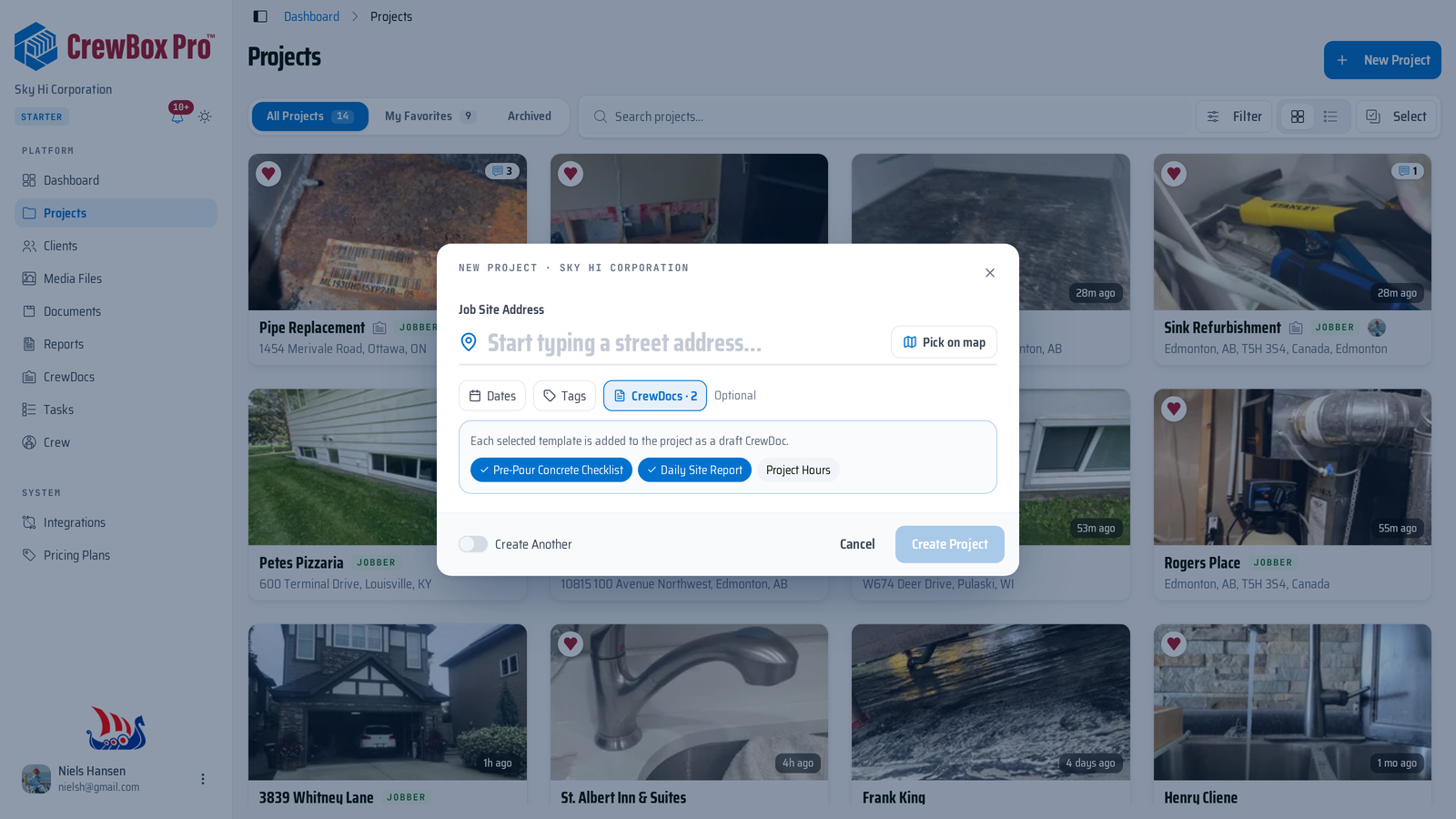
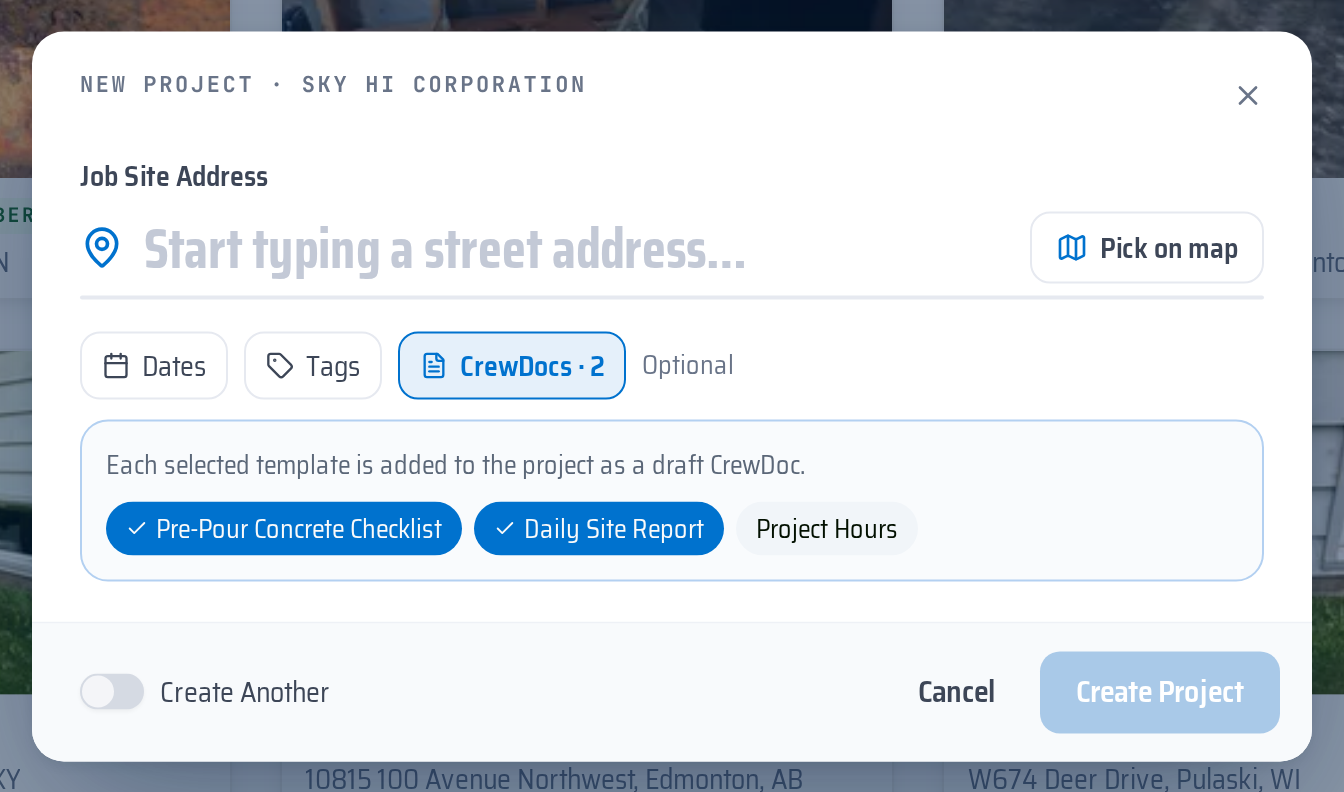
- Click the CrewDocs chip next to Dates and Tags. A panel opens: "Each selected template is added to the project as a draft CrewDoc."
- Click each template you want. Selected templates turn blue with a check mark; click again to deselect. The chip shows how many you picked — for example CrewDocs · 2.
- Click Create Project.
What happens next
- The project is created first, then CrewBox copies each selected template into it as a separate CrewDoc. Each CrewDoc is named after its template.
- Every copy is a draft. You'll find them in the CrewDocs section of the project's Documents tab, and under Drafts on the CrewDocs page.
- Drafts are not visible on mobile devices. Open each CrewDoc, fill in or adjust it, and publish it (turn off the Draft switch) when the crew needs it in the field.
- If a template can't be copied, CrewBox tells you how many failed (for example "1 CrewDoc template could not be added to the project."). The project and the other CrewDocs are still created; add the missing one from the Documents tab with Create CrewDoc › Start from.
The copies are independent: editing them never changes the template, and editing the template later never changes them.
Good to know
- The CrewDocs chip is optional — leave it alone and the project is created with no CrewDocs.
- With Create another turned on, the dialog stays open after each project and your template picks are cleared for the next one.
- Templates are only offered when you create a project. For an existing project, open its Documents tab and use Create CrewDoc, then pick a template under Start from.