
Open the CrewDocs page
- Click CrewDocs in the left navigation.
- Use the tabs to switch between All, Drafts, and Published — each shows a count.
- Narrow the list:
- Project — pick Any, Not linked (CrewDocs without a project), or a specific project.
- Search docs — matches CrewDoc titles and project names.
- Click a row to open the CrewDoc.
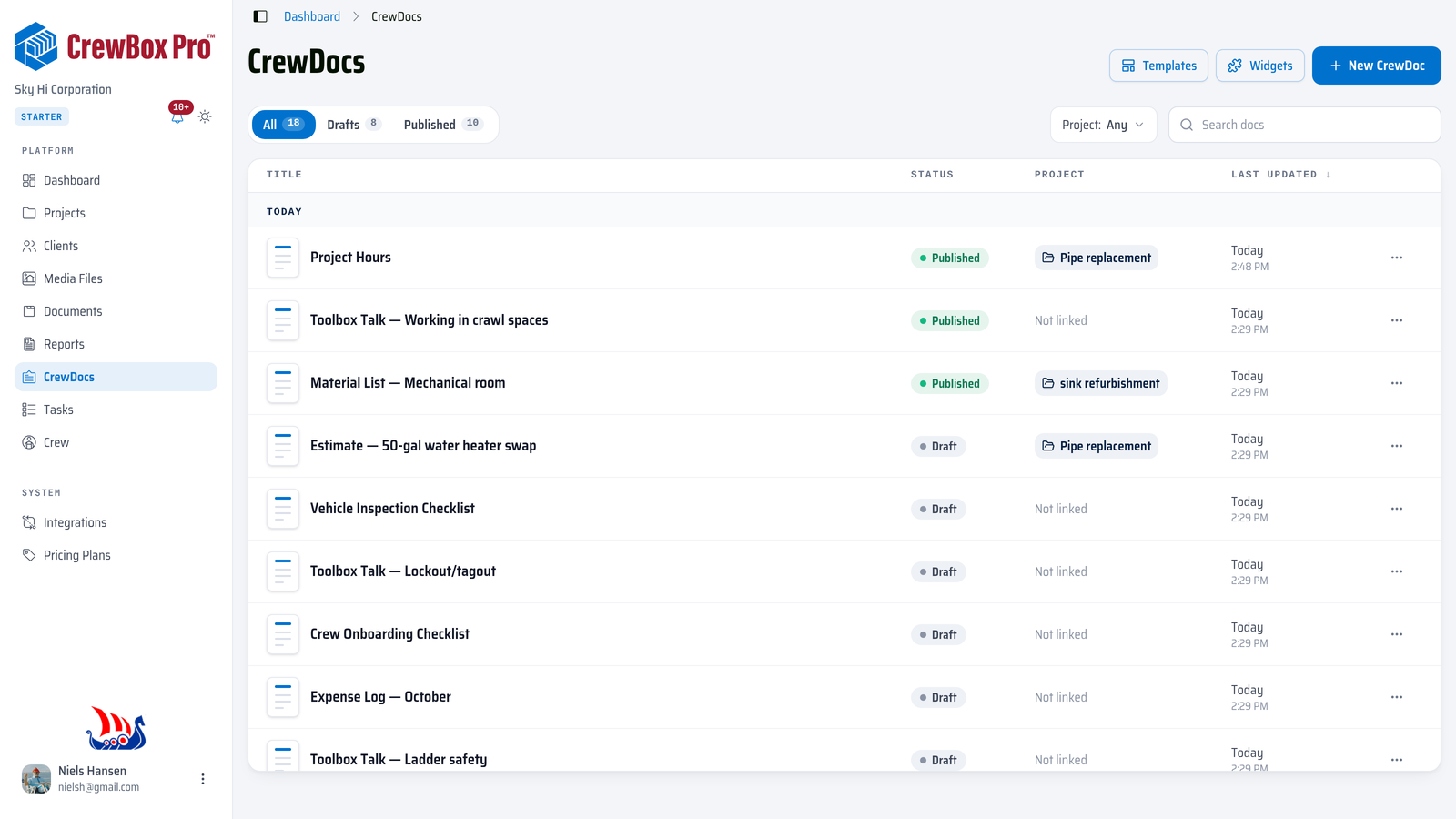
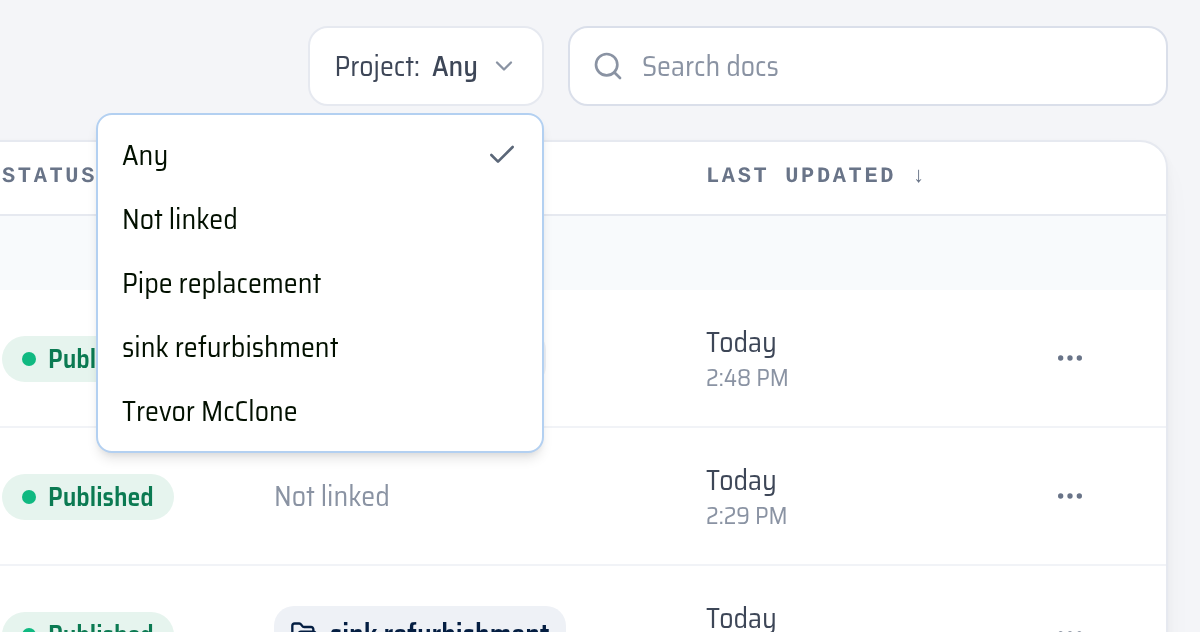
Each row shows the title, a Draft or Published status, the linked project (click it to jump to the project's Documents tab), and when it was last updated. CrewDocs imported from CompanyCam are marked "from CompanyCam". The list is grouped into Today, This week, and Earlier; click the Last updated heading to flip the sort order. More CrewDocs load as you scroll.
From the top of the page you can also open Templates and Widgets, or click New CrewDoc.
Act on a CrewDoc from the list
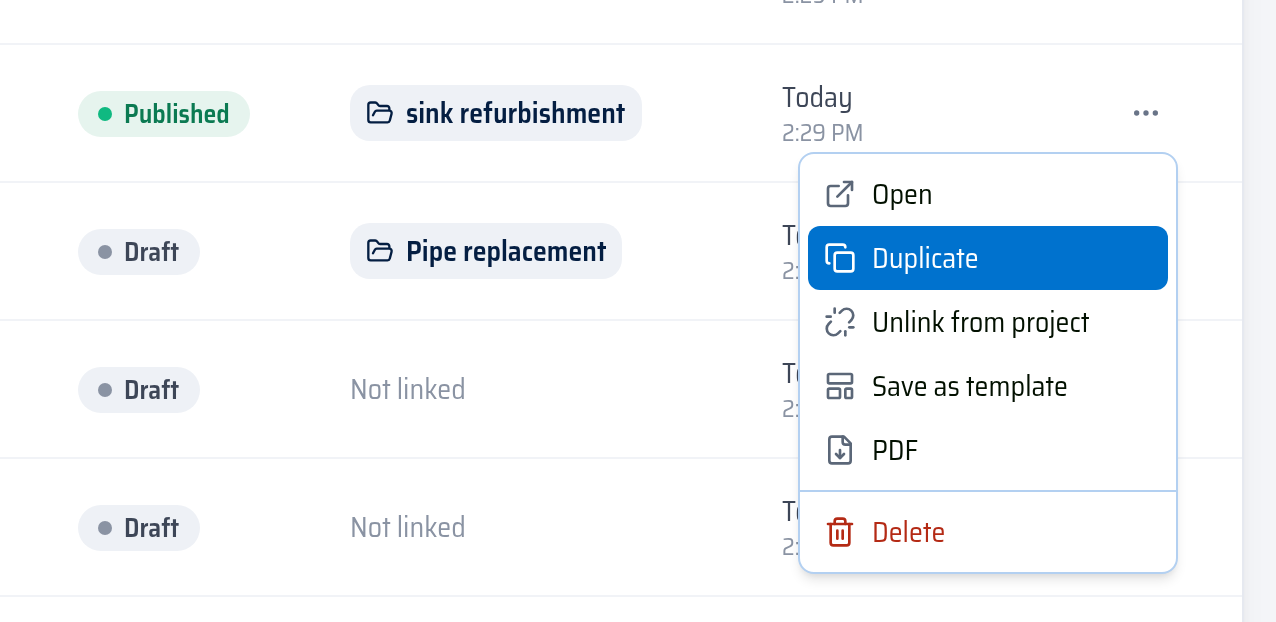
Open a row's ⋯ menu:
- Open — opens the CrewDoc.
- Duplicate — makes a draft copy named "… (copy)" in the same project.
- Move to project — links an unlinked CrewDoc to a project (you can pick from the projects that already have CrewDocs in the list).
- Unlink from project — removes the project link; the CrewDoc stays on the CrewDocs page under Not linked.
- Save as template — see Use CrewDoc templates.
- PDF — downloads the CrewDoc as a PDF.
- Delete — asks you to confirm, then removes the CrewDoc from your workspace.
See a project's CrewDocs
- Open the project and go to its Documents tab.
- The CrewDocs section at the top shows the project's CrewDocs as cards, with a count and each one's Draft or Published badge. Uploaded documents are listed below it.
- Click a card to open the CrewDoc. When there are more than fit, use the arrows next to the count to page through them (or Load more when the project has no uploaded documents).
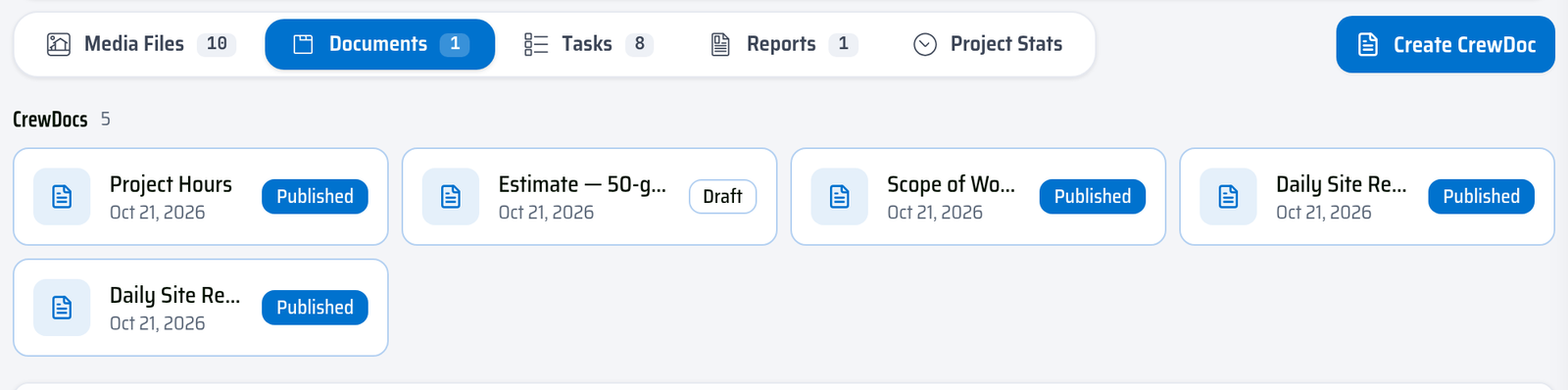
Click Create CrewDoc on the tabs row to add a new one to the project.