
Create a CrewDoc for a project
- Open the project and go to its Documents tab.
- Click Create CrewDoc (on the tabs row, or in the project sidebar's Quick Actions).
- Type a Title — for example "Daily Site Report — 1454 Merivale Rd".
- Under Start from, keep Blank document or pick one of your company's templates.
- Leave Save as draft on while you're still working on it, or turn it off to publish right away.
- Click Start writing (or press Enter). The CrewDoc is created and opens straight in the editor.

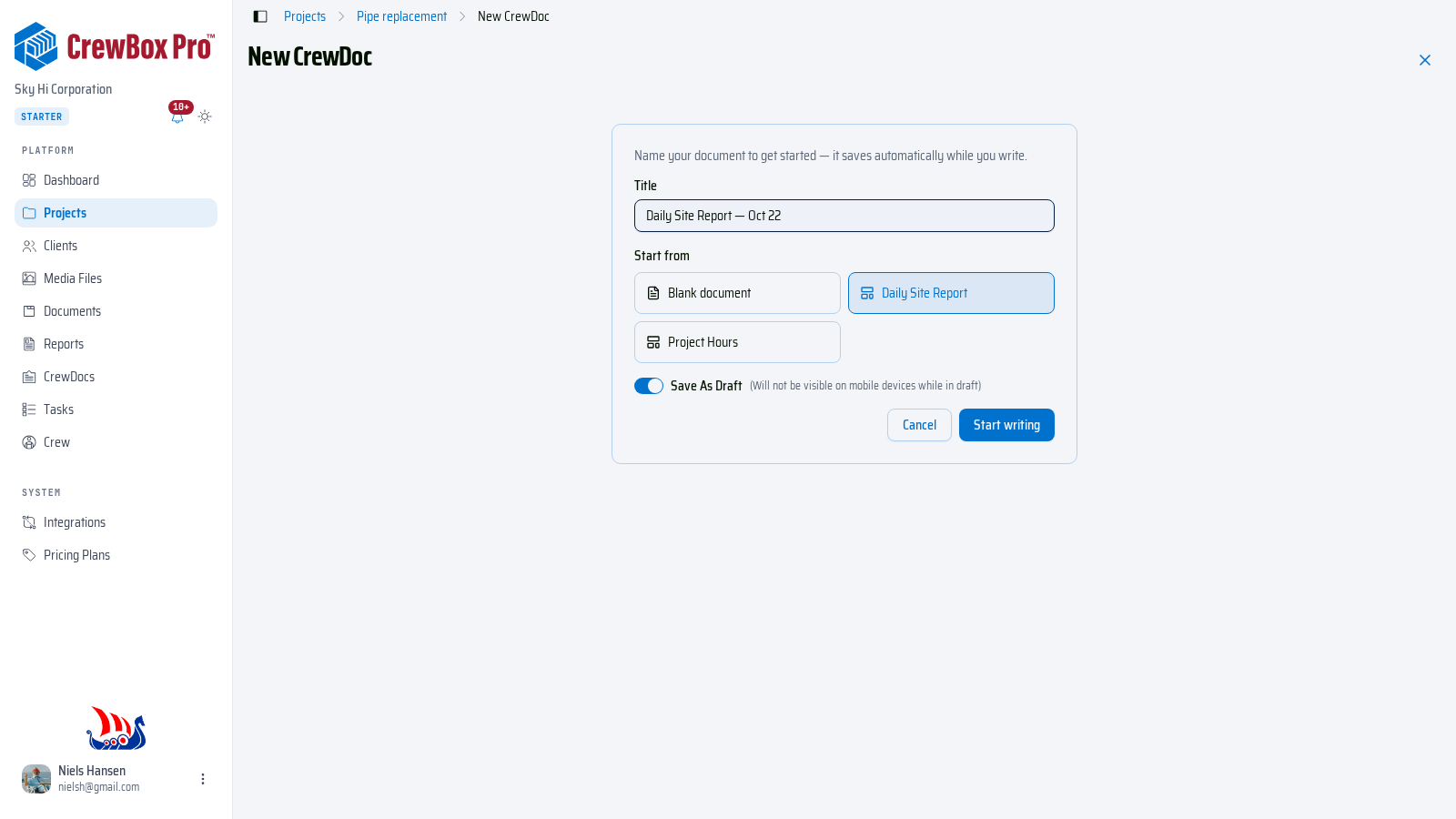
The CrewDoc is linked to the project: it shows up in the CrewDocs section of the project's Documents tab, and the breadcrumbs take you back to the project.
Create a CrewDoc that isn't tied to a project
- Click CrewDocs in the left navigation.
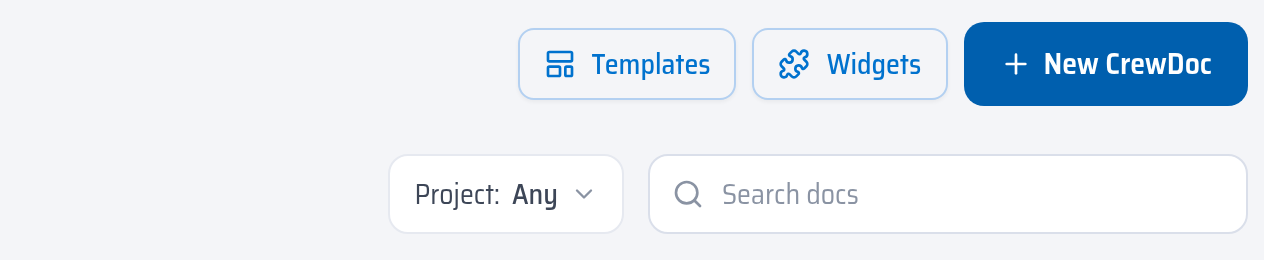
- Click New CrewDoc.
- Name it, pick a starting point, and click Start writing.
Use this for company-wide documents like a toolbox talk or a safety checklist. You can link it to a project later from the CrewDocs list.
Good to know
- A title is required (up to 255 characters). You can rename the CrewDoc later in the editor.
- Starting from a template copies its content into the new CrewDoc. Later changes to the template don't touch CrewDocs already made from it.
- Once the CrewDoc exists, it saves automatically while you write — there's no separate save step.
- Drafts are not visible on mobile devices. Publish the CrewDoc when your crew needs to see it in the field.