
What a widget is
A widget is a saved piece of CrewDoc content: anything the editor can hold, from a few lines of text to a logo, a heading, a checklist, or a table. When you insert a widget, CrewBox copies its content into the document at your cursor. From then on that copy is ordinary document content you can edit freely.
Because widgets are copied, not linked:
- Changing a widget later does not update documents it was already inserted into — only future inserts get the new version.
- Deleting a widget doesn't remove content already inserted into documents.
Open the Widgets page
- Click CrewDocs in the left navigation.
- Click Widgets at the top right of the CrewDocs page.
The Widgets page lists your company's widgets, most recently updated first.
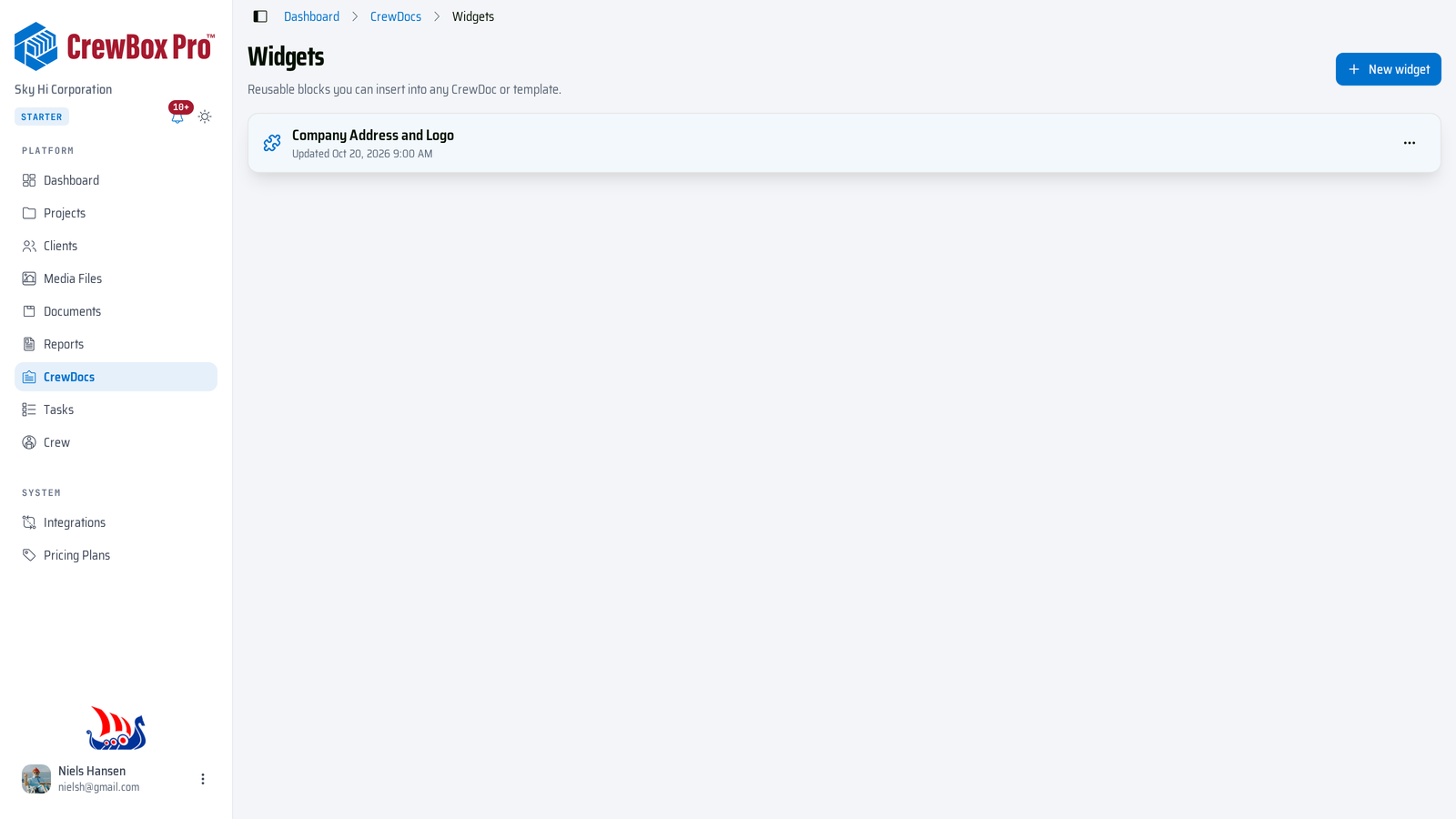
Create a widget on the Widgets page
- Click New widget, enter a Widget name, and click Create.
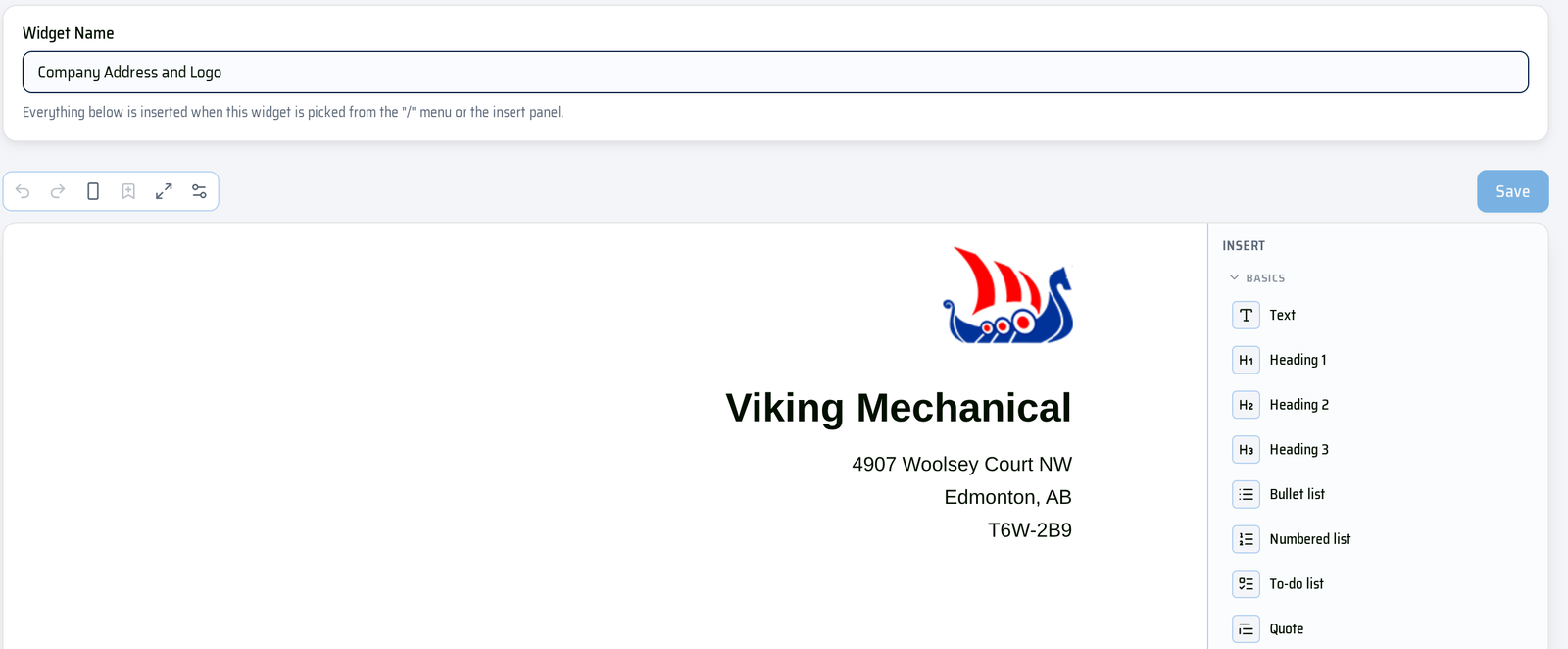
- Build the content in the editor. The note under the name reminds you: everything below is inserted when this widget is picked from the / menu or the insert panel.
- Click Save. Like templates, widgets don't save automatically — Unsaved changes shows until you do.
Save part of a document as a widget
You can also turn content you've already written into a widget — from any CrewDoc, template, or widget editor:
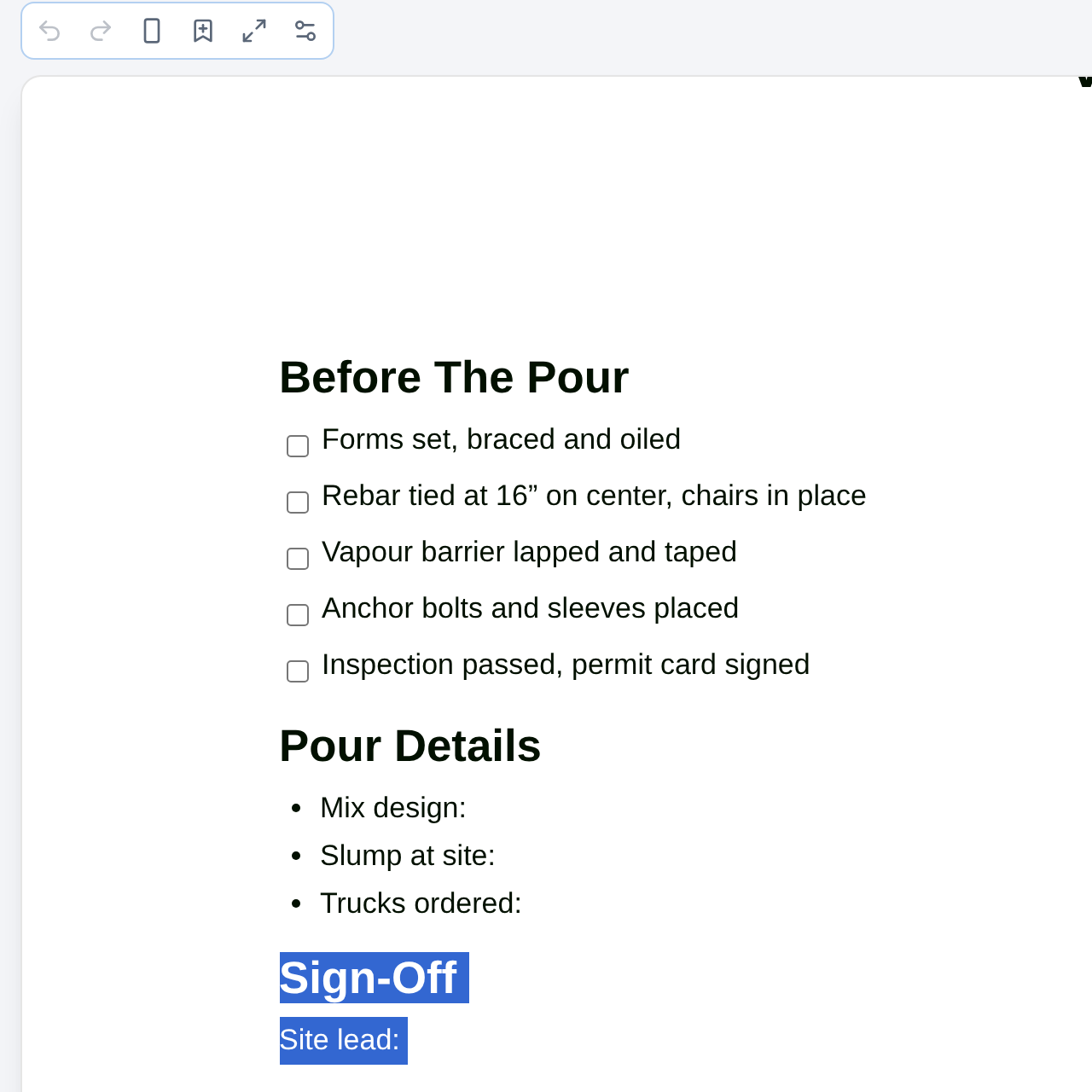
- Select the content you want to reuse (for example a "Sign-off" heading and the lines under it).
- Click Save selection as widget (the bookmark icon) in the small toolbar above the page. It's only active while something is selected.
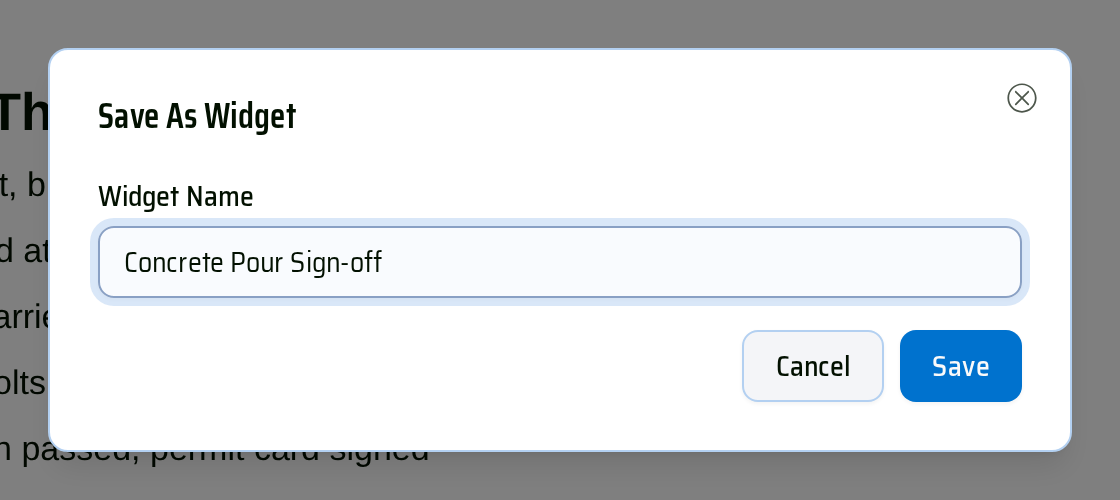
- Enter a Widget name and click Save. You'll see Widget saved.
Insert a widget into a CrewDoc or template
Put your cursor on an empty line, then either:
- Type / and pick the widget from the Widgets group — typing /widget (or part of the widget's name) narrows the list; or
- Click the widget in the Widgets group of the Insert panel on the right (wide screens).
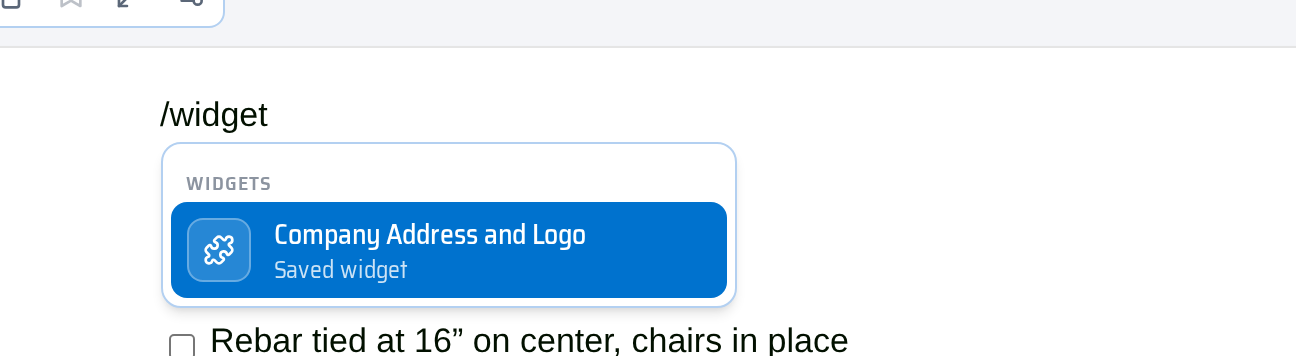
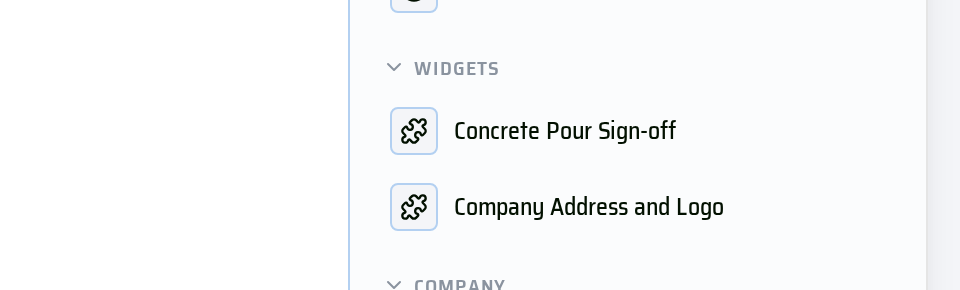
The widget's content appears at the cursor. If it can't be loaded, CrewBox shows Could not insert the widget. — try again.
Edit or delete a widget
On the Widgets page, click a widget (or ⋯ › Edit) to open it, make your changes, and click Save. To remove it, use ⋯ › Delete and confirm Delete widget?. Neither affects documents the widget was already inserted into.
Tips
- Put your company header in a widget (logo, company name, address) and insert it at the top of each template, so every new CrewDoc starts branded.
- A Company logo inside a widget keeps the logo image it had when you inserted it into the widget. If you change your company logo, update the widget too.
- Widgets are shared across your company.