
Print or download a CrewDoc
- Open the CrewDoc (from the CrewDocs page or the project's Documents tab).
- Click the ⋯ (Actions) button next to Edit content.
- Choose:
- Print — CrewBox builds the PDF and opens your browser's print dialog.
- PDF — downloads the PDF, named after the CrewDoc's title.
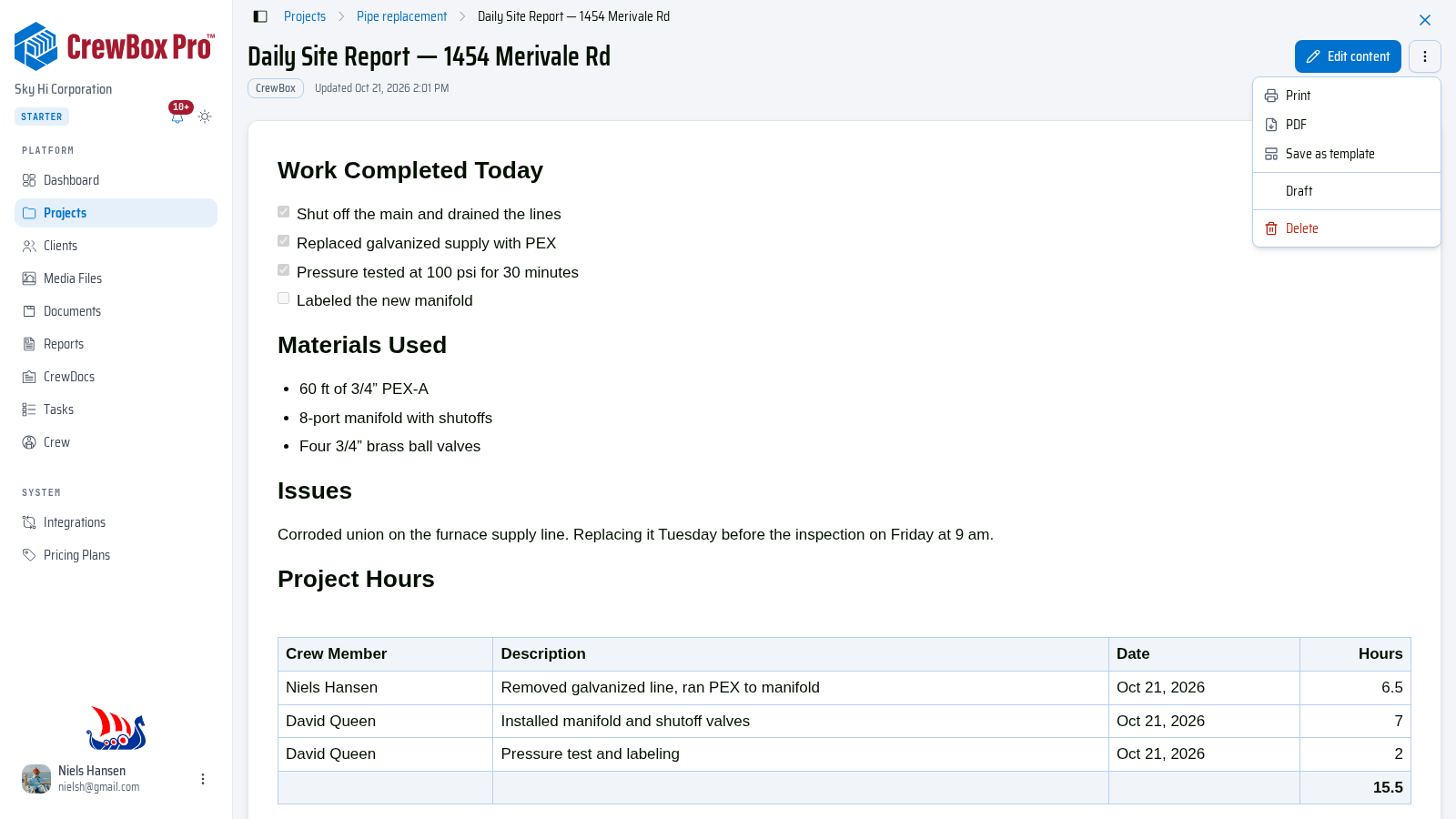
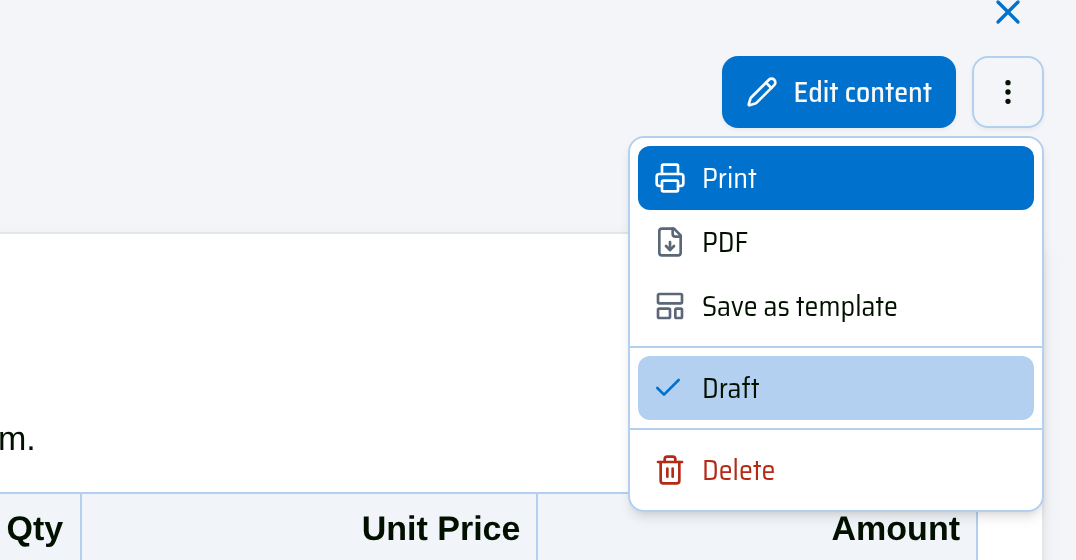
You can also download a PDF without opening the document: on the CrewDocs page, open a row's ⋯ menu and click PDF.
Set the header and footer
The printed pages repeat a header and footer. To change them:
- Open the CrewDoc and click Edit content.
- Click Print & PDF settings (the last button in the toolbar above the page).
- Turn Show header and Show footer on or off.
- For each Left, Center, and Right slot, pick Document title, Page number, Date, Company name, Project name, No Value, or Free Text (then type your own text).
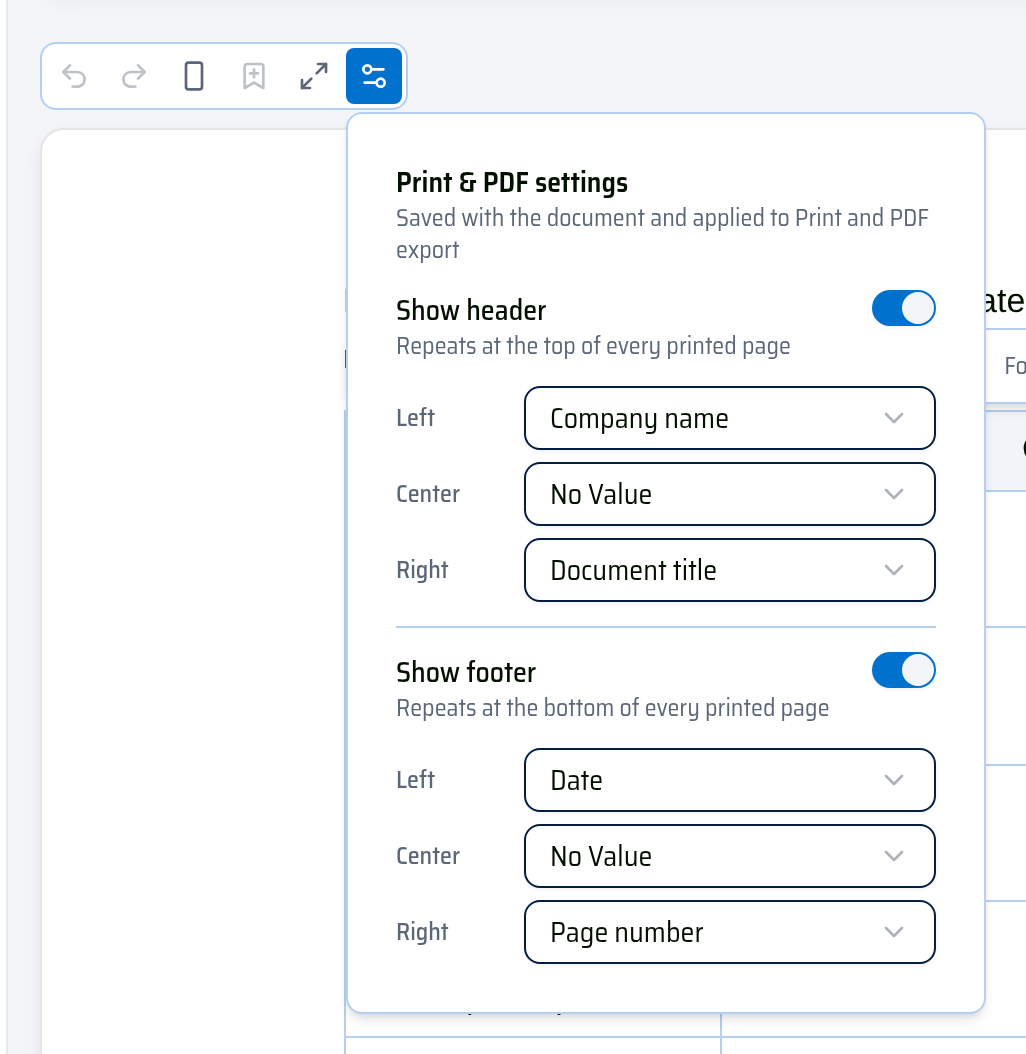
By default the header shows your Company name on the left (with your company logo, if you've uploaded one) and the Document title on the right, and the footer shows the Date and Page number. The settings are saved with the CrewDoc, so every print and PDF of it looks the same.
Control the page layout
- Page break — insert one from the / menu to start a new page at that spot.
- Switch to landscape / Switch to portrait — the page-orientation button in the editor toolbar. Landscape gives wide tables more room.
- When you view the CrewDoc, page breaks show as separate sheets, so you can check the layout before you print.