
Link CrewDocs from a task
- Open the task — click it on the project's Tasks tab, the Kanban board, or the Tasks page.
- In the task panel, find the CrewDocs section and click Add CrewDocs.
- In Link CrewDocs, search or scroll, and tick the CrewDocs you want. Only CrewDocs that belong to the task's project are listed.
- Click Link (the button shows how many you picked).
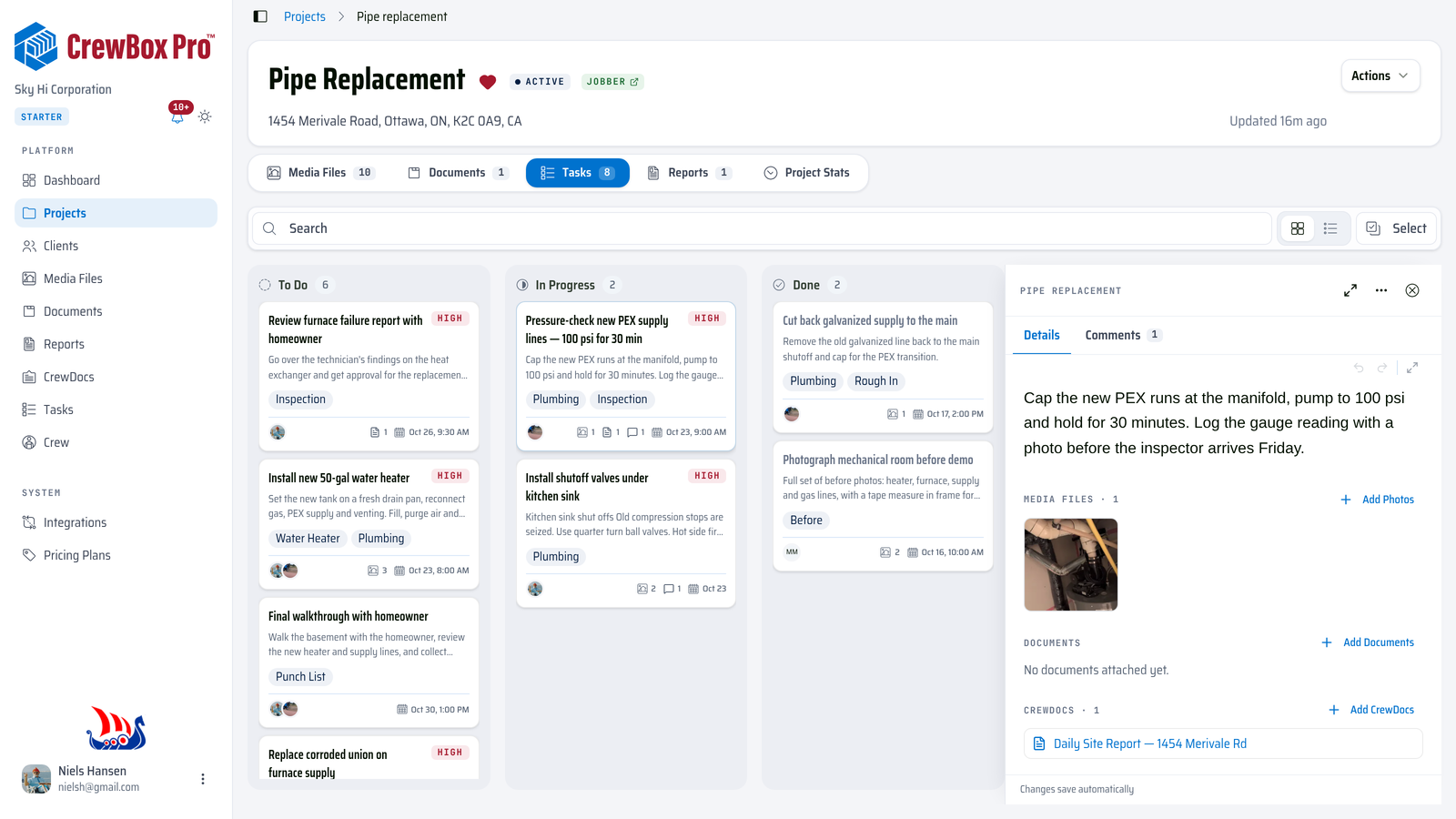
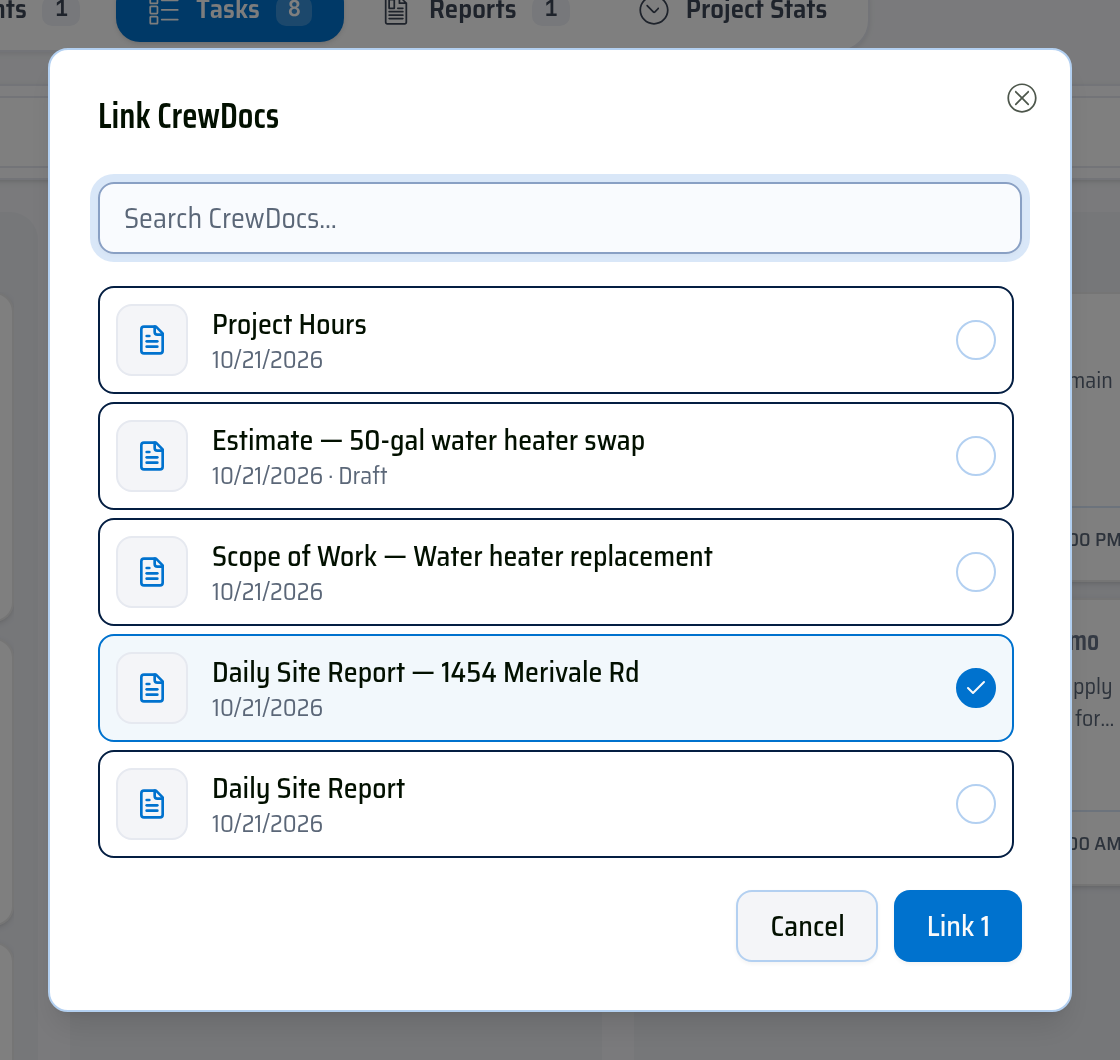
The linked CrewDocs are listed in the task's CrewDocs section, with Draft next to any that aren't published yet. Click one to open it.
Unlink a CrewDoc
- Hover the CrewDoc in the task's CrewDocs section and click the X (Unlink CrewDoc).
- Confirm. The CrewDoc is no longer linked to the task — the CrewDoc itself is not deleted.
You can also reopen Add CrewDocs and untick a CrewDoc there; the dialog saves both new links and removals.

Good to know
- Linked CrewDocs count toward the document count shown on task cards in the Kanban board and task list.
- Tasks belong to a project, so a CrewDoc that isn't linked to that project won't appear in Link CrewDocs.