
Write and add blocks
- Open the CrewDoc and click Edit content. (New CrewDocs open in the editor automatically.)
- Click in the page and start typing.
- To add a block, type / at the start of a line, or click the + (Add block below) that appears to the left of the line you're on.
- Pick a block from the menu — keep typing after the / to filter it (for example /table) and press Enter:
- Text, Heading 1, Heading 2, Heading 3
- Bullet list, Numbered list, To-do list
- Quote, Code block, Divider, Page break
- Table, Company logo, Date & time, Company address
- When you're finished, click Done to leave the editor.
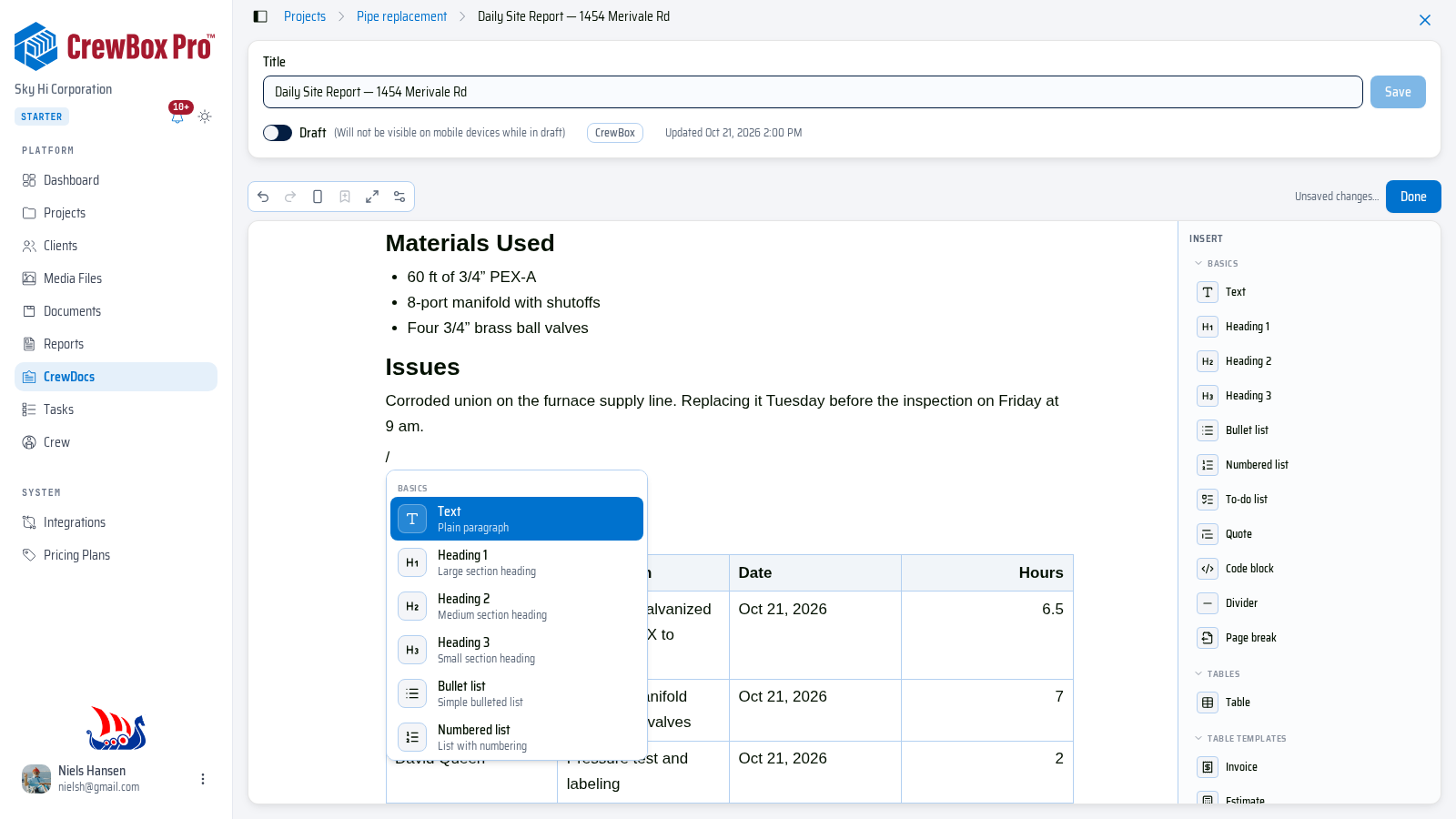
On a wide screen the Insert panel sits beside the page with the same blocks grouped (Basics, Tables, Table Templates, Company, Project, Widgets) — click one to insert it where your cursor is.
Markdown-style shortcuts
You can also type shortcuts at the start of a line: ## for a heading, - for a bullet list, 1. for a numbered list, and [ ] for a to-do item. Tick a to-do's checkbox to mark it done — handy for a punch list or a "work completed today" list.
Format text
Select any text to show the formatting toolbar:
- The first dropdown turns the block into Text, a heading, a Bullet list, a Numbered list, or a Quote.
- Bold, Italic, Underline, Strikethrough, Code, and Highlight.
- Align left, Align center, Align right.
- Link — paste or type a web address and click Save; Remove link takes it off again.

Move blocks around
Hover a block and drag its grip handle (Drag to move) to a new spot — paragraphs, lists, tables, and photo blocks all move the same way.
Project content
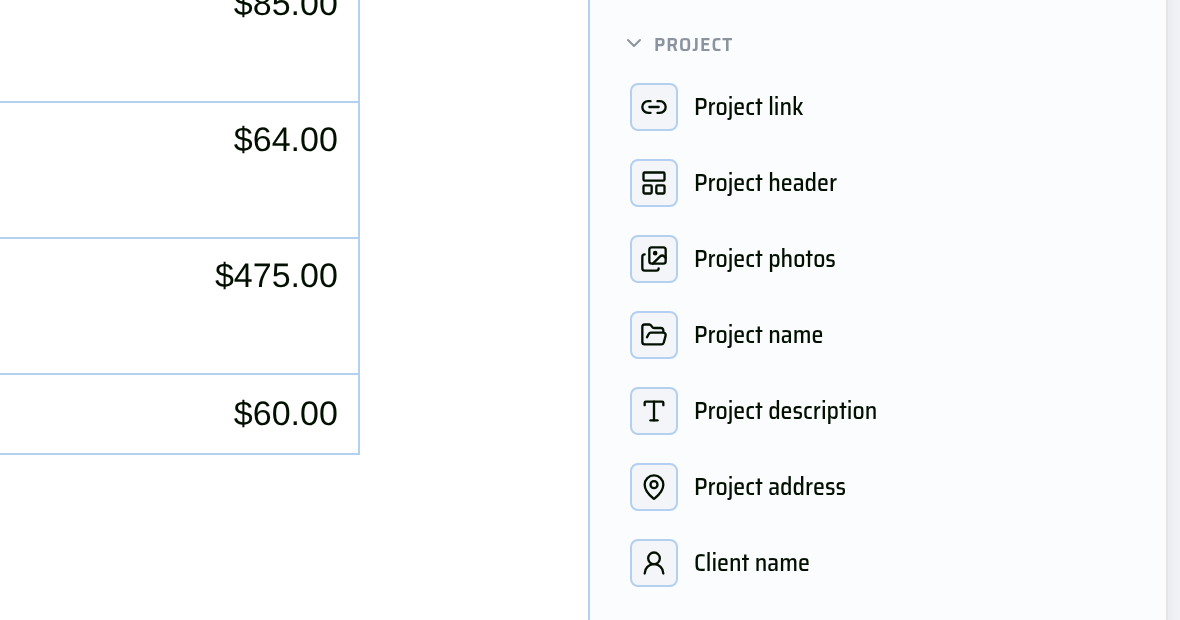
When the CrewDoc belongs to a project, the Project group adds:
- Project photos — pick photos from the project's media and show them as a Grid, Mosaic, Spotlight with details, or Filmstrip, in Small, Medium, or Large. Removing a photo here only removes it from the document.
- Project header, Project name, Project address, Project description, and Client name — filled in from the project.
- Project link — a link that opens the project (or one of its tabs, such as Photos or Tasks).
Company logo uses the logo from your company profile; upload one there first.
Editor toolbar
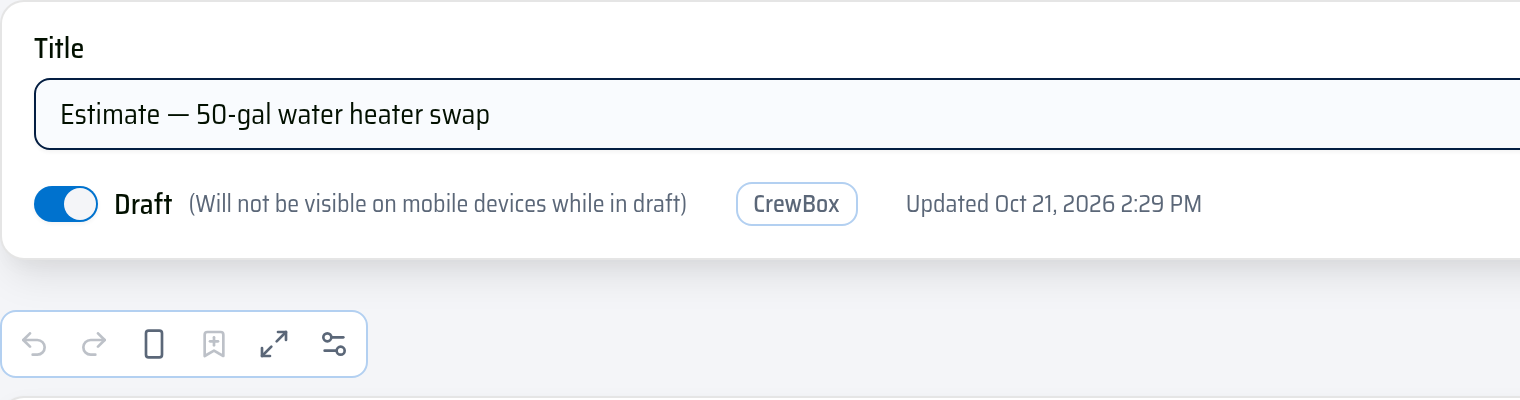
The small toolbar above the page has Undo, Redo, Switch to landscape / Switch to portrait (page orientation for printing), Save selection as widget, Full screen (press Esc to exit), and Print & PDF settings.
Saving, title, and drafts
- Changes save automatically a few seconds after you stop typing. The status next to Done reads Unsaved changes…, Saving…, then All changes saved. Leaving the page saves anything still pending.
- Change the Title at the top of the editor and click Save (or press Enter).
- The Draft switch publishes or unpublishes the CrewDoc. Drafts are not visible on mobile devices.
- CrewDocs imported from CompanyCam can be viewed and printed, but not edited.