
Before You Start
CrewDocs are turned on per workspace. If tapping + on a project's Docs tab goes straight to the file picker (no New CrewDoc option), CrewDocs isn't enabled for your workspace yet.
Create a CrewDoc
- Open the project → Docs tab → tap +.
- Tap New CrewDoc ("Create a form-style document for this project").
- Enter a Title and tap Create. The CrewDoc is published to the project right away and opens ready to edit.
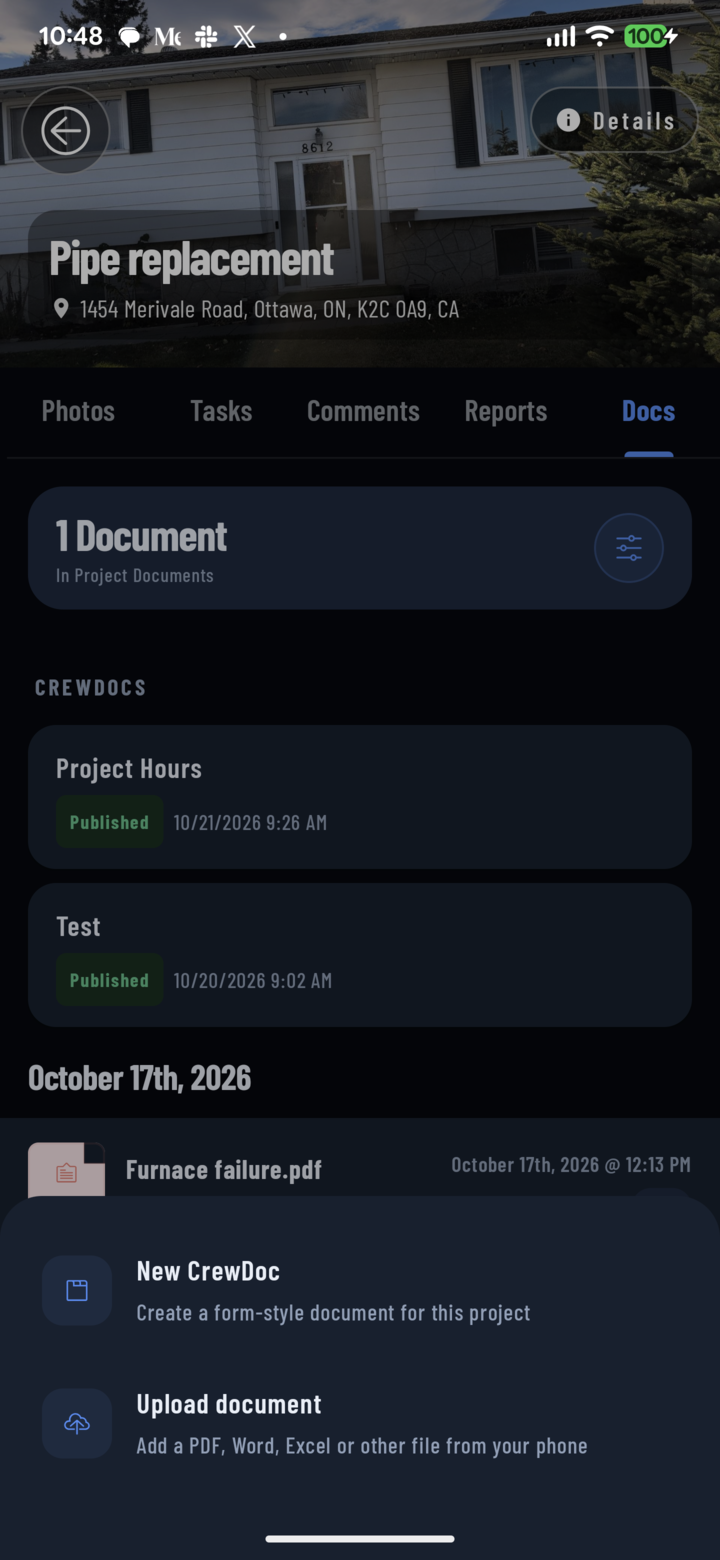
Tap + on the Docs tab, then New CrewDoc to start a document in the app.
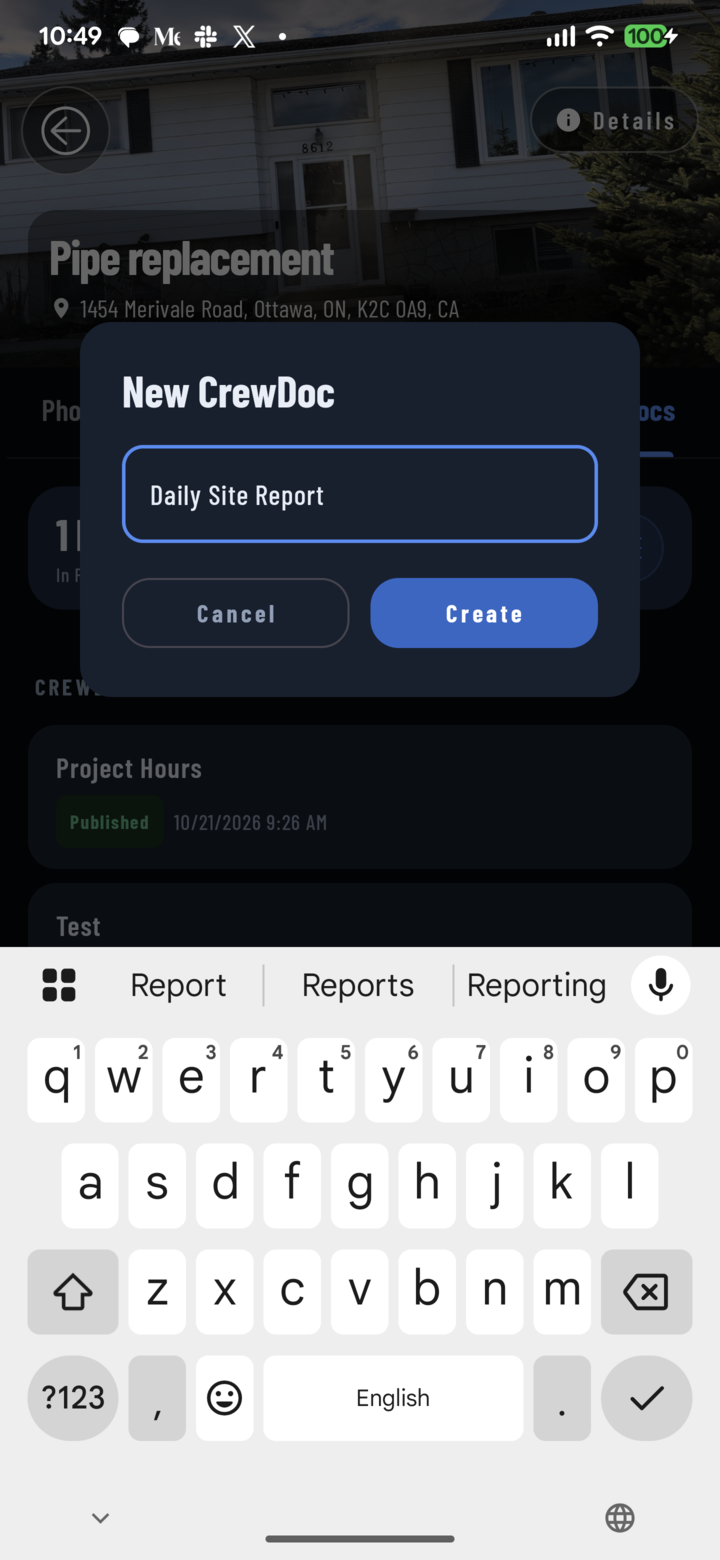
Enter a title in New CrewDoc and tap Create.
Write and Format
- Tap a line and type. Type / to open the block menu (the empty line hints "Type “/” for commands"): Text, Heading 1–3, Bulleted list, Numbered list, To-do list, Quote, Code, Divider, Page break, Table — plus ready-made tables: Invoice, Estimate, Work order, Materials, and Labor. Keep typing after the slash to narrow the list (e.g. /todo).
- The toolbar above the keyboard works on the block you're in: + adds a block below, Turn into converts it (heading, list, to-do…), the arrows move it up or down, and the trash icon deletes it. After a / pick or Turn into, the cursor stays in the converted block so you can keep typing.
- Select some text (long-press a word, drag the handles) for bold, italic, underline, strikethrough, code, highlight, and links.
- In a To-do list, tap a box to tick the item.
- Undo and Redo in the header step back through changes to the block your cursor is in.
- Tables fill in through a simple row form — see Fill in a CrewDoc table.
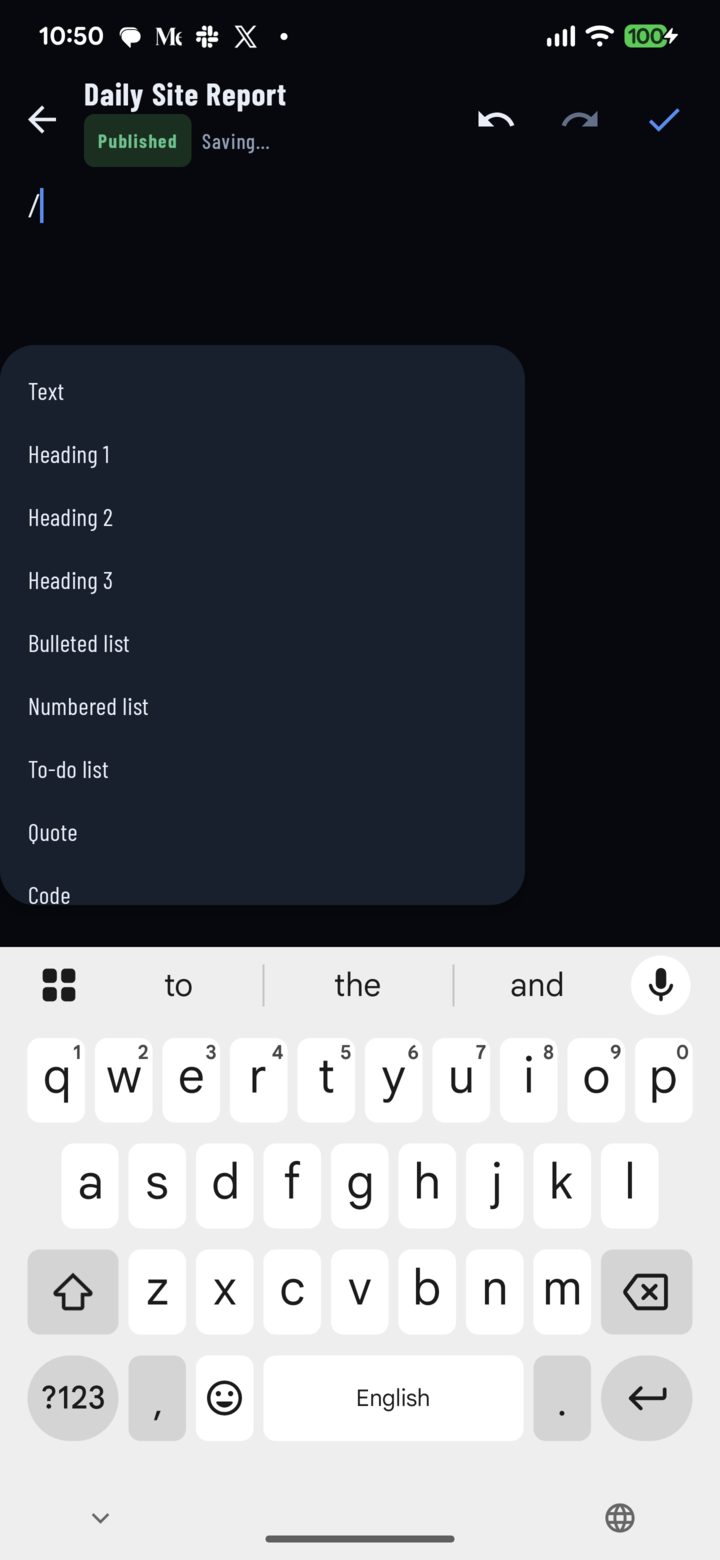
Type / on an empty line to open the block menu.
Saving
- Edits save automatically a few seconds after you stop typing. The header shows Saving… then Saved; if it shows Save failed, tap Retry.
- Tap the ✓ to finish. The back arrow — or your phone's Back gesture (Escape on a keyboard) — also just leaves edit mode instead of closing the doc, and your latest edits show right away.
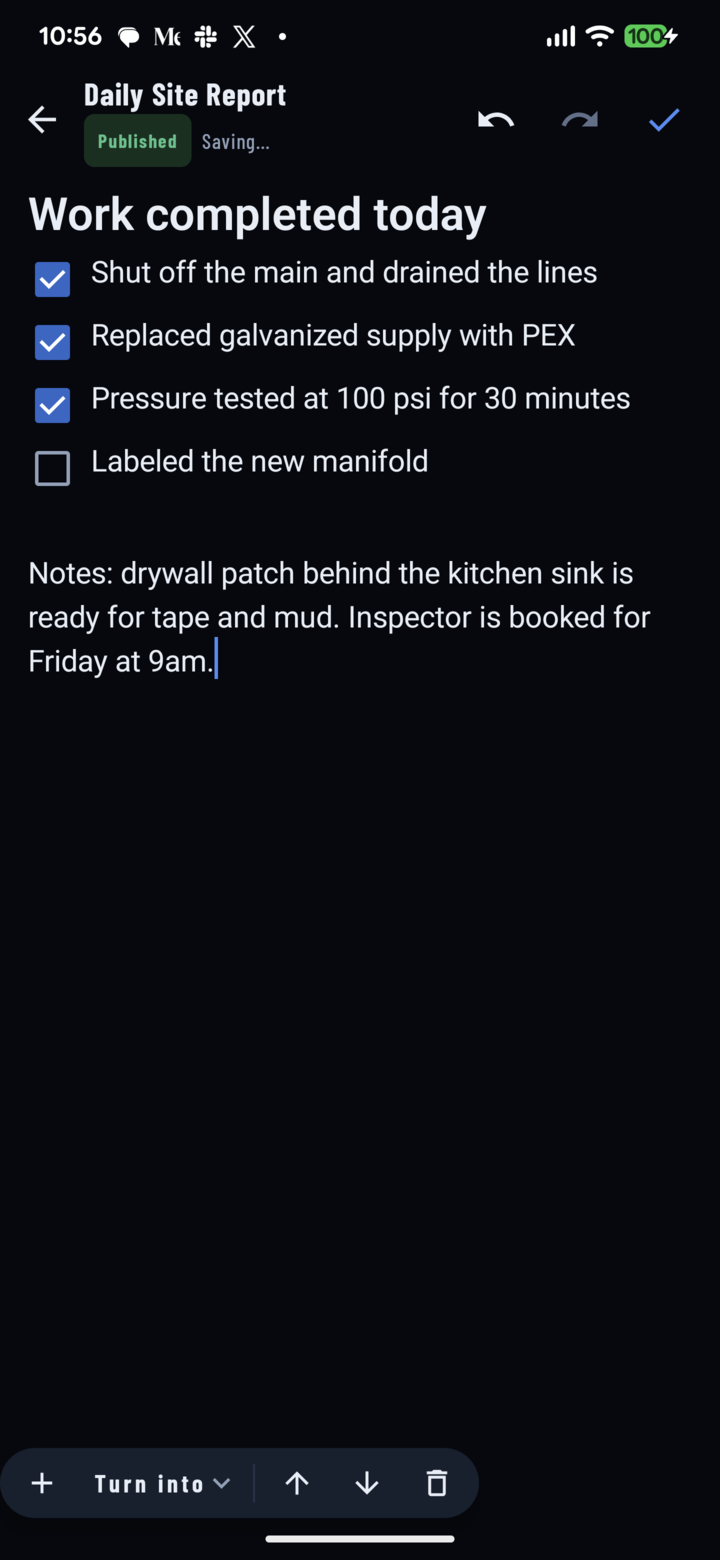
While you type, the header shows Saving…; tap ✓ to finish.
Open and Manage CrewDocs
- A project's published CrewDocs are listed in the CrewDocs section of its Docs tab; recent ones also appear on Home. See all opens the full CrewDocs list with Search CrewDocs and a project filter.
- Tap a CrewDoc to read it; tap the pencil to edit.
- The ⋮ menu has Rename, Move to project, Unlink from project, and Delete.
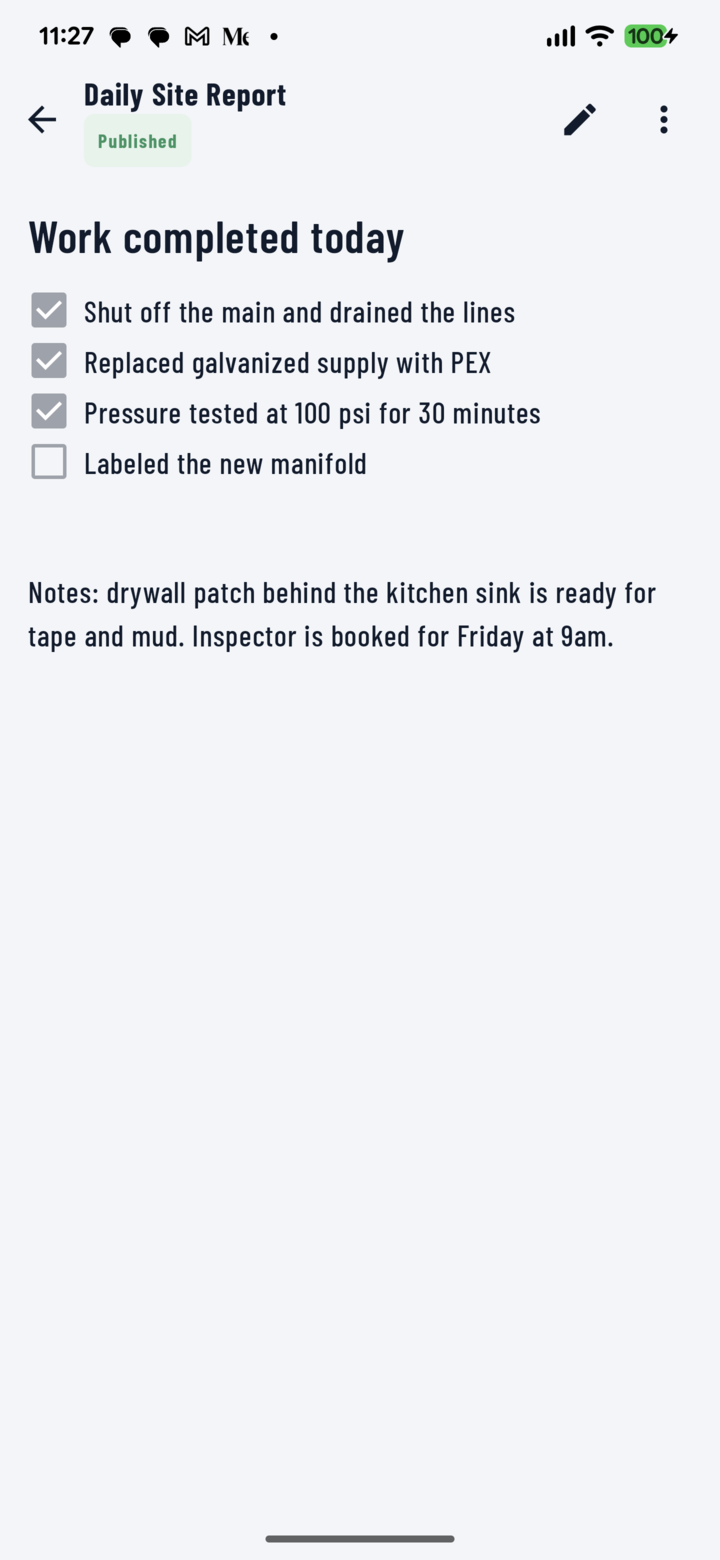
A published CrewDoc opens to read — the pencil edits it, ⋮ holds the rest.
Good to Know
- The app shows Published CrewDocs. Drafts, publishing, and duplicating are handled in the CrewBox web console.
- CrewDocs need a connection to open and edit — the pencil is hidden while the phone is offline. If the signal drops while a CrewDoc is open you can keep reading it; tap Retry on Save failed once you're back online (saving, sync, and offline).
- A few blocks authored on desktop show Not editable on mobile. CrewDocs imported from CompanyCam carry a CompanyCam badge and are read-only.