
Steps
- Open the project → Docs tab → tap the CrewDoc in the CrewDocs section (for example, a Project Hours timesheet).
- Tap the pencil to edit.
- Tap Add row under the table. A form opens with one field per column.
- Fill it in: date columns open a date picker, crew-member columns offer a drop-down of your crew, and number columns take numbers. Tap Save.
- To fix an entry, tap any cell in that row — the Edit row form opens. Tap the trash icon there to remove the row (Delete this row?).
- Tap the ✓ when you're done. The CrewDoc saves automatically as you go.
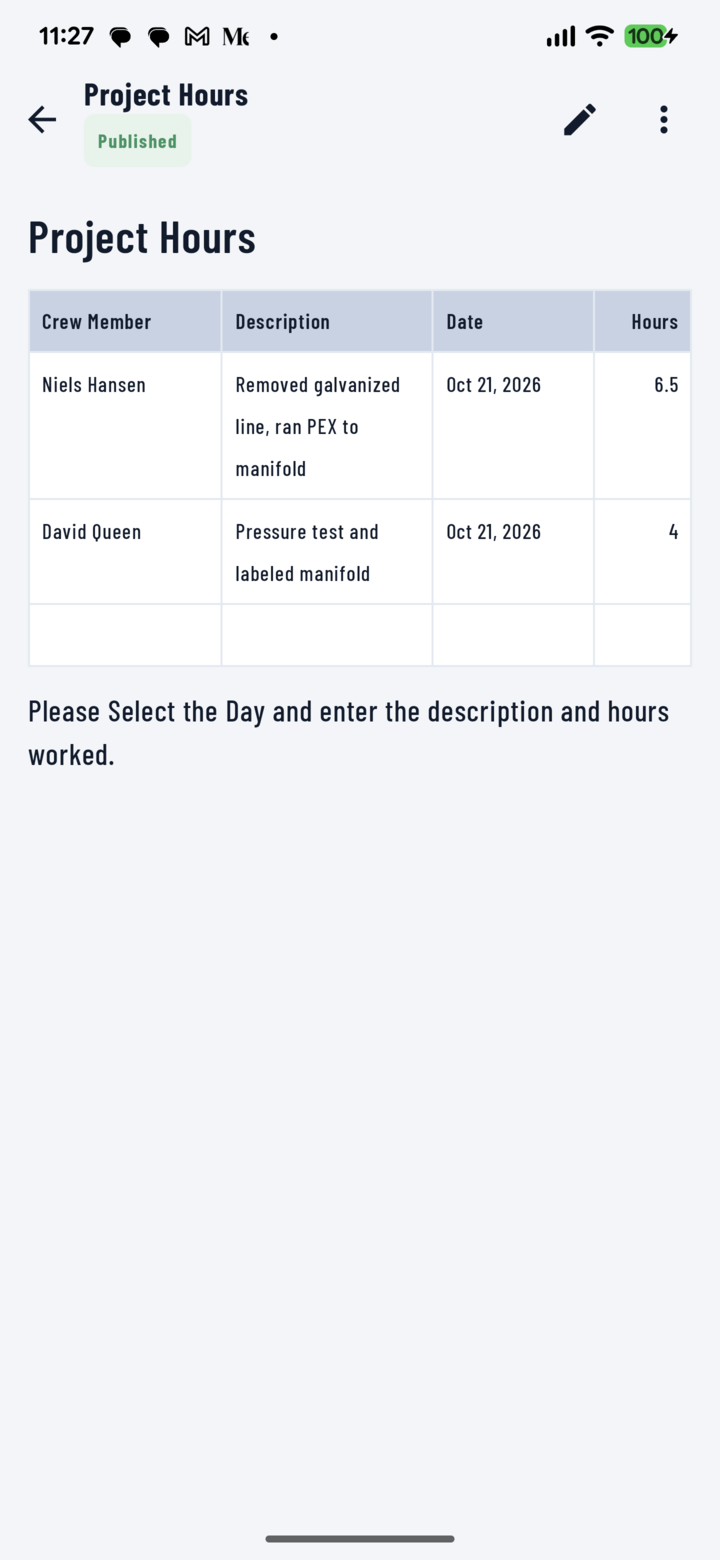
A filled-in Project Hours timesheet — one row per crew member per day.
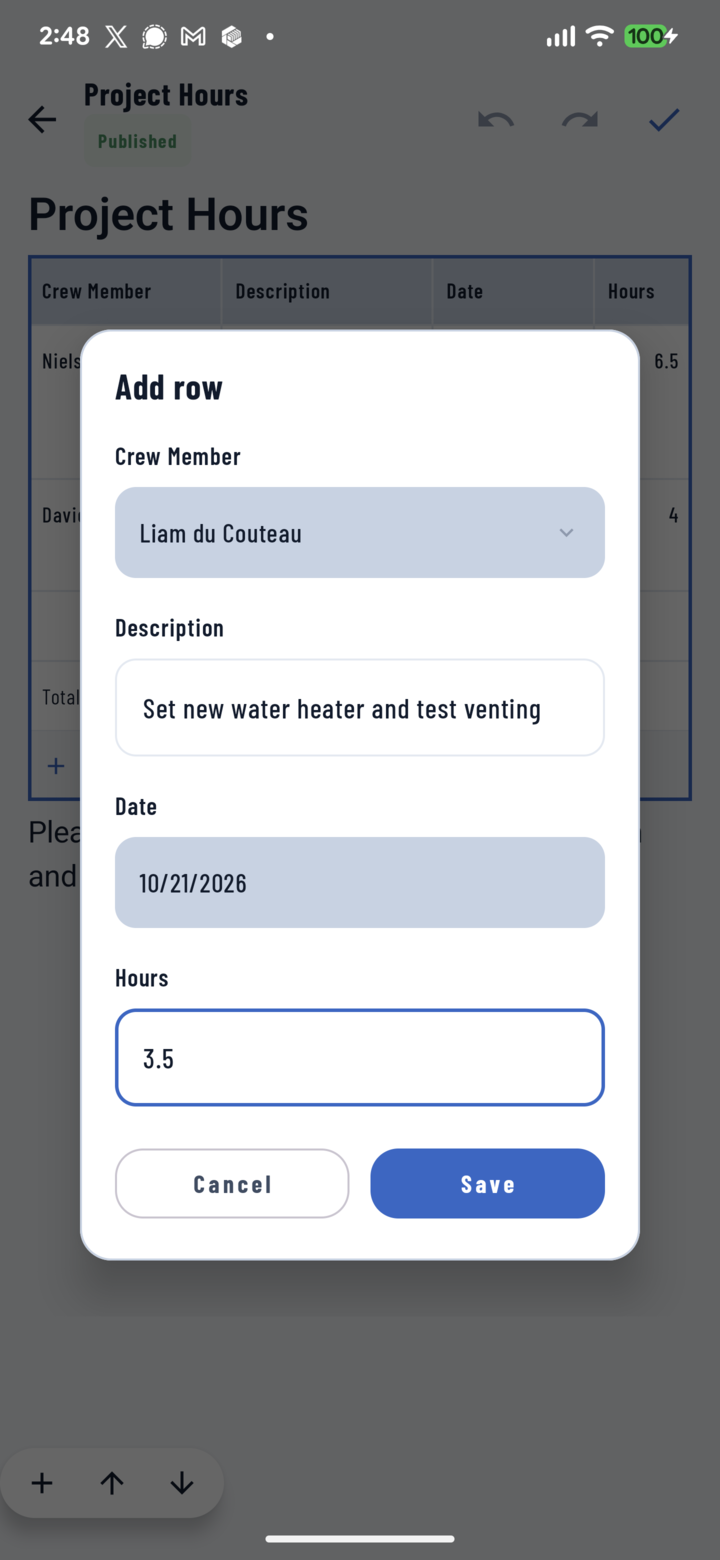
Tap Add row to fill in a new line — date and crew pickers included.
Example: a Project Hours Timesheet
A timesheet with Crew Member · Description · Date · Hours columns works like this: each person adds one row per day — pick their name, describe the work ("Removed galvanized line, ran PEX to manifold"), pick the day, and enter the hours (6.5). Any note under the table, such as "Select the day and enter the description and hours worked", stays visible for the next person.
Totals and Calculated Columns
- Calculated columns — like Amount (Qty × Unit price) on an invoice — fill themselves in. They're locked and don't appear in the row form.
- Footer Total rows add up their columns automatically as you add rows.
Add a Table
In edit mode, type / and pick Table for a blank grid, or a ready-made table with its columns and totals already wired:
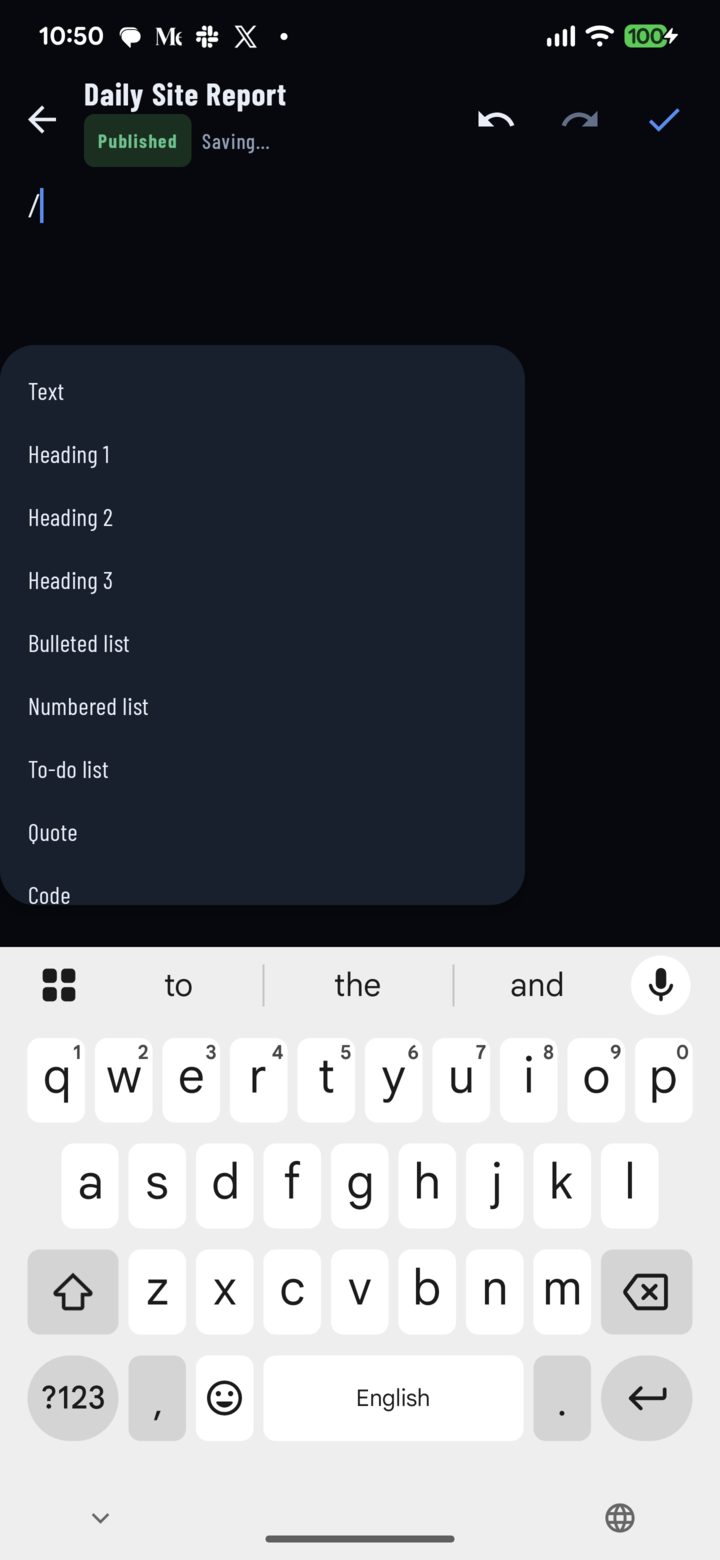
Type / in edit mode to open the block menu, then scroll to Table or a ready-made table.
- Invoice / Estimate — Description, Qty, Unit price, Amount
- Work order — Task, Assigned to, Due date, Status
- Materials — Material, Qty, Unit, Unit cost, Total cost
- Labor — Crew member, Date, Hours, Rate, Amount
Good to Know
- A table's structure — column names, column types, and which columns total — is set up in the CrewBox web console. On your phone you add, edit, and delete rows; header and total rows are read-only, and a table can't be deleted from the app.
- Editing needs a connection. If the signal drops while the CrewDoc is open you can keep reading the table; rows you add save once you tap Retry back online (saving, sync, and offline).