
Before You Start
- Deleting is permanent and can't be undone: your account and everything in it are deleted, and every project, photo, task, and report stored on this phone is erased.
- You need a connection. Offline, nothing is deleted — CrewBox tells you to check your connection and try again.
- Photos still waiting in the upload queue are erased with everything else, so let them finish uploading first if you need them.
Steps
- Tap the Profile button (top-left of the header) to open your Profile.
- Scroll to the bottom and tap Delete Account (the red row).
- Read the Delete Account? warning, then type DELETE in the Confirmation field — it's always the English word, whatever language the app is in.
- Tap Delete Account. A Deleting your account screen shows while the account is deleted and this phone is cleared.
- When you see Account deleted, tap Sign Out. You're back on the login screen.
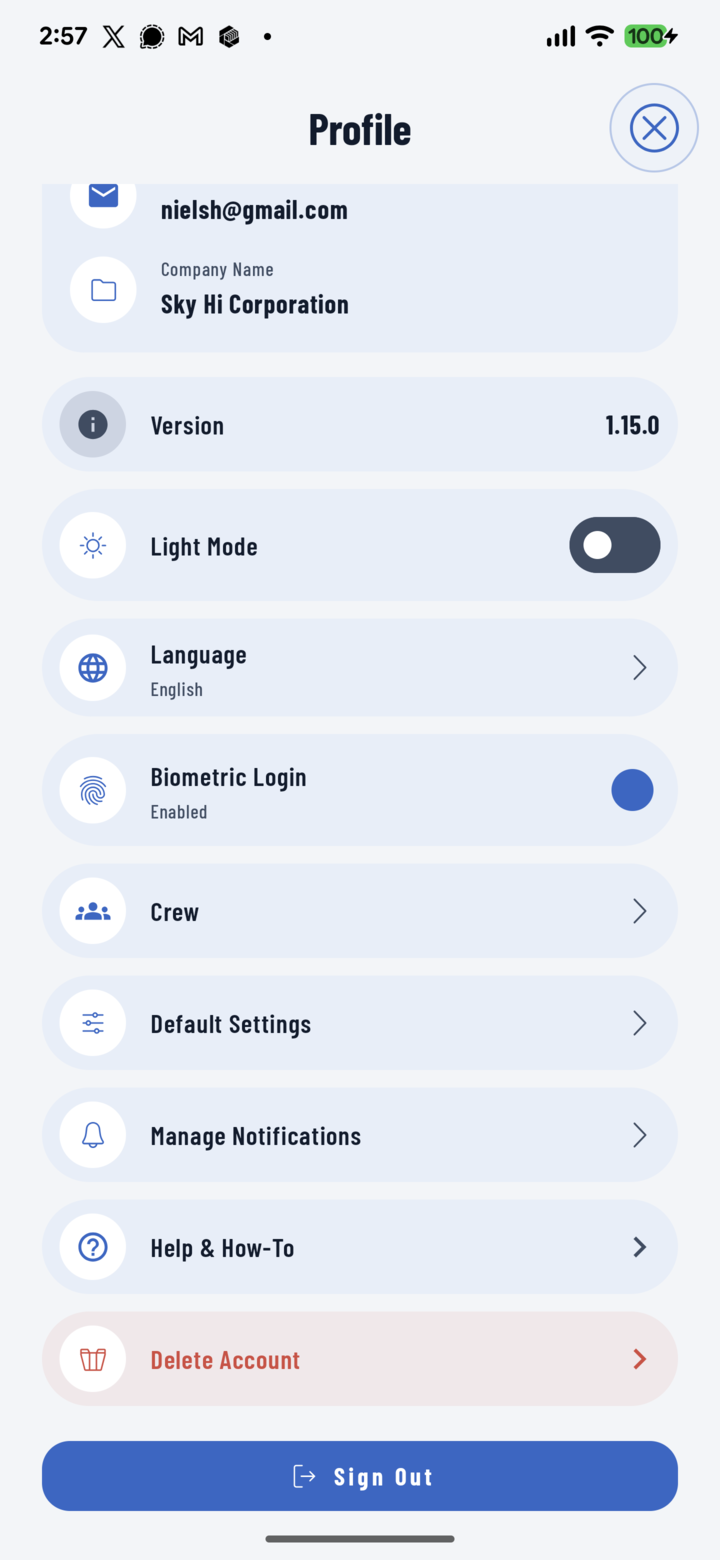
Scroll to the bottom of Profile and tap Delete Account.
If Something Goes Wrong
- "No connection, so your account was not deleted" or "We couldn't delete your account" means nothing has changed — your account and data are intact. Fix the connection and try again.
- Changed your mind? Tap Cancel before confirming; nothing is deleted until you tap Delete Account with DELETE typed in.
Good to Know
- Just switching phones or handing one back? You don't need to delete anything — Sign Out at the bottom of Profile is enough.
- Company owners: deleting your own account is different from removing someone from your crew. To stop an invite, see Invite a crew member.