
Who Can Do This
Only owners and managers see the Crew row on Profile and the Invite chip on a project. Crew members don't.
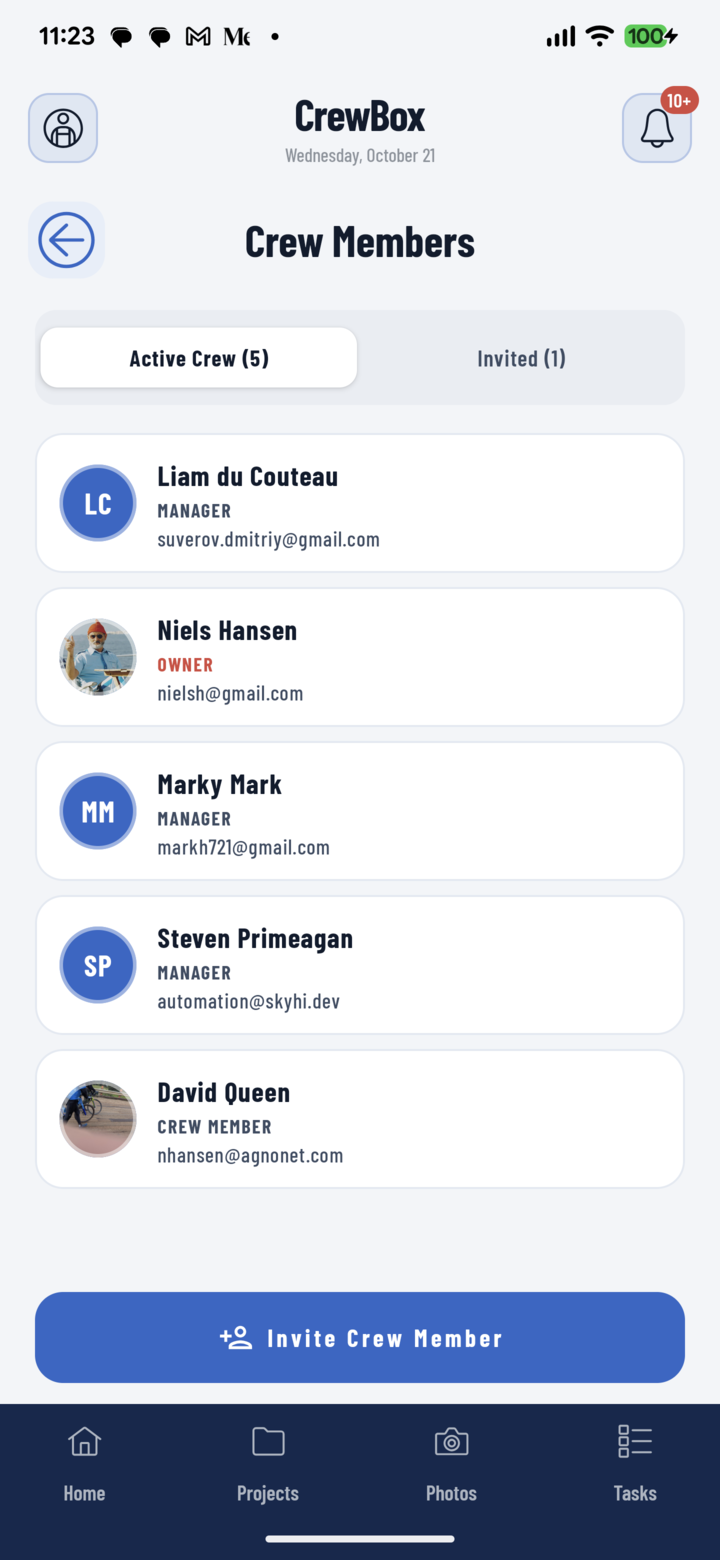
Crew Members — everyone on the team, their role, and the Invite button.
Steps
- Tap the Profile button (top-left of the header), then tap Crew. The Crew Members screen opens on Active Crew — everyone on the team with their role and email.
- Tap Invite Crew Member at the bottom.
- Fill in First Name, Last Name, and Email; Phone (Optional) is optional.
- Pick a Role — Crew Member is pre-selected; the roles listed are the ones set up for your company.
- Tap Send Invite. A message confirms "Invite sent to …", and the invite appears on the Invited tab as Invite Pending.
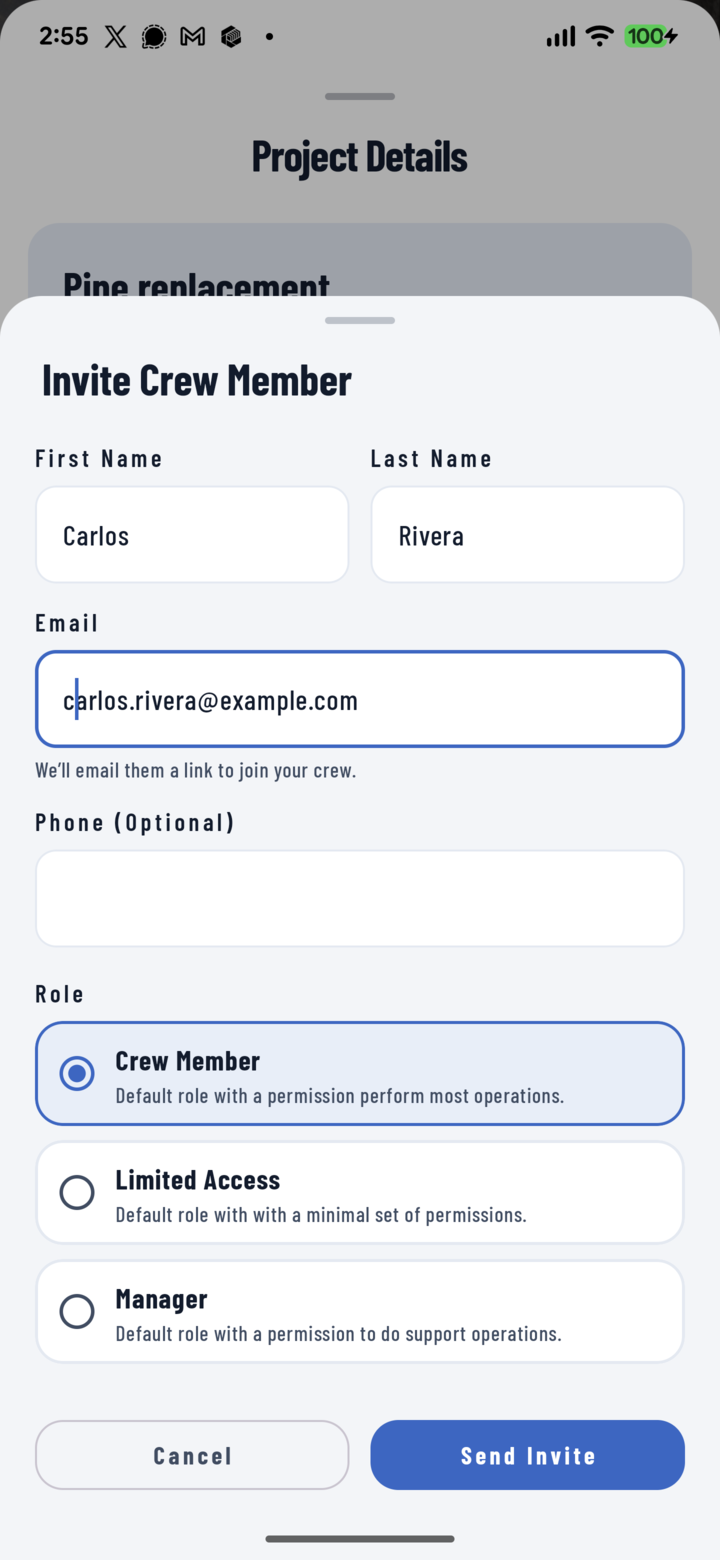
Fill in the crew member's details and pick a role, then send the invite.
CrewBox emails them a link to join your crew. Once they accept, they move to Active Crew and can be assigned to projects and tasks.
Invite From a Project
On a project, open Details and tap the Invite chip at the end of the Crew card. The same invite form opens; after sending, the card confirms "Invite sent to … You can assign them once they accept." See Assign crew to a project.
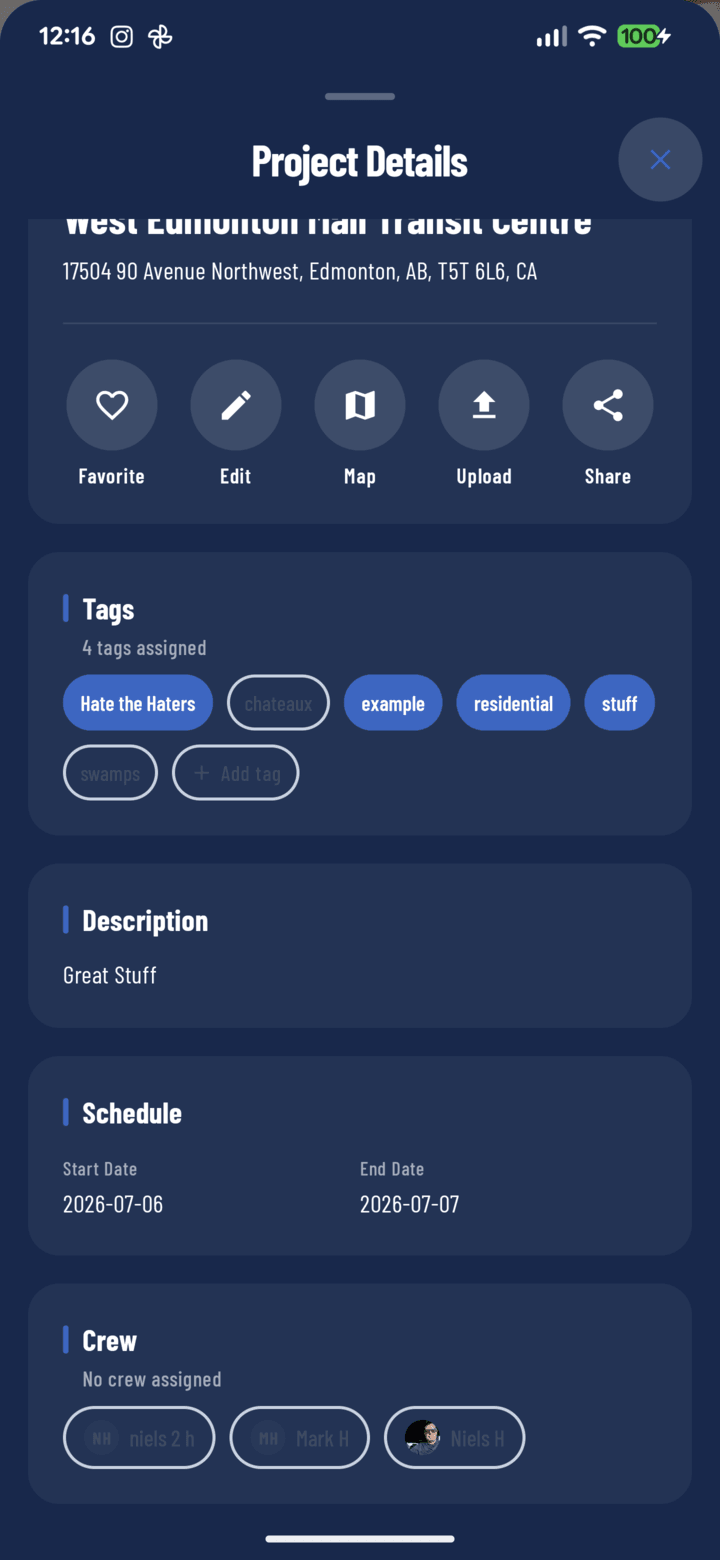
On a project's Crew card, the Invite chip sits at the end of the list.
Resend or Revoke an Invite
- On Crew Members, switch to the Invited tab.
- Tap the More (⋮) button on the invite.
- Choose Resend Invite to email the link again, or Revoke Invite and confirm — the link stops working.
Good to Know
- Sending an invite needs a connection; offline, the form tells you to connect first.
- Changing someone's role or removing an active member isn't done in the app — use the web console (Manage crew members).