
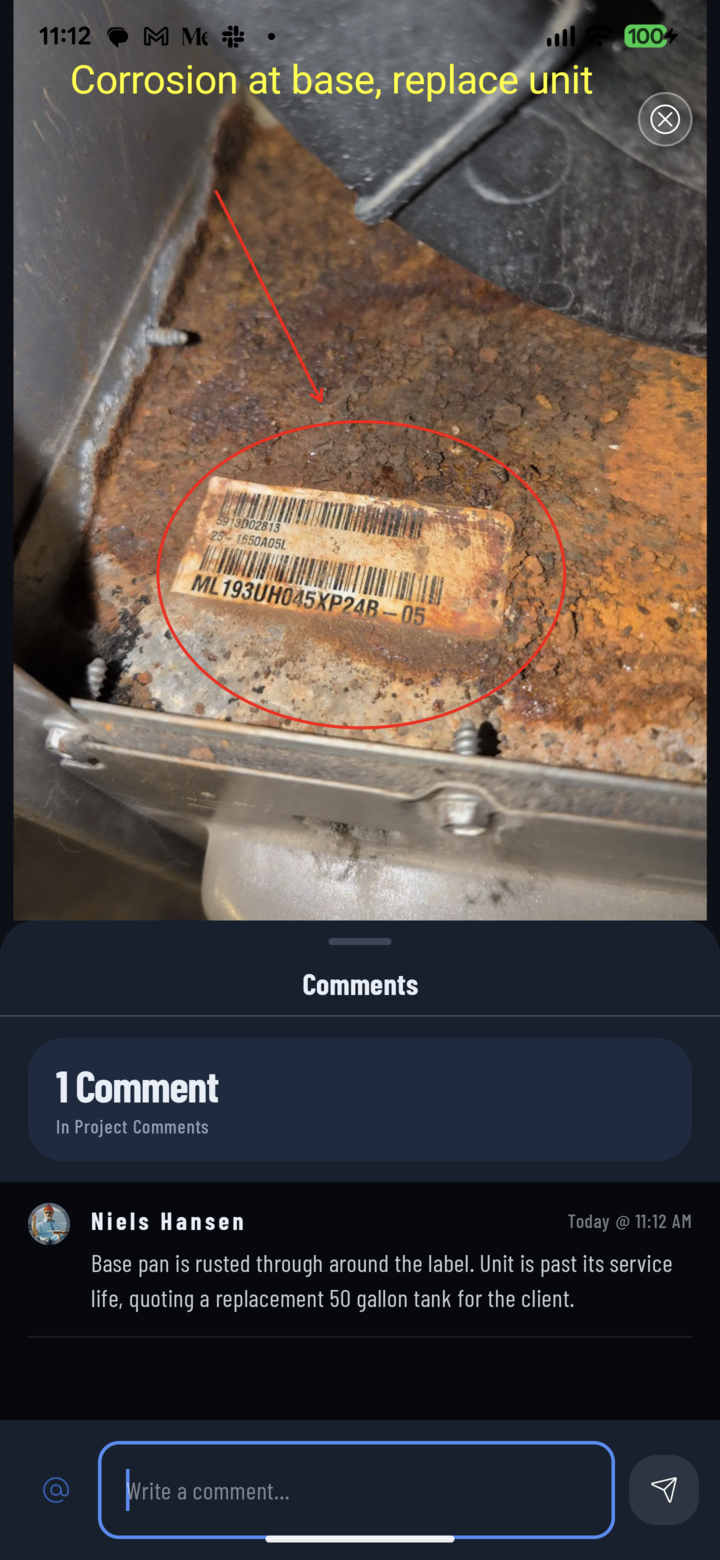
Comments sit right on the photo — here, a note on the marked-up water heater.
Photo comments keep the conversation on the thing it's about — "is this framing per plan?" belongs on the framing photo, where anyone opening it later finds the answer. Videos and voice notes have comments too.
Steps
- Open the photo, video, or voice note full-screen (tap it in any grid).
- Tap Comments in the action bar — the badge shows how many there are.
- The comments panel slides up. Its header shows the count and On This Photo or Video, so you know you're on this photo's thread, not the project's. Drag the panel up for the full thread or down to see more of the photo.
- Type in Write a comment…. To pull someone in, type @ (or tap the @ button) and pick them from Mention a Crew Member.
- Tap send. Your comment posts with your avatar and timestamp; anyone you mentioned is notified and their notification opens this photo with the comments already up.
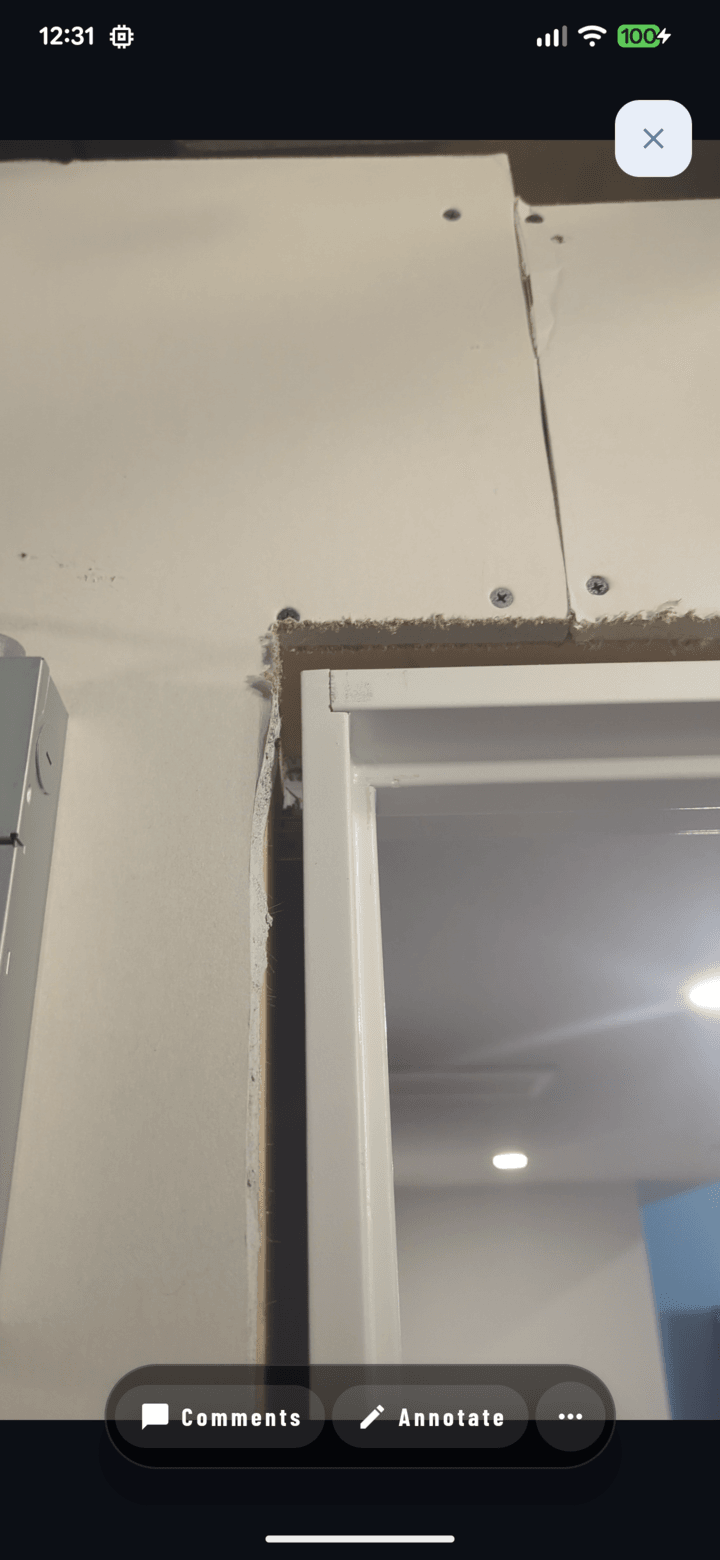
Comments in the viewer's action bar — the badge shows how many there are.
Managing Comments
- Edit your own: long-press the comment → Actions → Edit → Save. It's labelled (edited).
- Delete: project owners and managers can long-press one or more comments → Actions → Delete, then confirm.
- Who is this? Long-press a commenter's avatar for their person card — call, text, or email.
Finding Discussed Photos
- Photo tiles in the grid show a comment icon when a photo has a discussion.
- A comment notification opens the photo with its comments panel already up.
- Comments work offline — they're marked Sending… and post when you're back online.
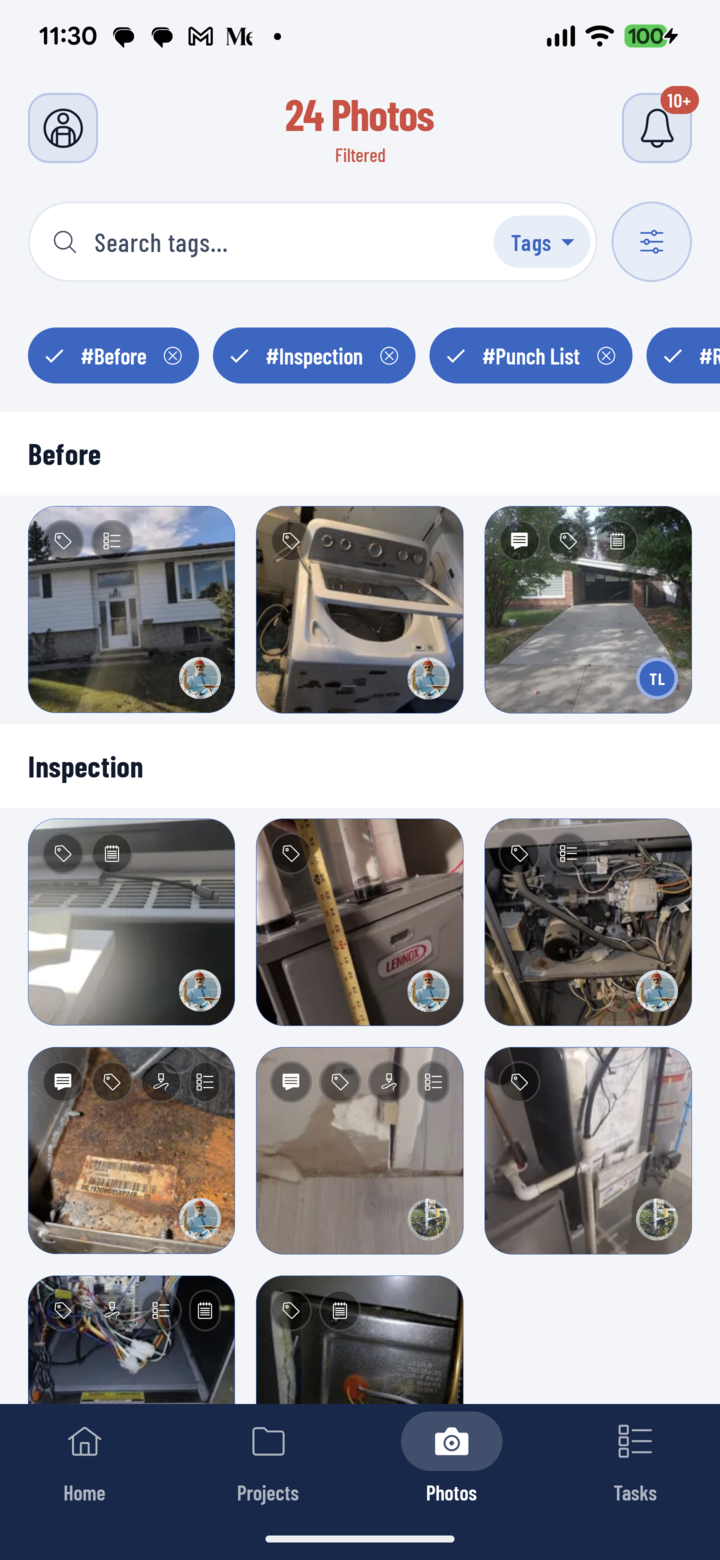
Grid tiles carry small icons — a speech bubble marks a photo that has comments.
Tips
- Circle the problem first (annotate), then comment and @mention the person who needs to fix it.
- If the comment is really a work item, use … → Add to Task instead — tasks have an assignee and a due date.