
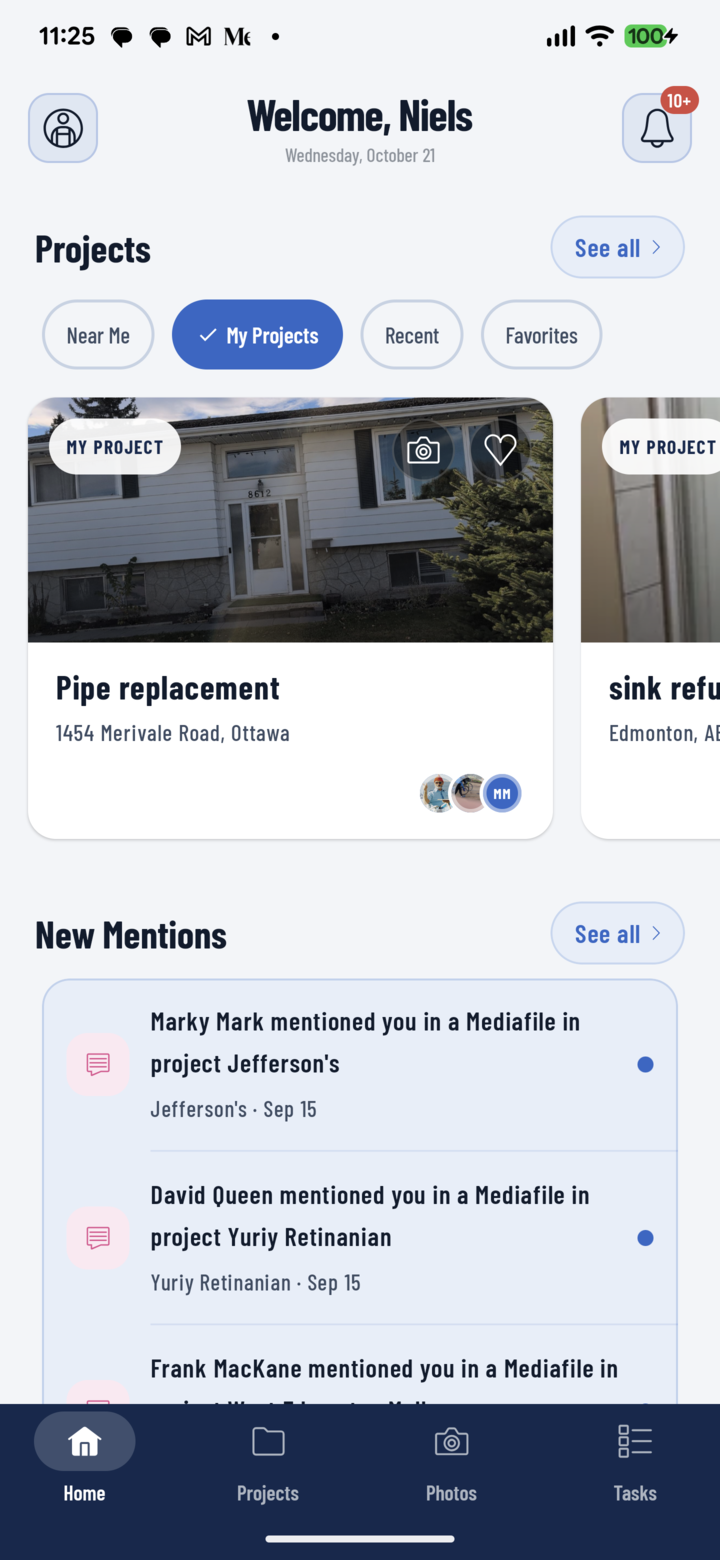
The Home screen: your projects up top, new mentions below.
The Header
- Welcome, [your first name] with today's date. When you lose signal, the header says Offline.
- Profile button (top-left) — settings, language, theme, crew, and help (defaults guide).
- Bell (top-right) — your notifications; the badge counts unread ones (up to "10+").
What's on Home, Top to Bottom
- Projects — a swipeable carousel of project cards with the filter chips Near Me, My Projects, Recent, and Favorites. Tap a card to open the project, the camera icon to shoot straight into it, or the heart to favorite it. See all opens the Projects tab, where search, the full filter sheet, and the All view live (filters guide).
- New Mentions — unread comments where someone @mentioned you, newest first. Tap one to jump to the conversation; See all opens Notifications.
- My Tasks — three counters (Overdue, Due today, Next 7 days), a warning when tasks are past due, and the list of what's coming up. Tap a task to open it, or See all for the Tasks tab.
- Recent Photos — the newest shots from your projects; tap one to view it full screen, or See all for the Photos tab.
Sections with nothing to show stay hidden — no mentions, no Mentions section; nothing due, no My Tasks counters.
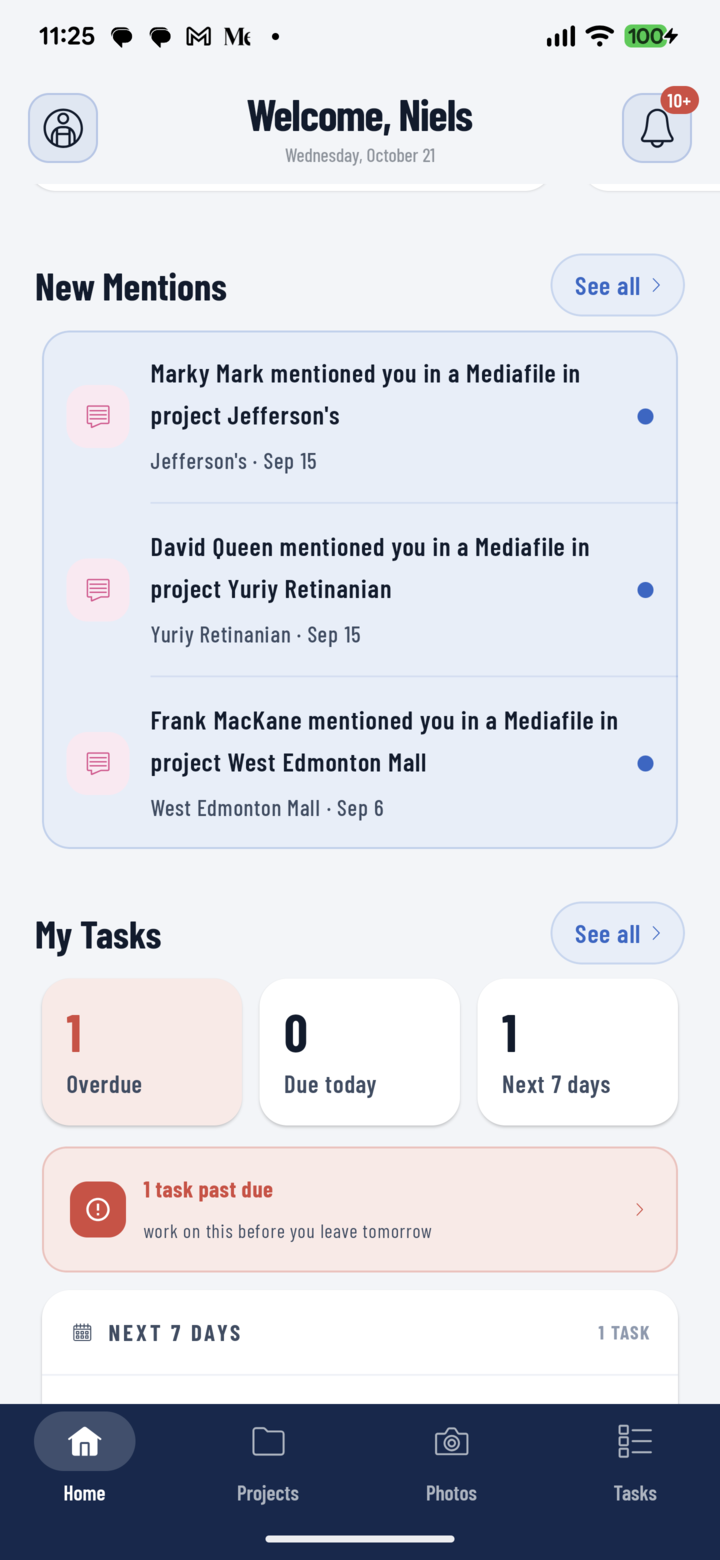
Scroll down Home for mentions and your task counts — overdue, due today, next 7 days.
Shortcuts Worth Knowing
- Swipe sideways on Home (outside the project carousel) to jump straight into the camera for the project you were last in.
- Home opens on your default project view — Near Me unless you've changed it in Profile → Default Settings.
- Brand-new account with no projects yet? Home shows Welcome to CrewBox Pro with a Create First Project button instead (guide).