
Before You Start
You need to be able to open both mailboxes — your current address and the new one — to finish the change.
Start the Change
- Click your avatar in the sidebar footer and choose Account Settings. You land on the Profile tab.
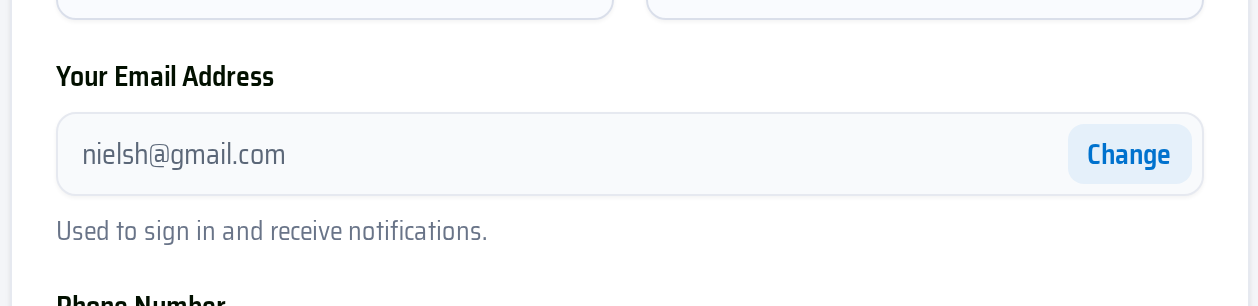
- Next to Your Email Address, click Change.
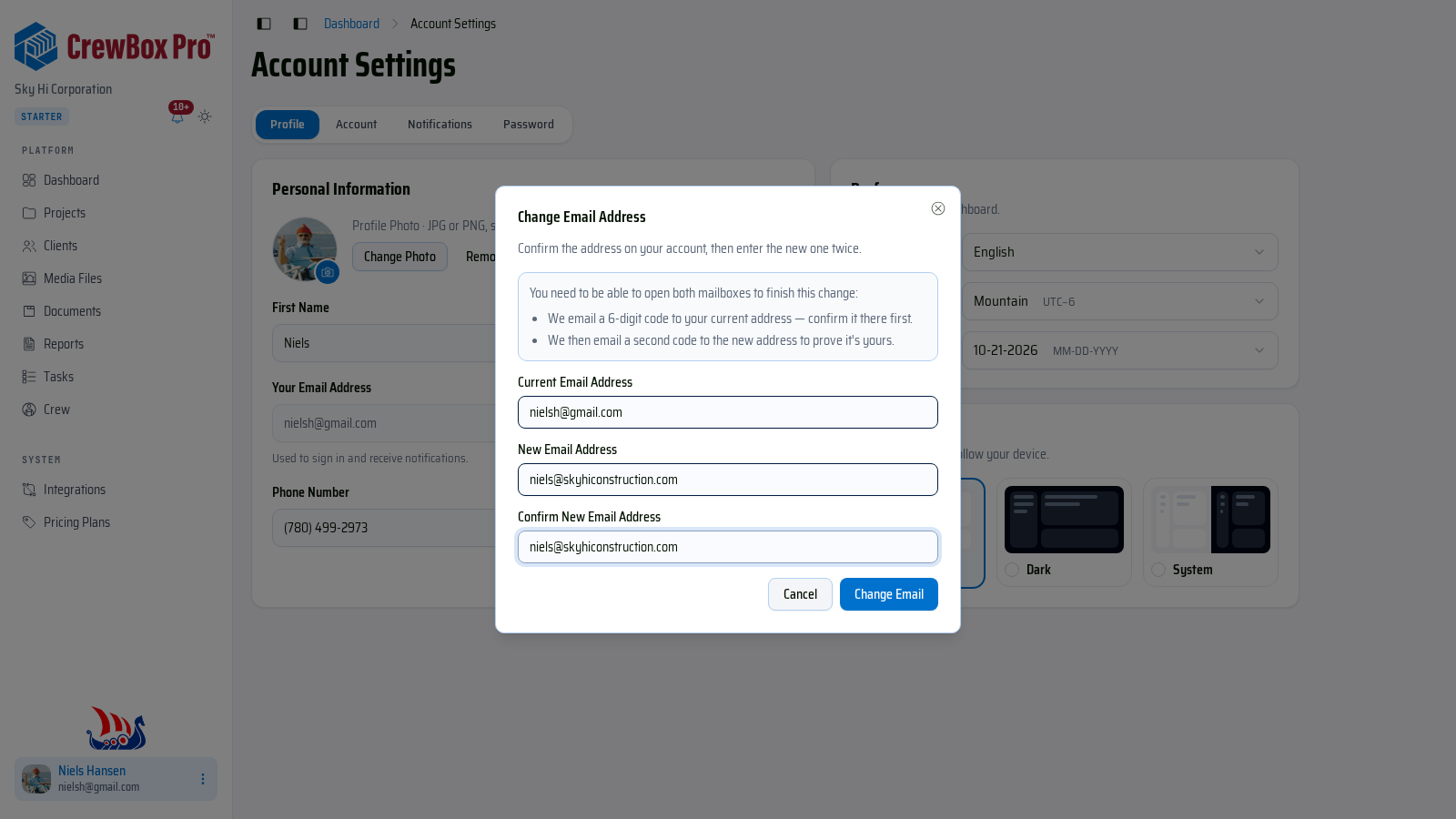
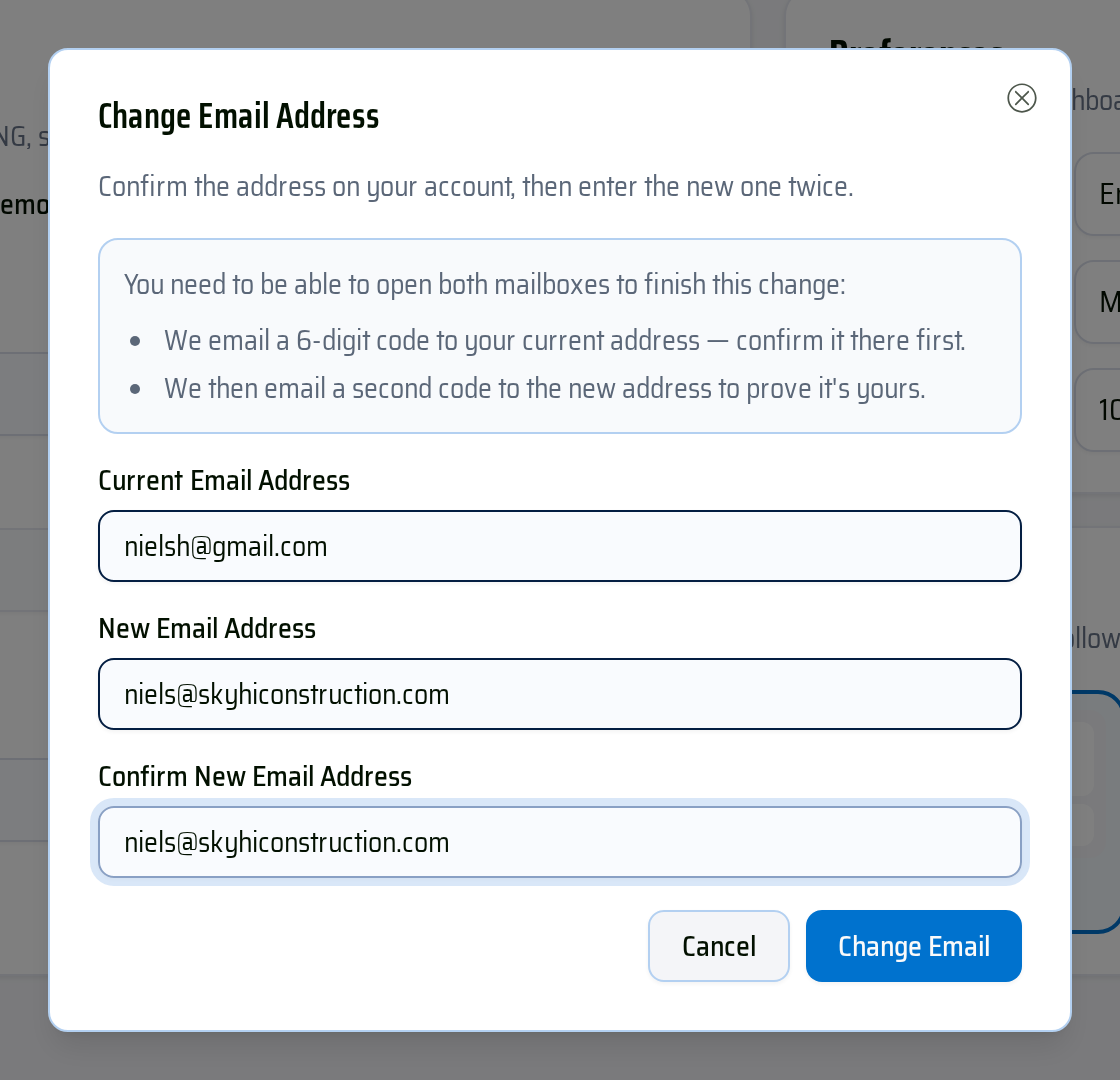
- In the Change Email Address dialog, enter your Current Email Address, then your New Email Address and Confirm New Email Address. The new address must be different from your current one, and both new entries must match.
- Click Change Email. A Check Your Current Inbox message confirms that a 6-digit code is on its way to your current address. Click Done.
Confirm Both Addresses
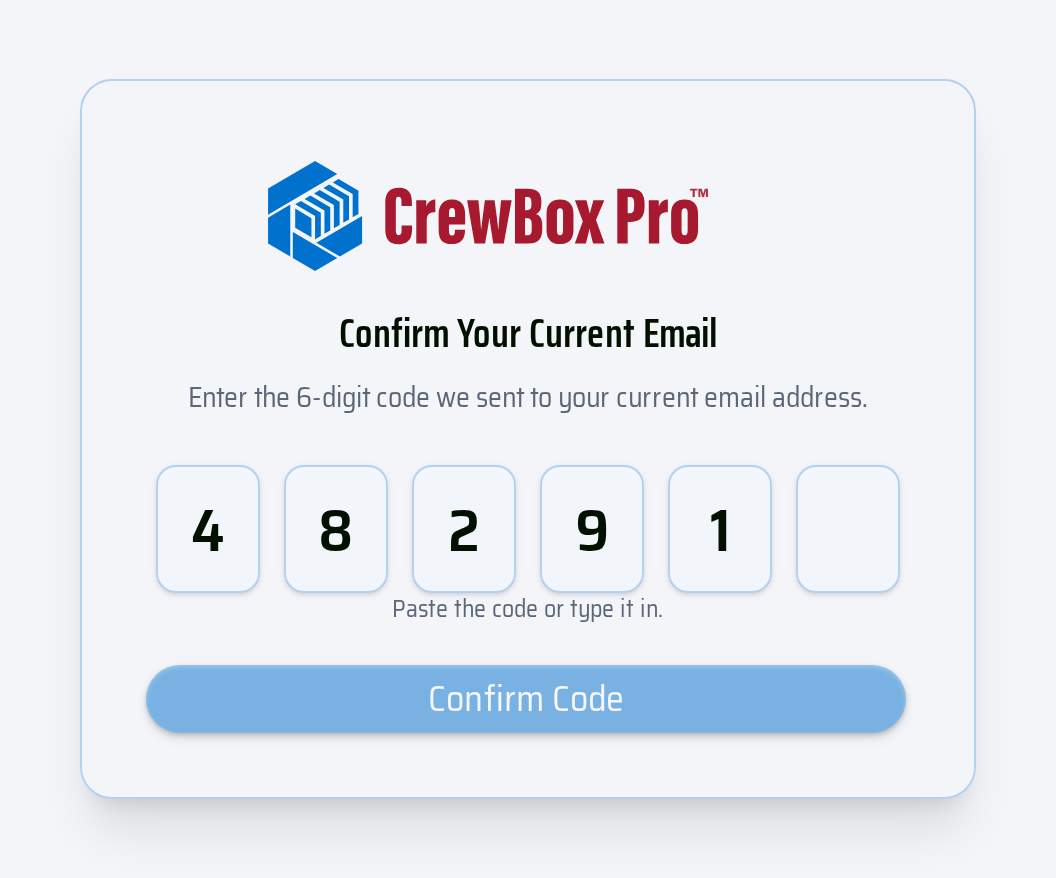
- Open the email sent to your current address and follow its link. On the Confirm Your Current Email page, paste or type the 6-digit code and click Confirm Code.
- When you see Current Email Confirmed!, CrewBox sends a second code to your new address.
- Open that email and follow its link. On the Confirm Your New Email page, enter the code and click Confirm Code.
- Email Updated! — use the new address the next time you sign in.
Good to Know
- Your email address doesn't change until both codes are confirmed — until then, keep signing in with the old one.
- If a code is rejected, check it and try again; codes expire. If a page says the link is incomplete or has expired, start the change again from your profile.