
Steps
1. Open the Jobber settings
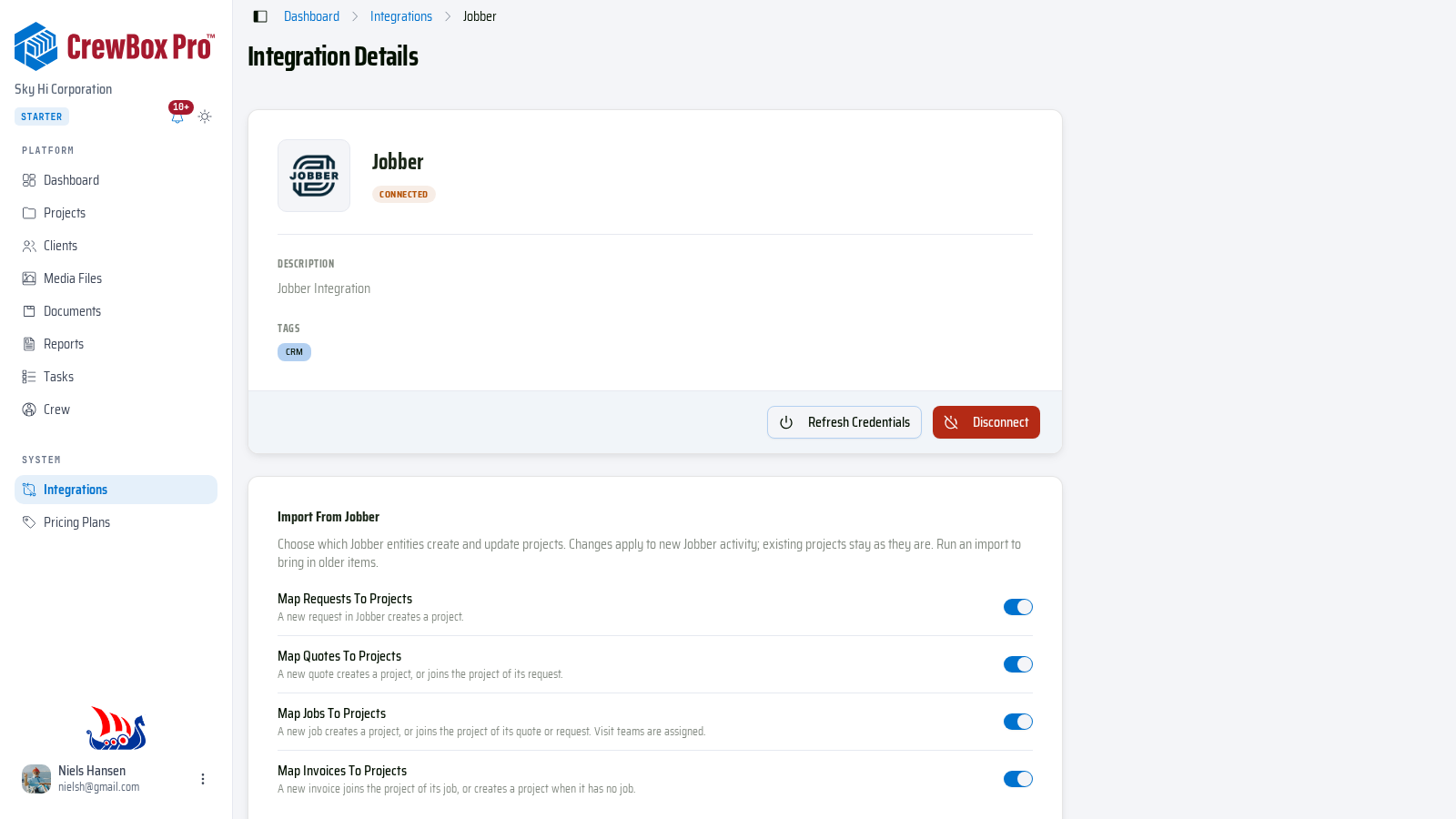
Click Integrations in the sidebar, then Configure on the Jobber card. Jobber must be Connected first — see Connect an integration. Below the connection card you'll find three settings sections and the Jobber import panel. Every switch saves the moment you flip it.
2. Choose what creates projects
Under Import from Jobber, switch on the Jobber items that should create and update projects in CrewBox:
- Map requests to projects — a new request in Jobber creates a project.
- Map quotes to projects — a new quote creates a project, or joins the project of its request.
- Map jobs to projects — a new job creates a project, or joins the project of its quote or request; visit teams are assigned.
- Map invoices to projects — a new invoice joins the project of its job, or creates a project when it has no job.
Changes apply to new Jobber activity; existing projects stay as they are.
3. Choose what goes back to Jobber
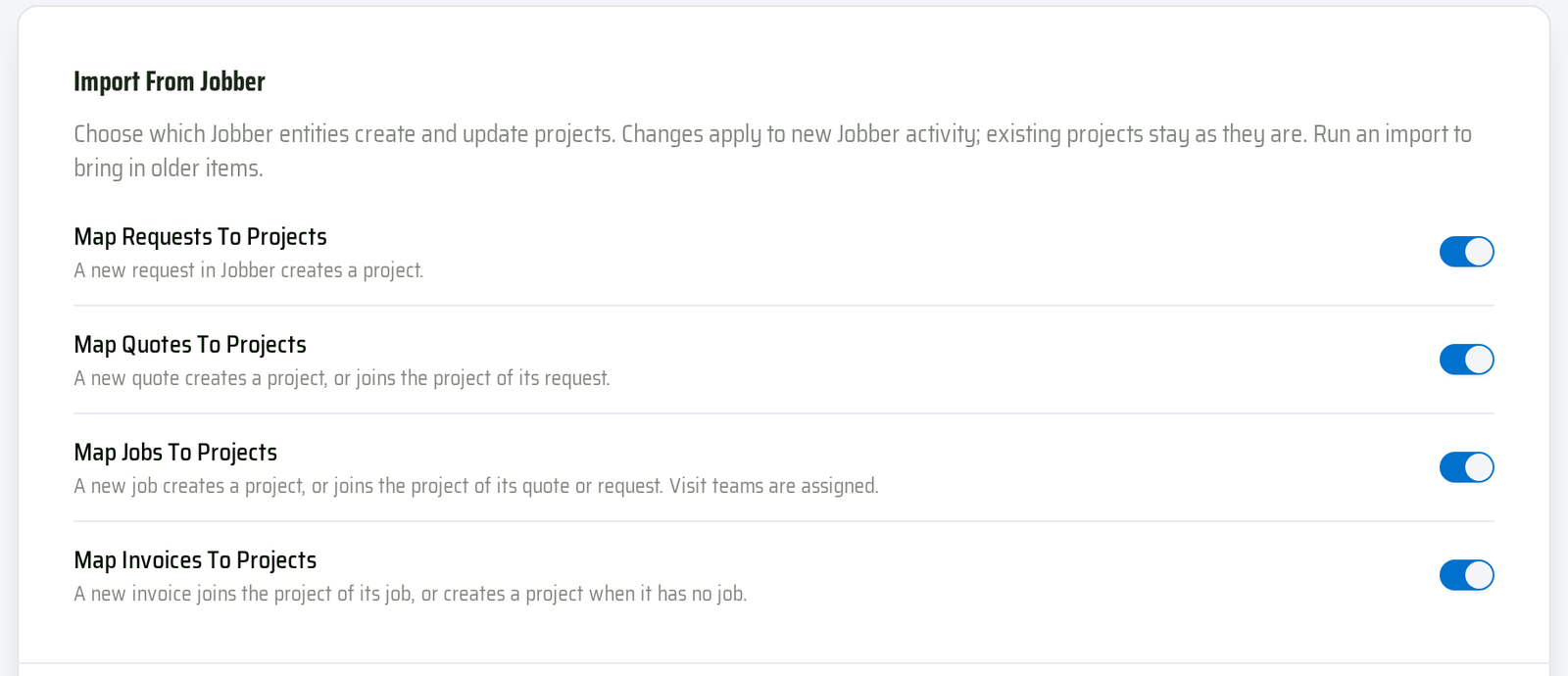
Under Send to Jobber, switch on Photos, Videos, and/or Files. New uploads to a Jobber-linked project then become a note, with the file attached, on the project's latest invoice, job, quote, or request. Files over 10 MB are sent as a link, and only uploads made after you switch a row on are sent. Switch on Export clients to Jobber to create clients you add in CrewBox in Jobber too.
Under New projects, pick what a project created in CrewBox creates in Jobber once a client is set — Nothing, a Request, Quote, Job, or Invoice — linked back to the project.
4. Run an import
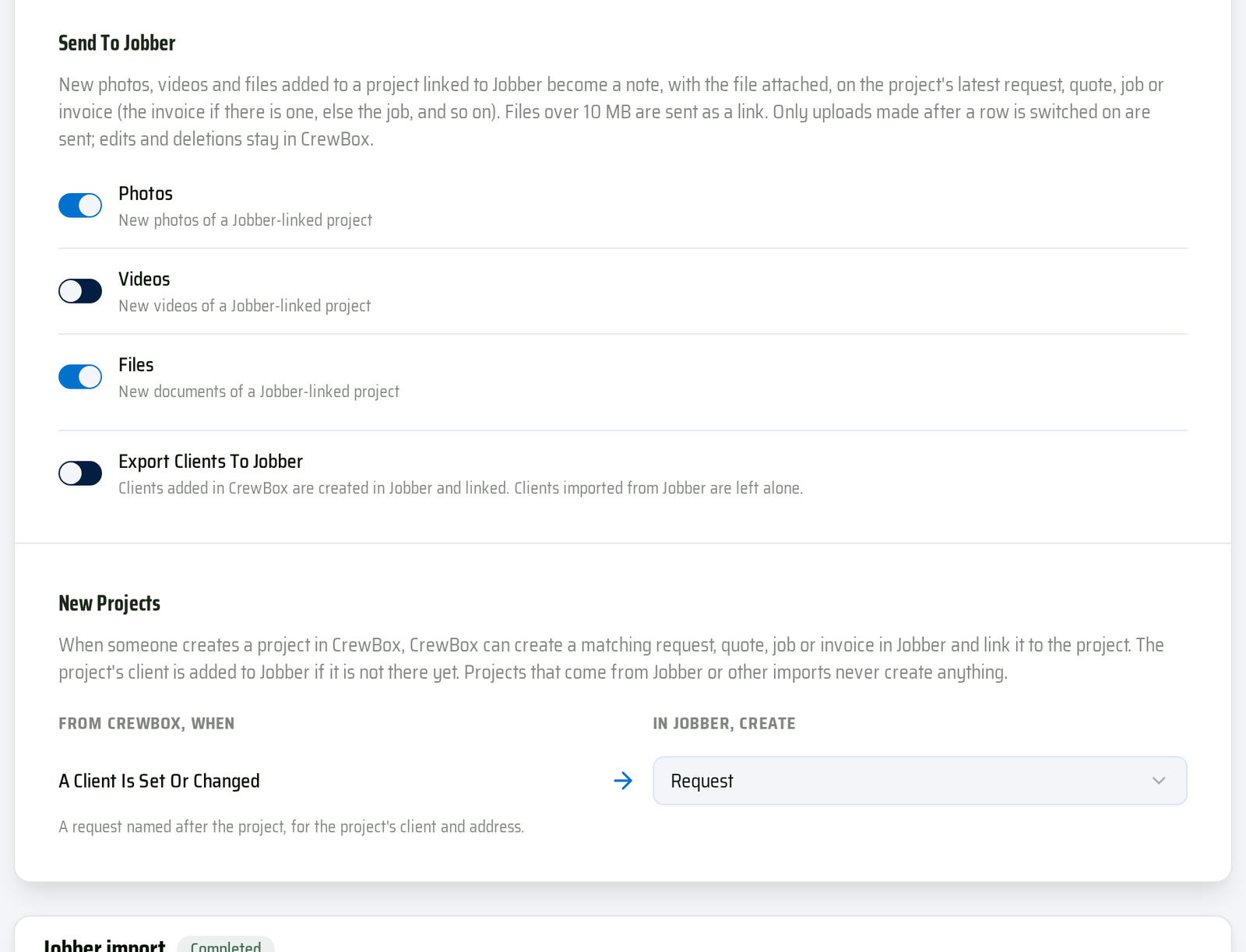
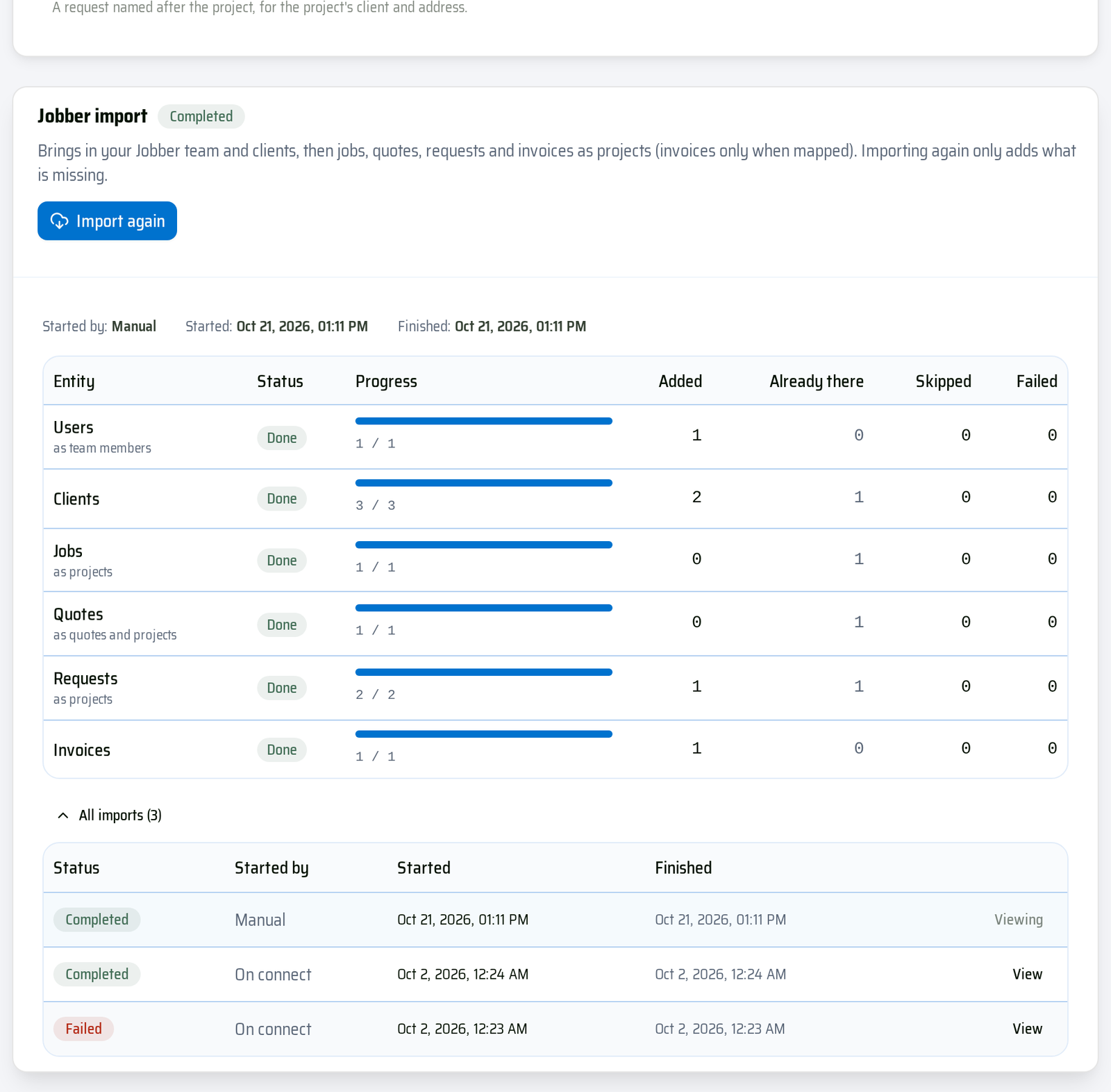
In the Jobber import panel, click Start import (or Import again after the first run). In What to import from Jobber, tick Jobs, Quotes, Requests, and/or Invoices — team members, clients, and their properties are always imported — then click Start import. With nothing ticked, the button reads Import team & clients only. Importing again only adds what is missing.
5. Follow the progress
The panel shows the run's status and, per item type, the progress plus how many were Added, Already there, Skipped, or Failed. While it runs you can click Stop. When something didn't come in, click Failed & skipped to see each item and the reason. All imports lists earlier runs — click View on one to see its results.
Good to Know
- Linked clients, projects, and crew members show a Jobber badge. To link one by hand, open it and choose Link to Jobber… from its actions menu, then paste the address of the matching page in Jobber.
- If Jobber refuses to accept a file, the Send to Jobber section asks you to reconnect — click Refresh Credentials at the top of the page.