
Steps
1. Find the CompanyCam banner
Click Integrations in the sidebar. At the top of the page, the Data and Photos still in CompanyCam? banner offers a migration. (While your workspace has fewer than five projects, the same banner is also docked at the bottom of each project page.)

2. See what moves over
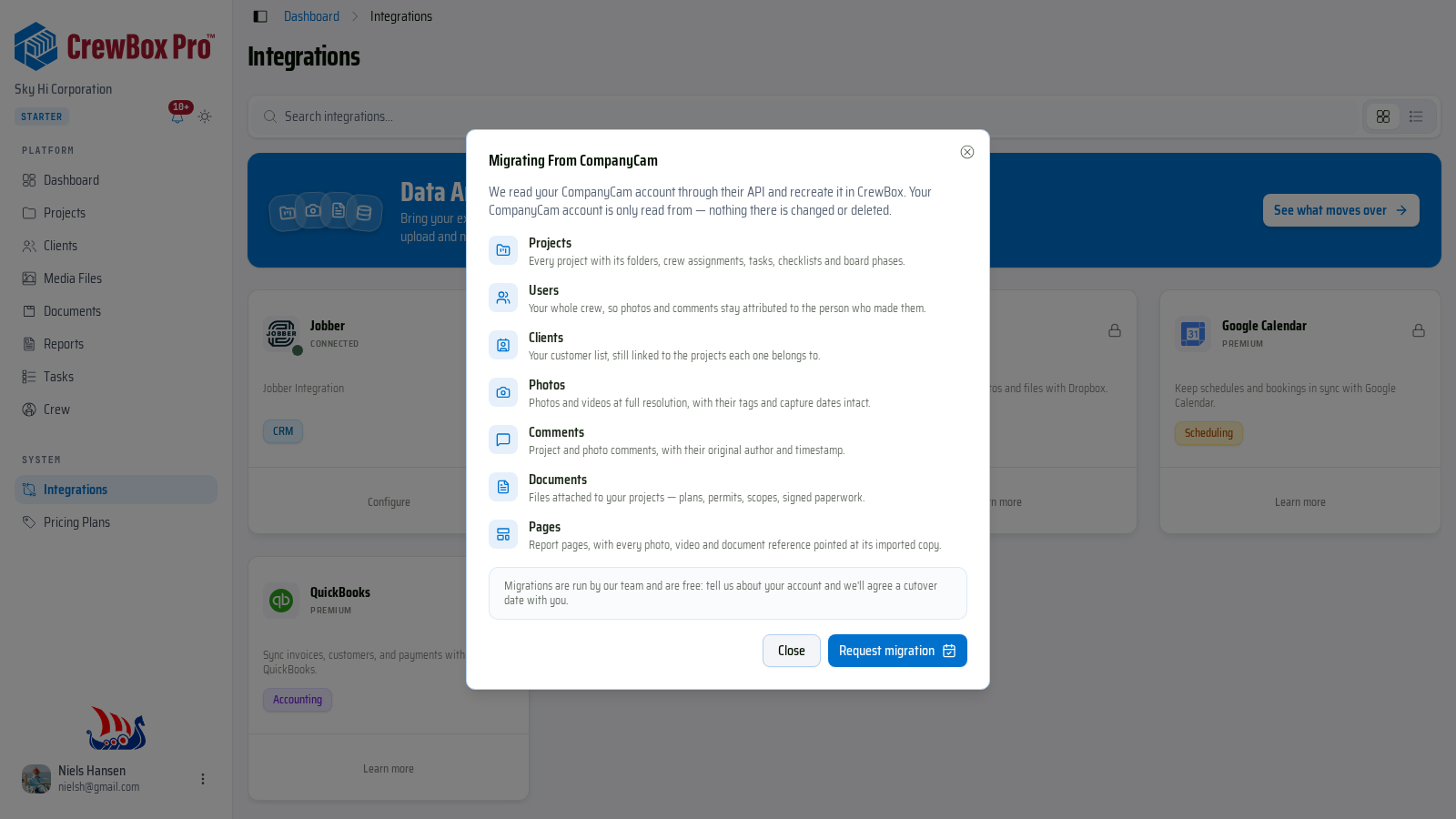
Click See what moves over. The Migrating from CompanyCam dialog lists everything the team brings across:
- Projects — with their folders, crew assignments, tasks, checklists, and board phases.
- Users — your whole crew, so photos and comments stay attributed to the right person.
- Clients — still linked to their projects.
- Photos — photos and videos at full resolution, with tags and capture dates intact.
- Comments — project and photo comments, with their original author and timestamp.
- Documents — plans, permits, scopes, and signed paperwork attached to your projects.
- Pages — report pages, with every photo, video, and document reference pointing at its imported copy.
Your CompanyCam account is only read from — nothing there is changed or deleted.
3. Book a migration call
- Click Request migration.
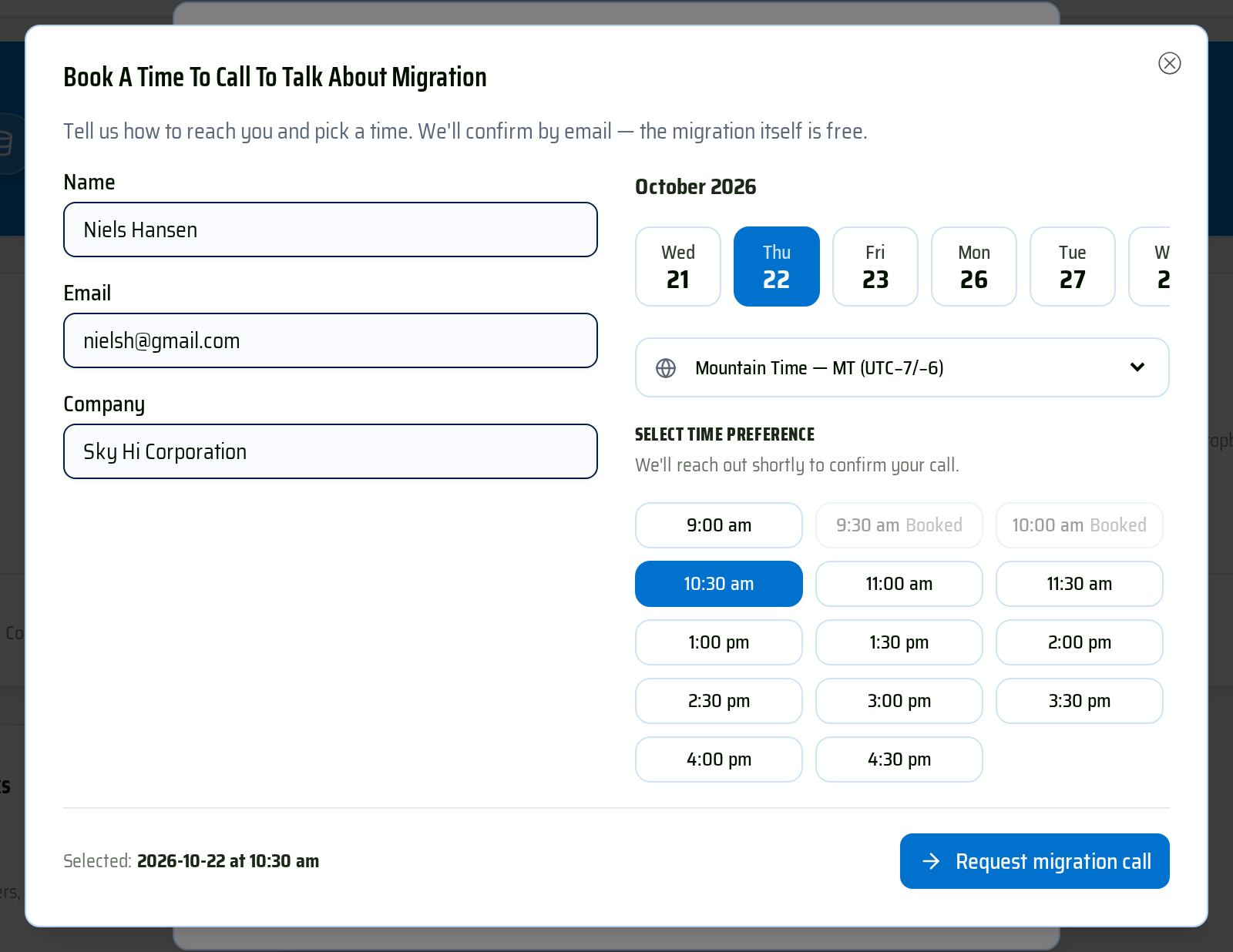
- In Book a time to call to talk about migration, enter your Name, Email, and Company, then click Next: select a time.
- Pick a day, check the Time zone, and choose a time slot (slots already taken show as Booked).
- Click Request migration call.
A Your migration request is on its way message confirms it. The CrewBox Migration team emails you to confirm the call and agree a cutover date — nothing changes in CompanyCam until you say so.