
Open the Comments Tab
- Open the task — from the Tasks tab, a project's Tasks tab, or a notification (viewing guide).
- Tap Comments, next to Details. The badge on the tab shows how many comments the task has, and the thread's header reads On This Task.
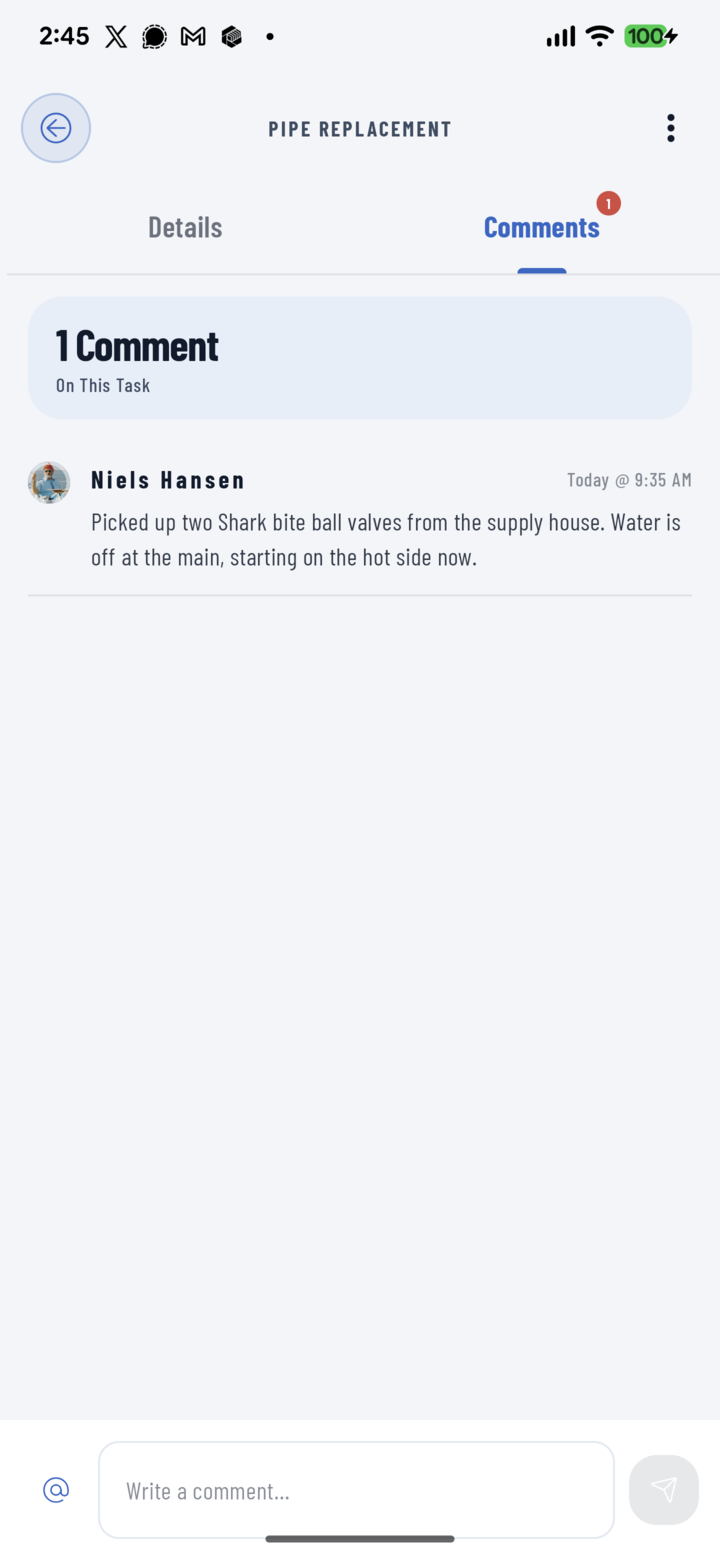
The Comments tab of a task, next to Details — its header reads 1 Comment, with the reply field at the bottom.
Post a Comment
- Tap Write a comment… and type your update.
- To pull someone in, tap @ and pick them in Mention a Crew Member (search by name or role).
- Tap send. The comment appears for everyone on the task right away — and when someone else is typing, you'll see "… is writing a comment…" above the box.
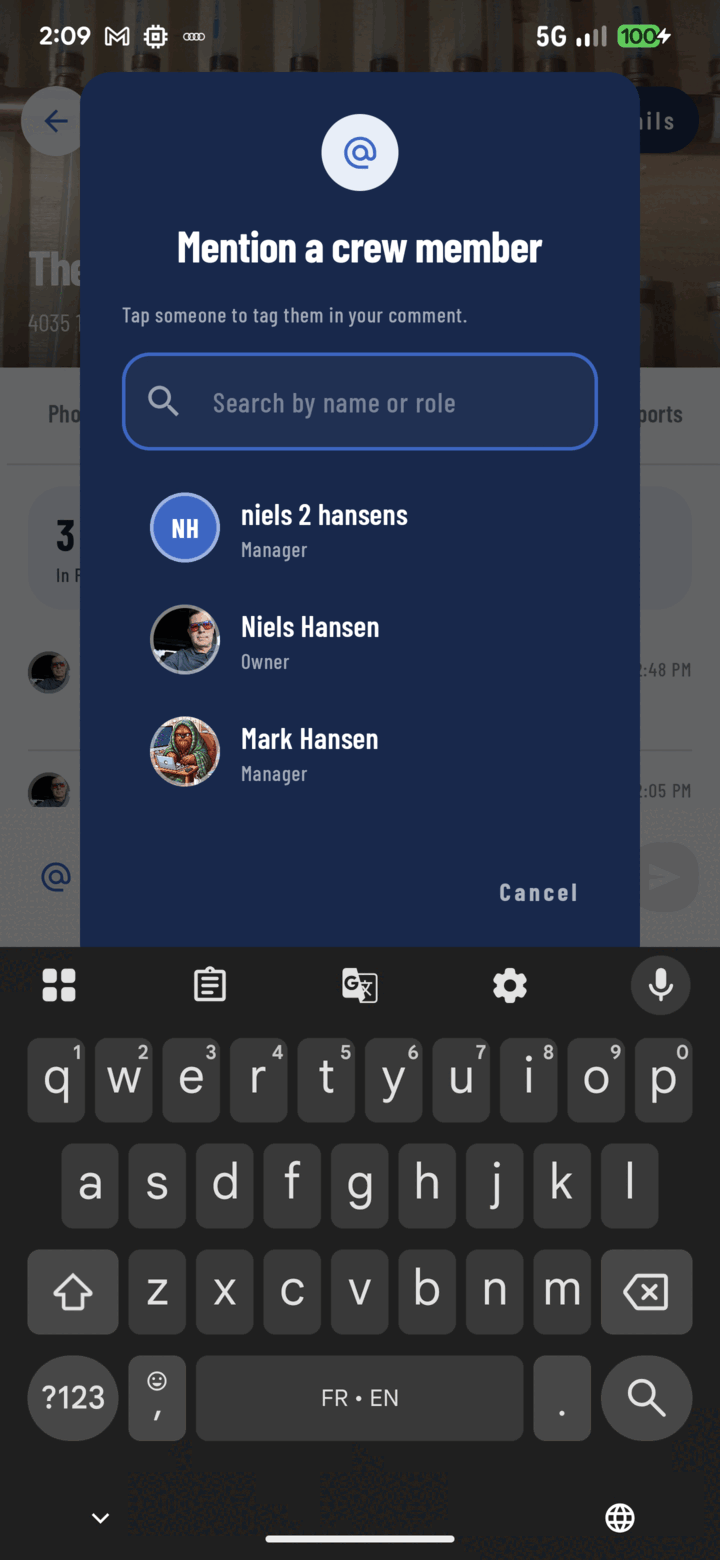
Tap @ to pick a teammate in Mention a Crew Member — search by name or role.
Edit or Delete a Comment
- Long-press a comment to select it (tap others to add them).
- Tap Actions → Edit or Delete.
You can edit your own comments — edited ones show (edited). Owners can edit any comment; owners and managers can delete comments, and a delete can't be undone.
Who Hears About It
- Anyone you @mention gets a Mention notification. Tapping it opens the task straight on its Comments tab.
- Anyone viewing the task sees new comments arrive live, and the Comments badge counts up.
No Signal?
You can still post — the comment is saved on the device, shows Not sent, and goes out automatically when you reconnect.
Tips
- Use task comments for progress, blockers, and questions for whoever the task is assigned to — they stay with the work itself.
- Conversation about the whole job belongs in the project's Comments tab (guide).