
Open a task's comments
- Click the task card on the board (project Tasks tab or global Tasks page) to open the task side panel.
- Click the Comments tab next to Details. The tab shows how many comments the task already has.
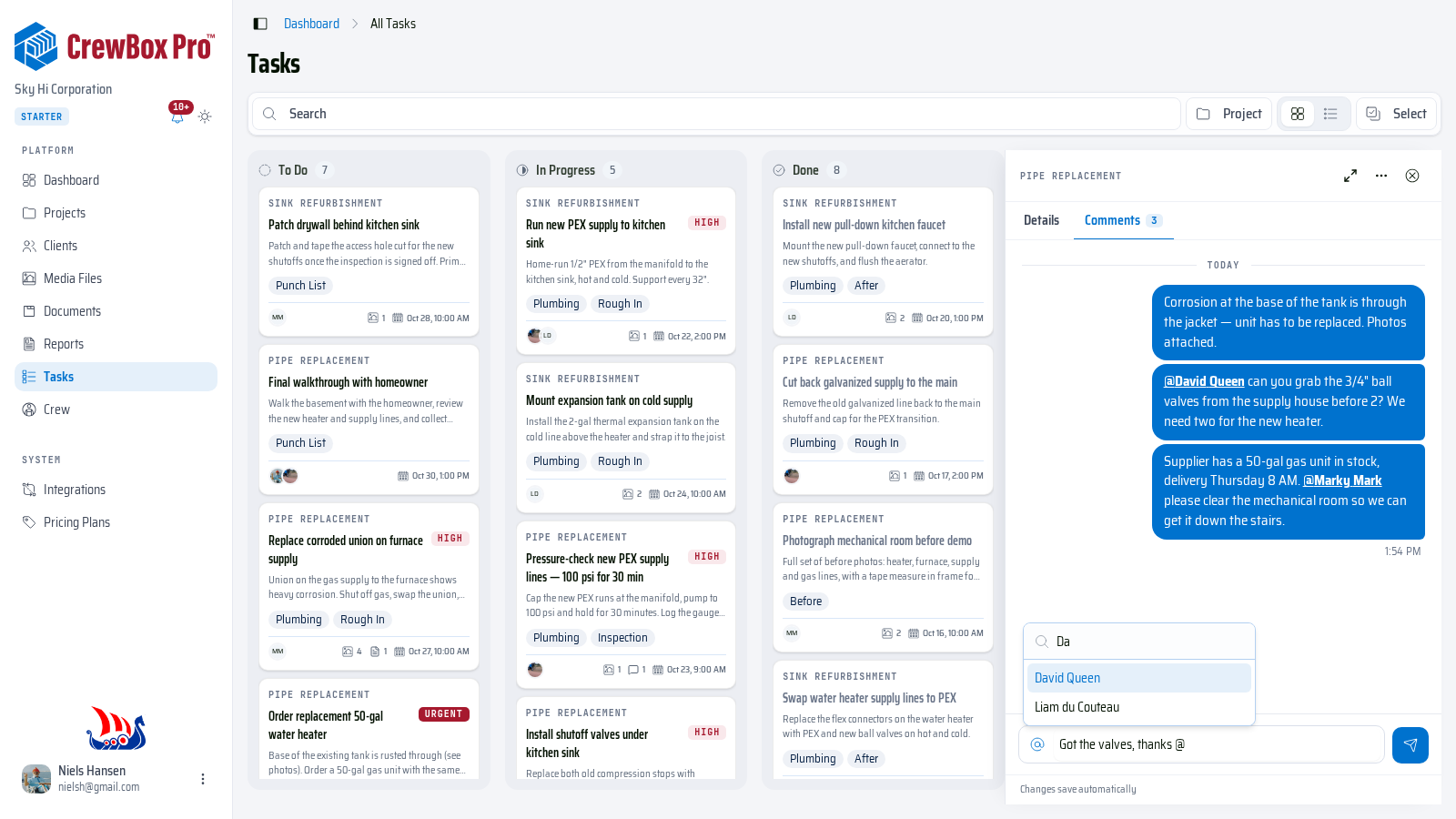
Task cards show a comment count too, so you can spot active discussions straight from the board. On the full task page (Open full task page), the thread takes the main column with the task's properties alongside.
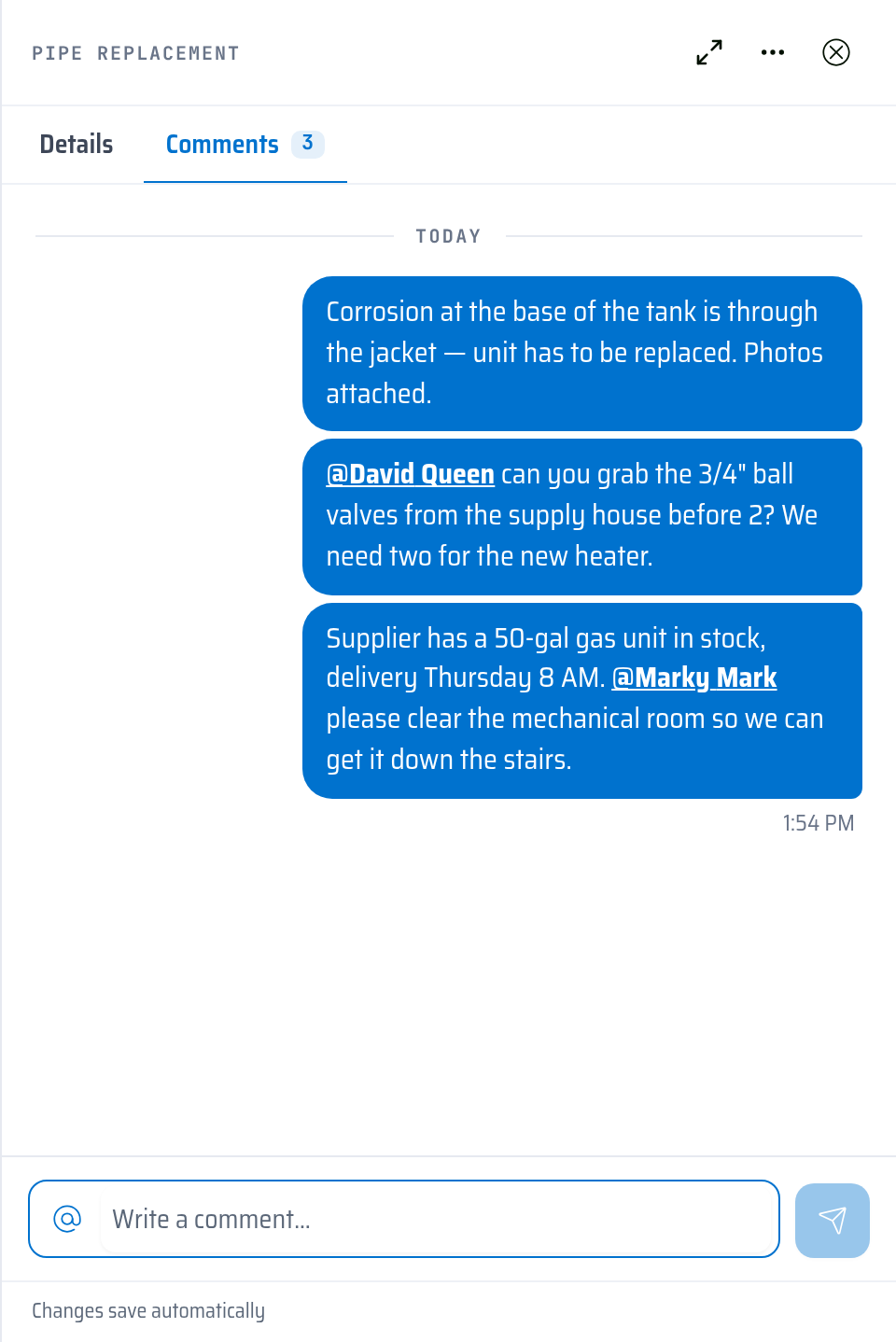
Post a comment
- Type your message in the comment box.
- To pull in a teammate, type @ — an autocomplete of teammates opens. Pick a name and it renders as a highlighted mention.
- Press Enter to send. Mentioned teammates get a notification that opens the task right on its Comments tab.
You'll see "… is writing a comment…" while a teammate is typing in the same task.
Edit or delete a comment
- Edit your own comments inline: press Enter to save or Escape to cancel. Edited comments carry an "(edited)" marker. Workspace owners can also edit.
- Delete is limited to the owner role and asks for confirmation before removing the comment.