
Steps
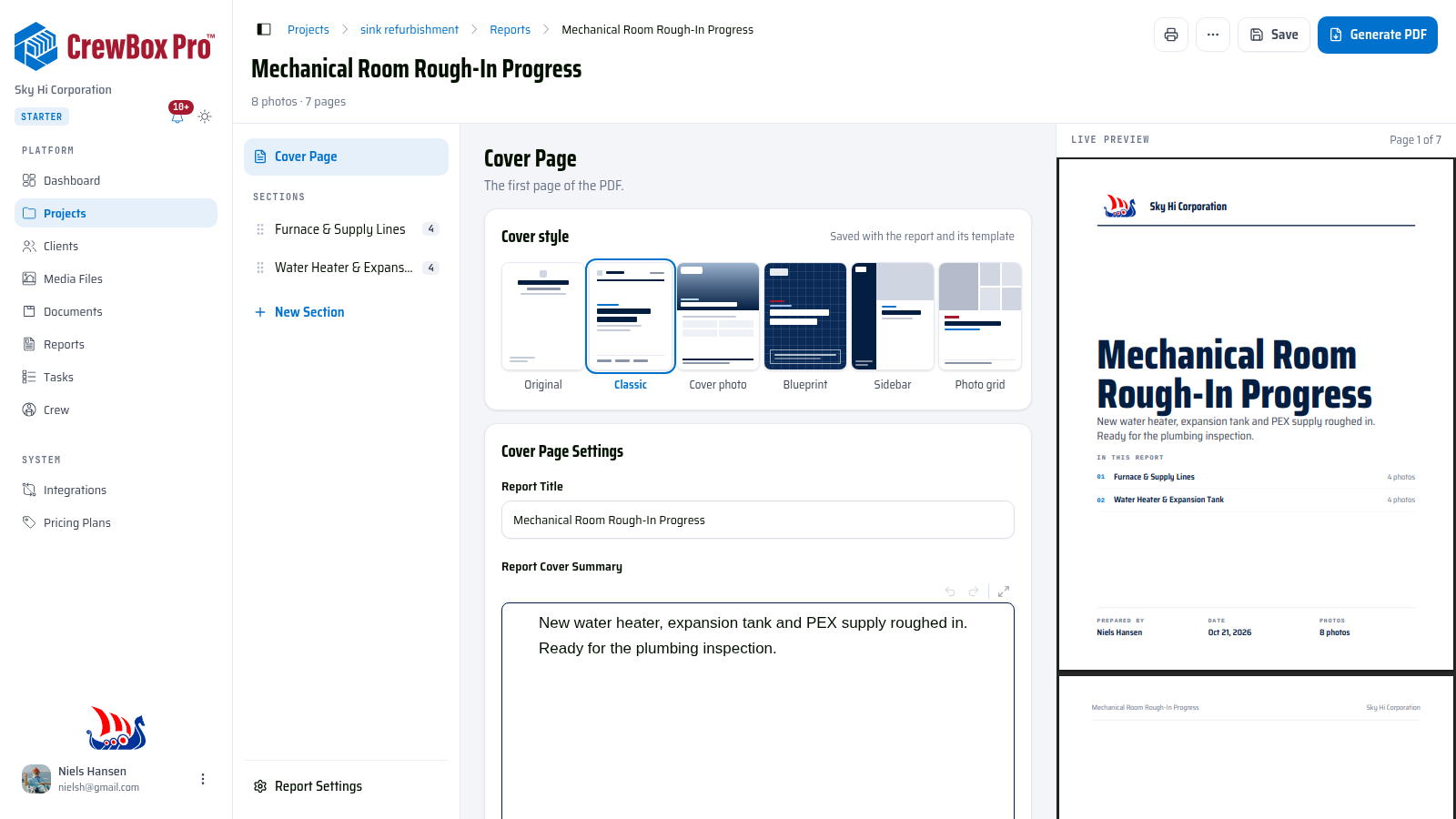
1. Open the cover editor
Open your project, click the Reports tab, open a report, then click Cover Page at the top of the section sidebar.
2. Pick a style
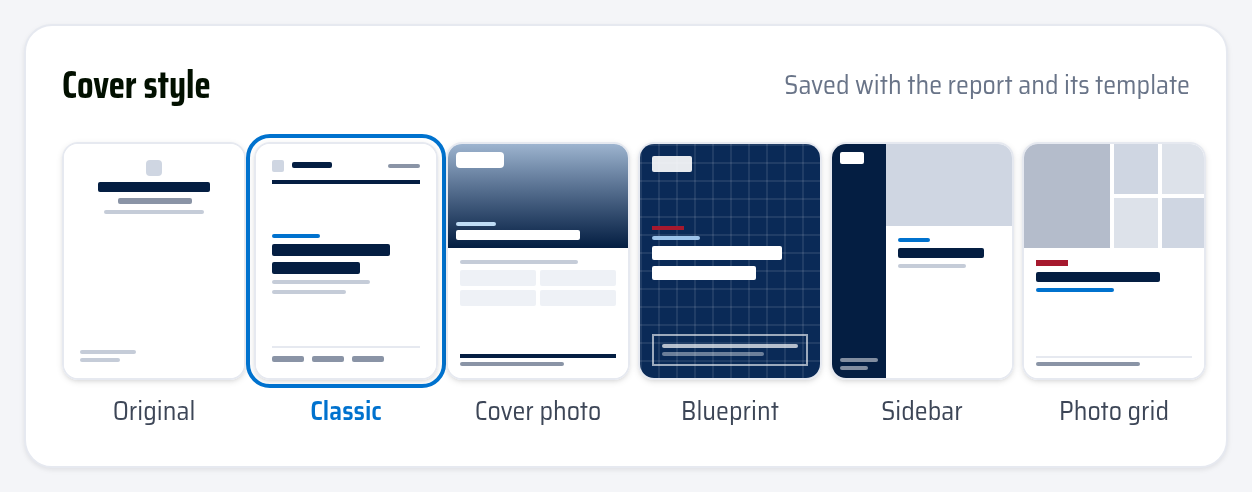
The Cover style card shows a thumbnail of each layout. Click one to apply it — the live preview jumps back to page 1 so you can see the new cover right away:
- Original — the classic centered title page, with adjustable alignment.
- Classic — a masthead with your logo and company name, a bold title block, and a row of report details at the foot. New reports start here.
- Cover photo — a large site photo across the top with the title over it.
- Blueprint — a navy blueprint-grid page with a white title block.
- Sidebar — a dark side band with your branding beside a photo and the title.
- Photo grid — a mosaic of five report photos above the title.
3. Choose the cover photos (photo styles)
The photo-led styles use photos that are already in the report:
- Cover photo and Sidebar use the first photo in the report by default. Click Change next to the thumbnail to pick a different one from the report's photos.
- Photo grid uses the first five photos in the report. Click Change to pick up to five, and drag the thumbnails to reorder them — the first one is the large lead photo.
If the report has no photos yet, add some to a section first.
4. Fine-tune what shows
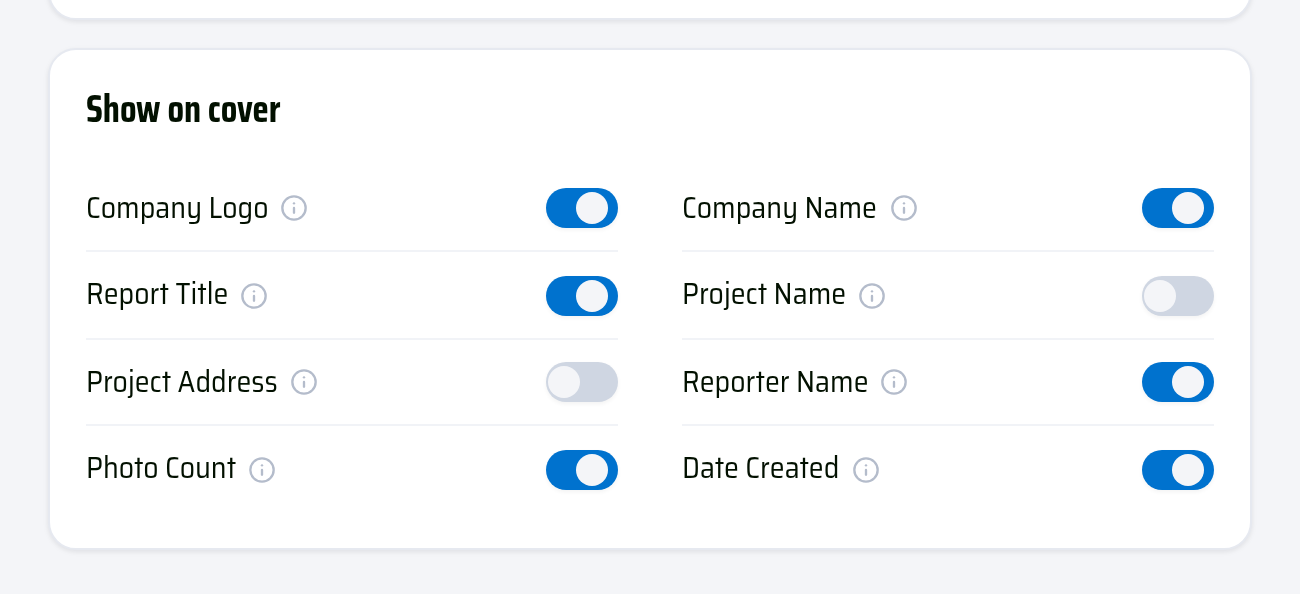
Use the Show on cover toggles (logo, company name, title, project name and address, reporter, photo count, date) to decide what each style prints. With Original, an Alignment card also sets Left / Center / Right for each block.
Tips
- The style is saved with the report and with any template you make from it — but template covers never keep a cover photo, since templates carry no photos.
- Reports created before cover styles existed keep the Original cover until you pick another.