
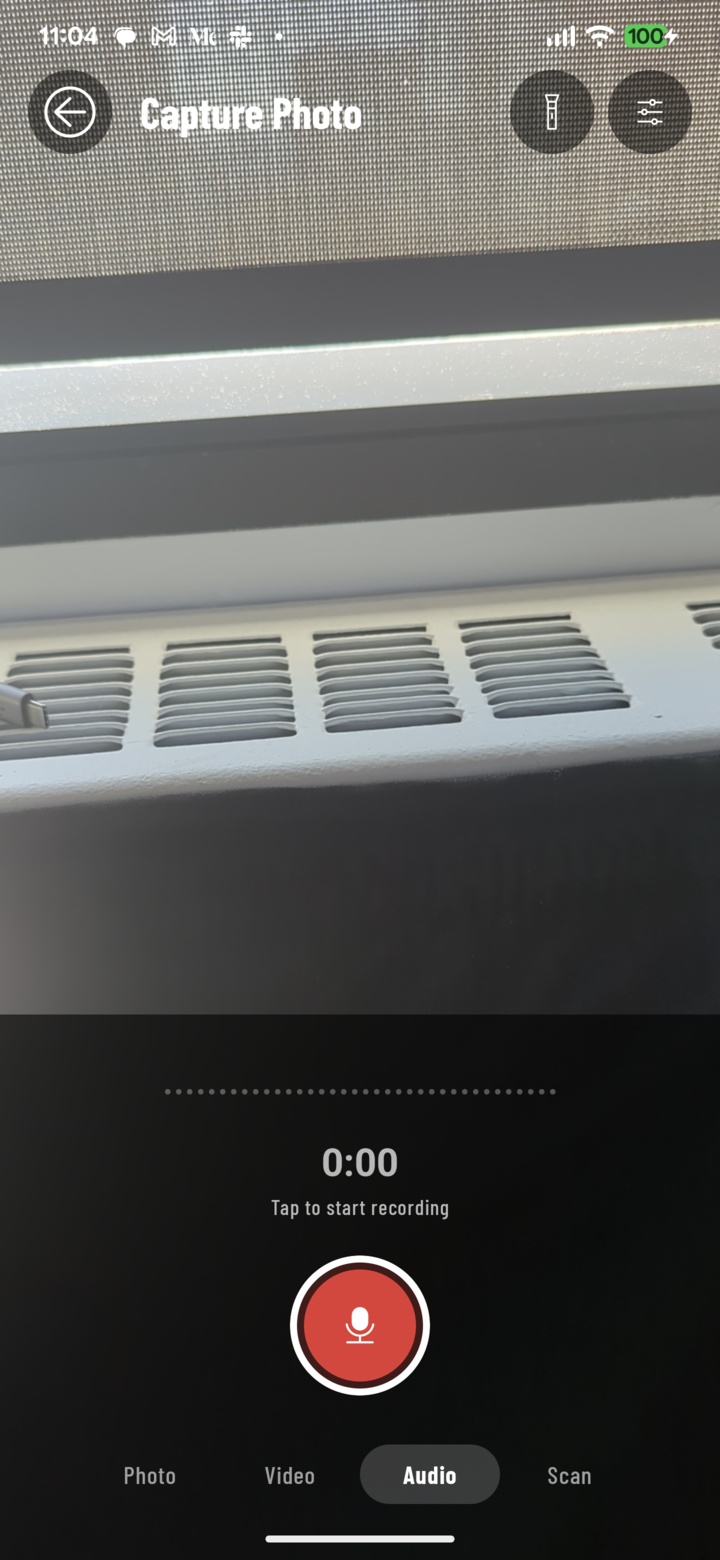
Audio mode in the camera — tap the red button to start a voice note.
A voice note is the fastest way to capture what a photo can't — the homeowner's change request, the inspector's verbal punch list, the reason behind the reroute. It files to the project like a photo.
From the Camera
- Open the camera for your project (swipe on Home, or use a project's camera button).
- Tap Audio in the mode row under the shutter. The shutter becomes a red microphone button and a live sound trace with a timer replaces the zoom wheel.
- Tap the button to start recording and speak.
- Tap again to stop. The voice note is added to the tray ("Voice note added to the tray") alongside your photos and videos.
- Tap the send button to upload everything in the tray — or keep shooting and send later.
From a Project
- In the project, long-press the camera button on the Photos tab and tap the microphone.
- The Voice Note sheet opens — tap to start recording.
- Tap again to stop. The note uploads to the project straight away (or waits in the upload queue if you're offline). Tap Discard to throw a take away.
Good to Know
- If nothing reaches the microphone for a few seconds, CrewBox warns you — check it isn't muted or in use by another app.
- Very short taps are rejected as too short to save — hold on a moment longer.
- Leaving Audio mode or the camera before you stop throws that take away.
- The volume keys don't take photos in Audio mode, so you can't snap a picture mid-note by accident.
Playing and Finding Voice Notes
- Voice notes appear in the Photos grid with their own microphone tile. Tap one to play it full-screen with its waveform.
- Find them all: in Filter Media (or the search field's Media option), choose Audio.
- Comment on a voice note, tag it, add it to a task, share it, or save it to your device — like any other media. (Voice notes can't be annotated or placed in PDF reports.)