
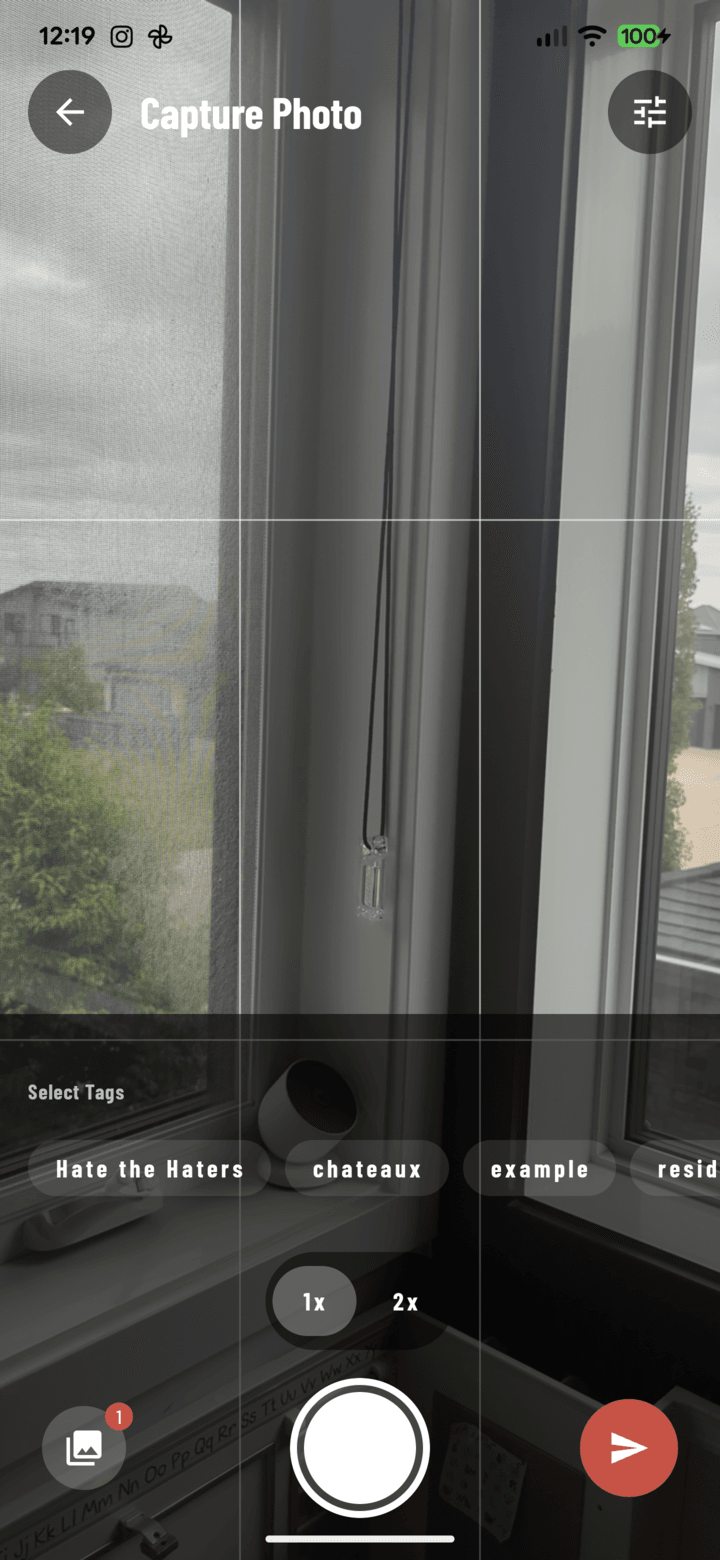
Scan sits at the end of the camera's mode row.
Delivery tickets, permits, inspection sheets, invoices — scan the paperwork on site and it's filed with the project as a PDF in Documents, with its text read and saved alongside it.
Steps
- Open the camera for your project and tap Scan in the mode row under the shutter.
- Your phone's document scanner opens. Point it at the page — it finds the edges, captures, crops, and straightens. Keep going to add more pages (up to 20 on Android).
- Finish in the scanner. CrewBox opens Review scan and reads the text on each page, on the phone ("Reading text… 1 of 3").
- Check the pages (swipe through them), set the NAME — it defaults to "Scan" plus the date and time — and correct the recognized TEXT if needed. The text is saved with the document as its notes.
- Tap Save to Documents. The PDF uploads to the project's Documents tab and you're back in the camera, in the mode you came from.
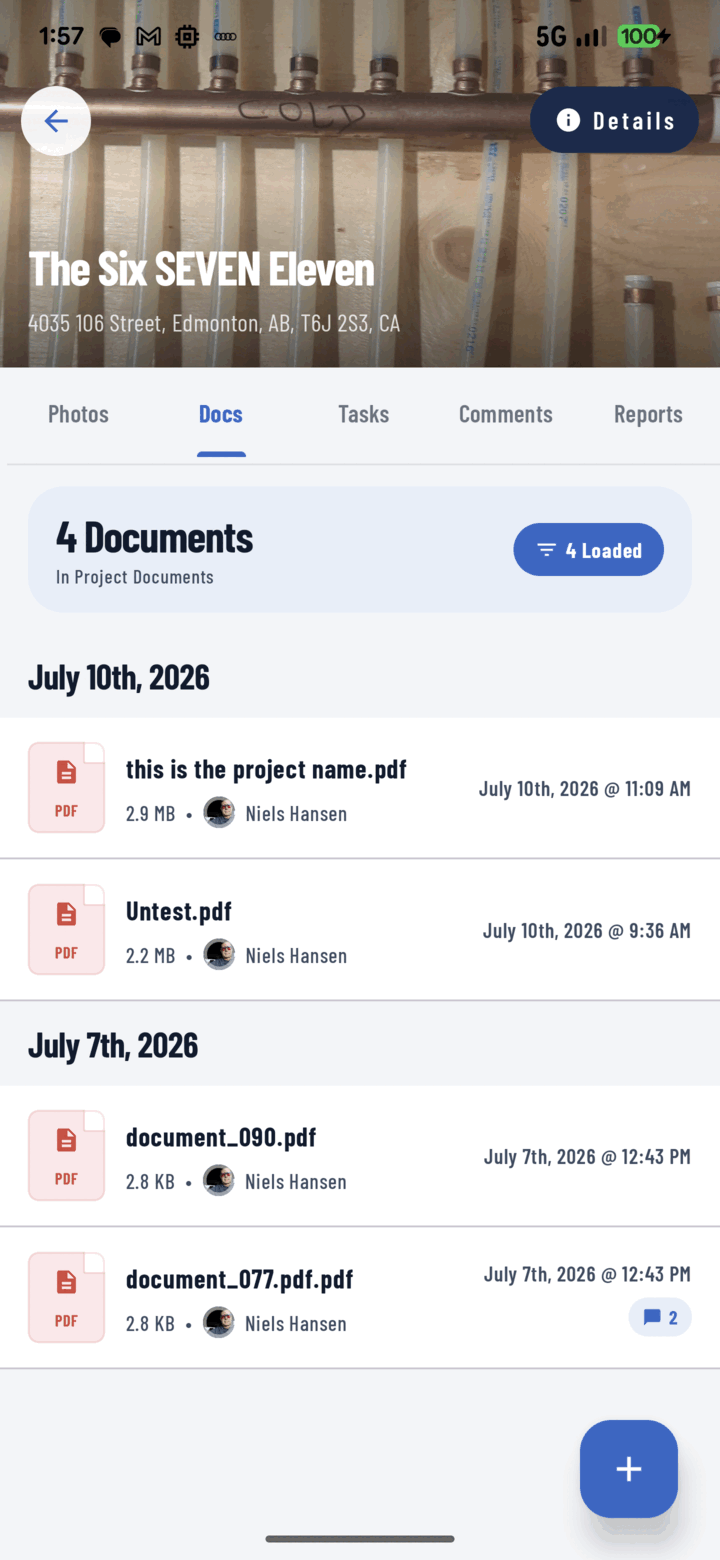
Scans are filed as PDFs in the project's Docs tab.
Good to Know
- Works offline: the text is read on the phone, and a scan saved without signal waits on the device and uploads when you're back online. (On Android, the scanner itself may need a connection the very first time you use it.)
- No text found? The scan still saves — the notes are just empty.
- Changed your mind? Tap Discard and confirm — the scanned pages are deleted from your phone.
- The PDF lands in Documents like any other file: rename it, move it, comment on it, or attach it to a task.